Opening the API dashboard
Click APIs in the left sidebar. You can also click your profile image and then click API dashboard. The steps on this page start from the API dashboard and assume you’re logged in. If you don’t have an account yet, see Create an account.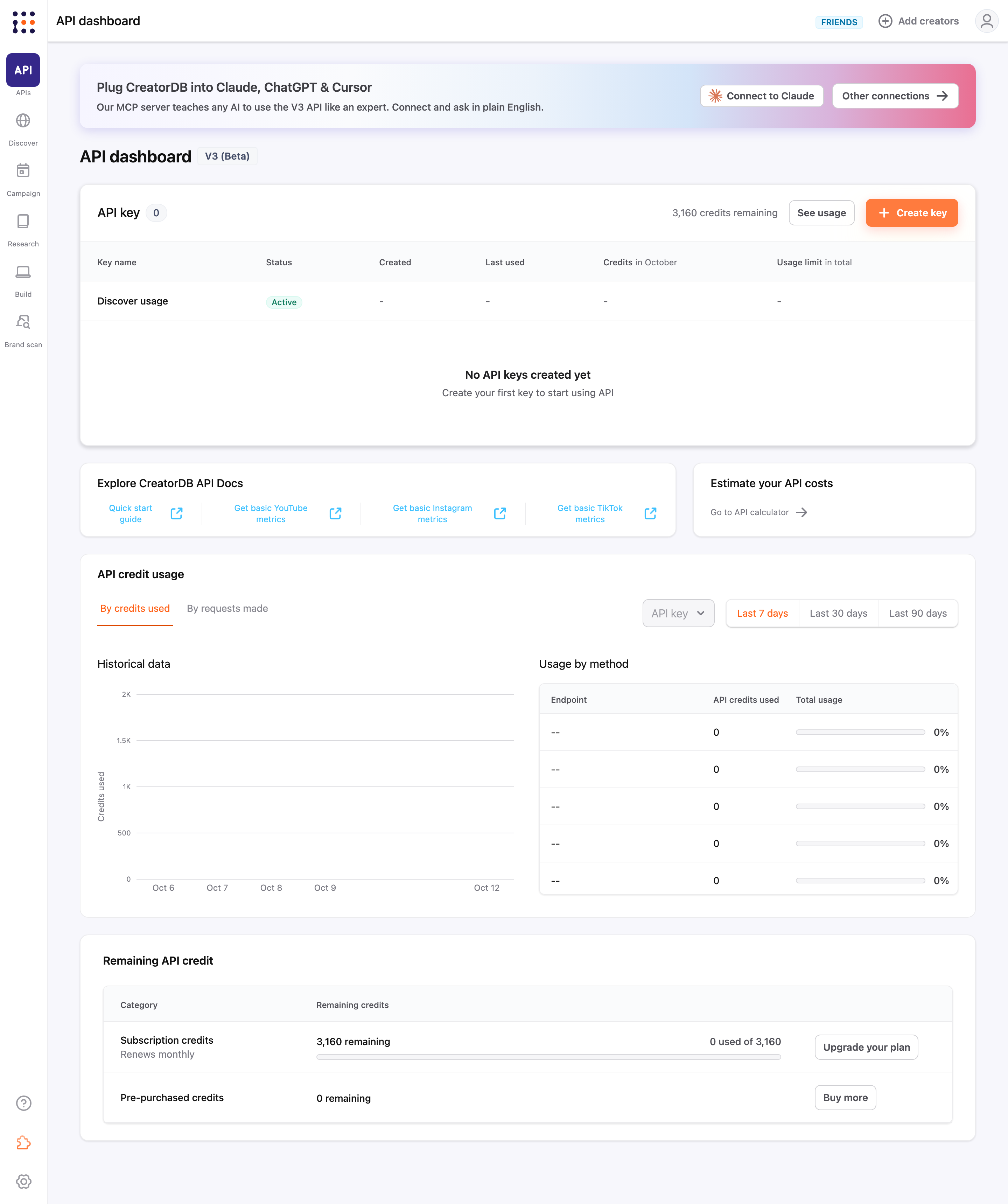
If you subscribed to the CreatorDB API before the V3 migration, you can switch between the API v3 (Beta) and API v2 tabs. For details, see Legacy V2 dashboard.
Getting started
If you have no API keys and no credits, the API dashboard shows the steps to make your first API call: Get credits, Create an API key and Make your first call. You can buy credits with Buy credits, or compare plans that include monthly credits with Compare plans. For details on plans and monthly credits, see Managing Subscription Plans.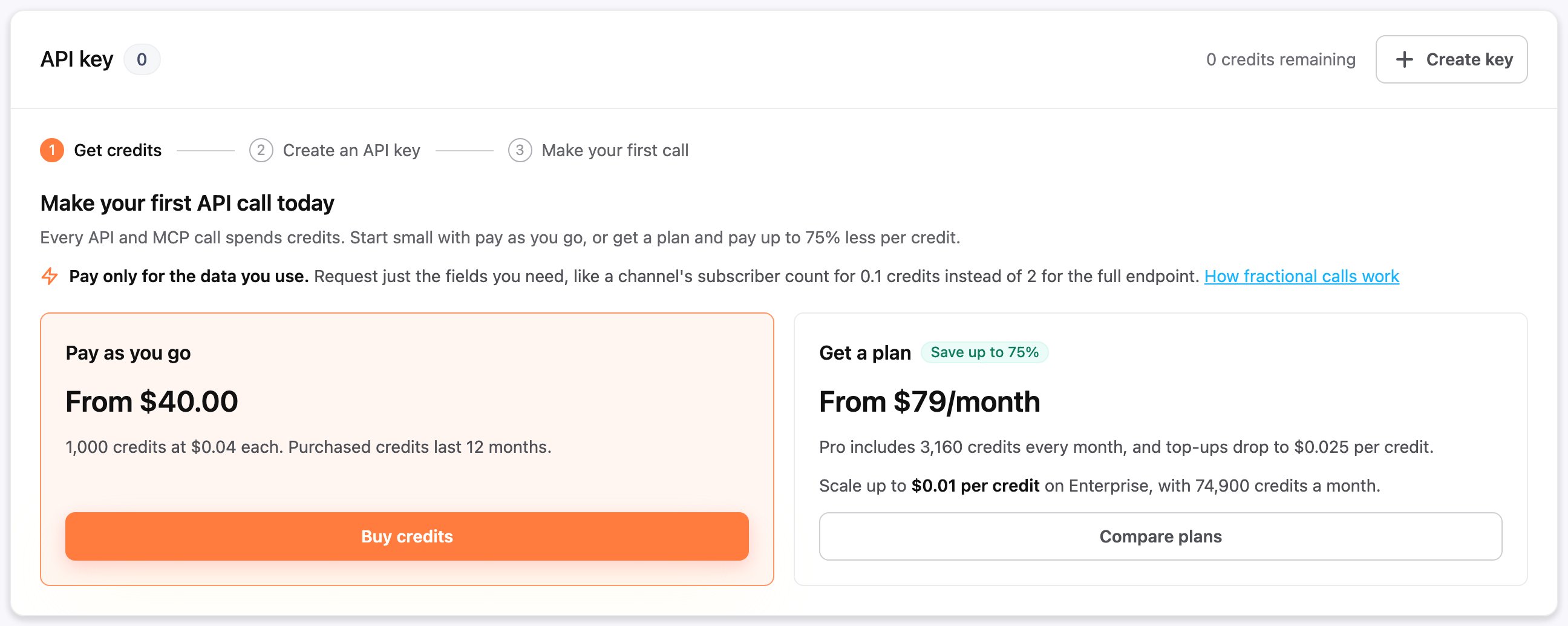
Managing API keys
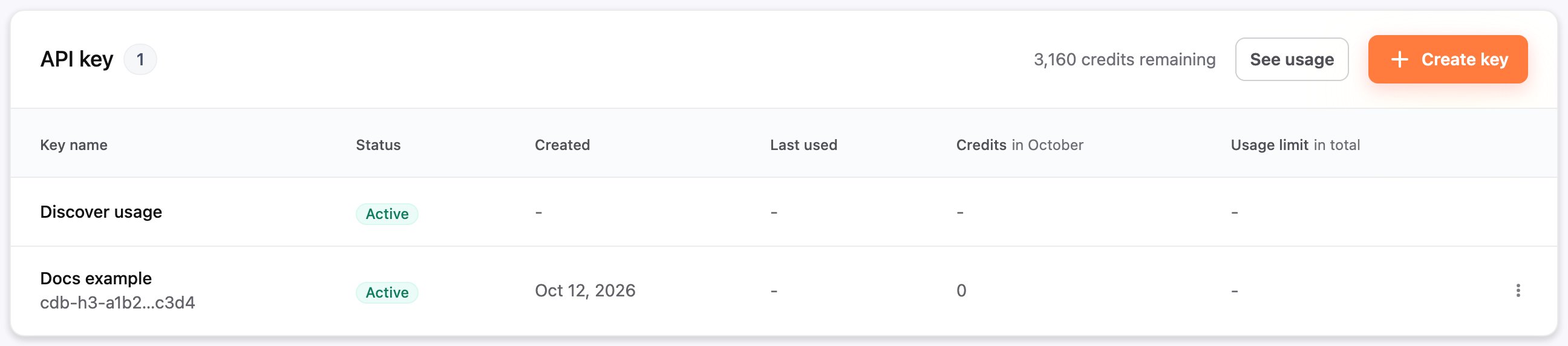
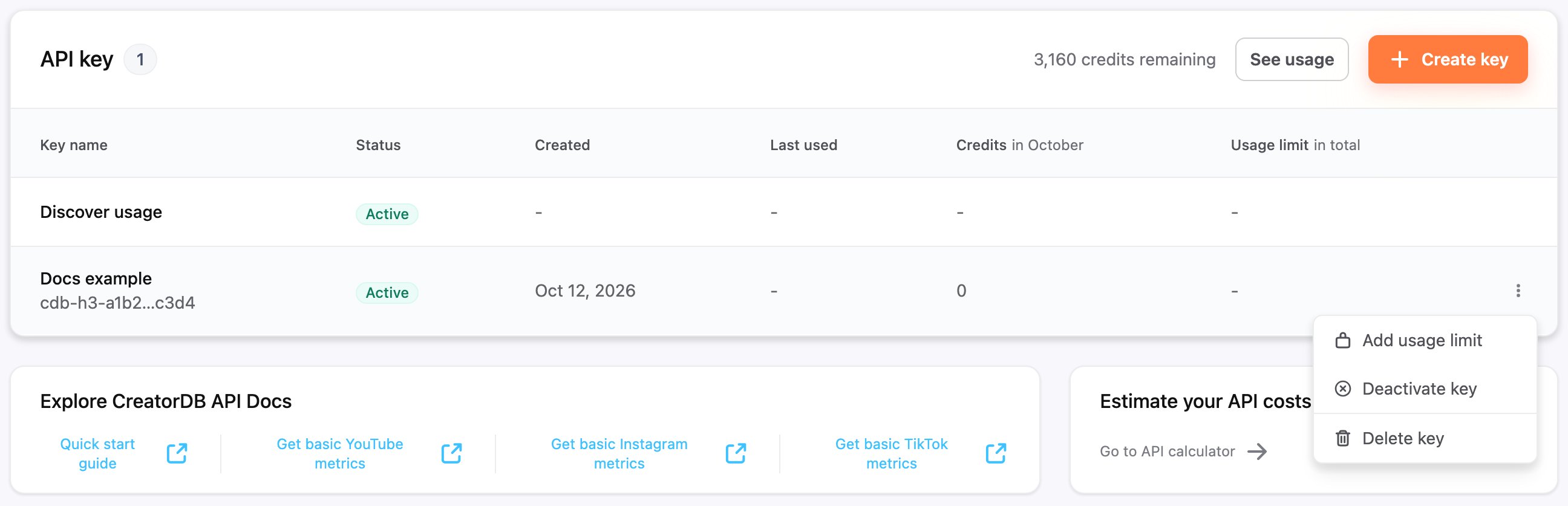
The API key section lists your API keys and shows your remaining credits. You can view the following details for each key:Every account has a built-in default key named Discover usage. It powers your Discover usage in the CreatorDB platform, and you can’t copy, limit, deactivate or delete it.
Creating an API key
- Open the API dashboard.
- Click Create key.
The Create API key window appears. - Enter a Key name.
The key name must be unique and can’t be longer than 50 characters. - Optional: Click Add credit usage limit, and then enter a Credit usage limit.
- Click Create.
The Save your API key window appears. - Click Copy.
- Click Done.
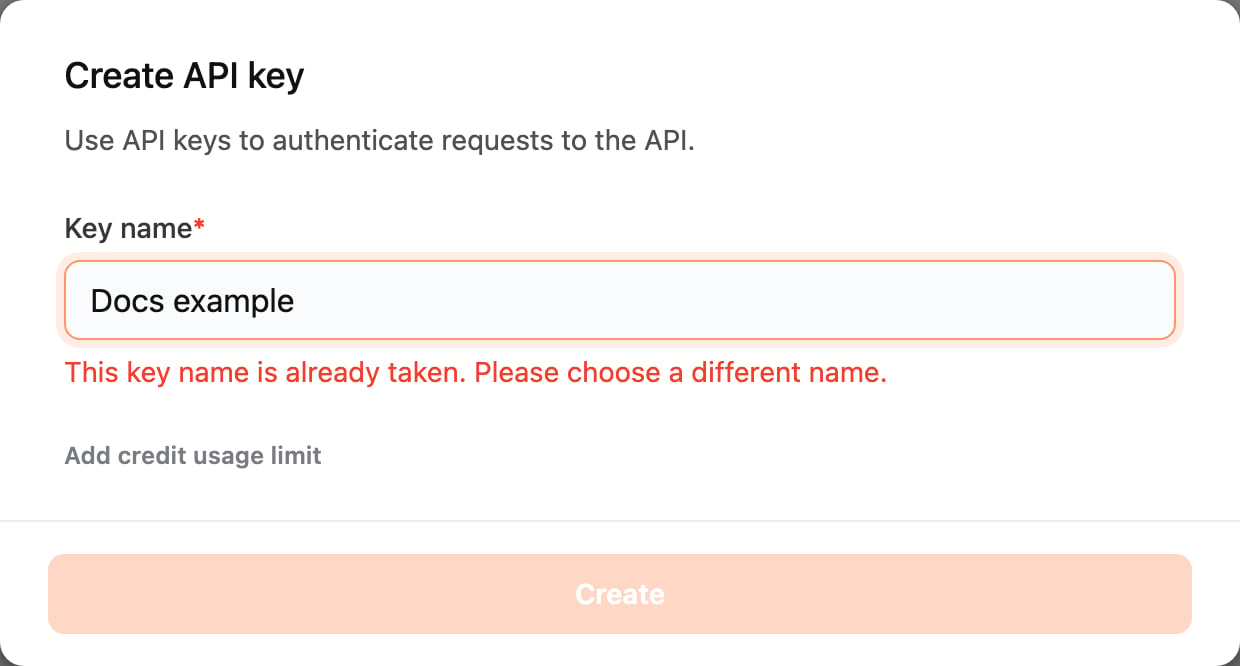
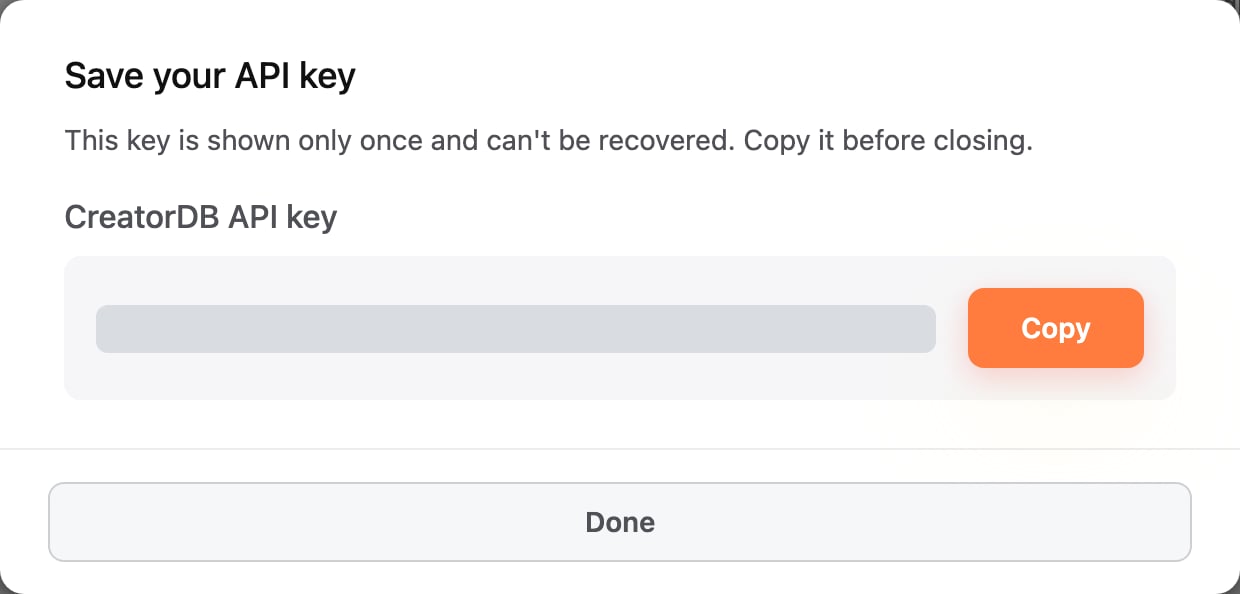
Key names can’t be changed after creation. To use a different name, create a new key and delete the old one.
api-key request header. For details, see Authentication.
Adding or resetting a usage limit
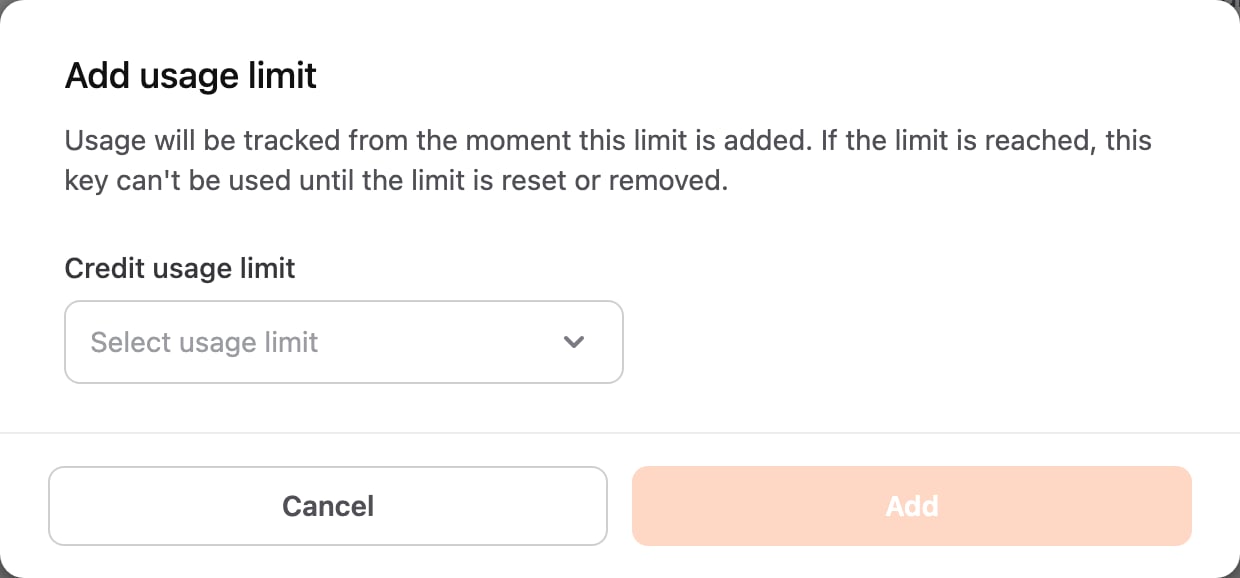
A usage limit caps the total credits an API key can spend. When a key reaches its limit, its status changes to Limit reached, and the key can’t be used until you reset or remove the limit.- Open the API dashboard.
- Click the more icon next to the API key.
A drop-down menu appears. - Click one of the following:
- Add usage limit: Select a Credit usage limit or enter a Custom limit, and then click Add. Usage is tracked from the moment the limit is added.
- Reset usage limit: Select a new Credit usage limit, or select Remove usage limit, and then click Reset. Resetting clears all current usage.
Deactivating or reactivating an API key
A deactivated key stops working immediately. Any requests using it fail until you reactivate it.- Open the API dashboard.
- Click the more icon next to the API key.
A drop-down menu appears. - Click Deactivate key.
The Deactivate API key window appears. - Click Deactivate.
Deleting an API key
- Open the API dashboard.
- Click the more icon next to the API key.
A drop-down menu appears. - Click Delete key.
The Delete API key window appears. - Click Delete.
Viewing API usage
The API credit usage section shows how you use the CreatorDB API.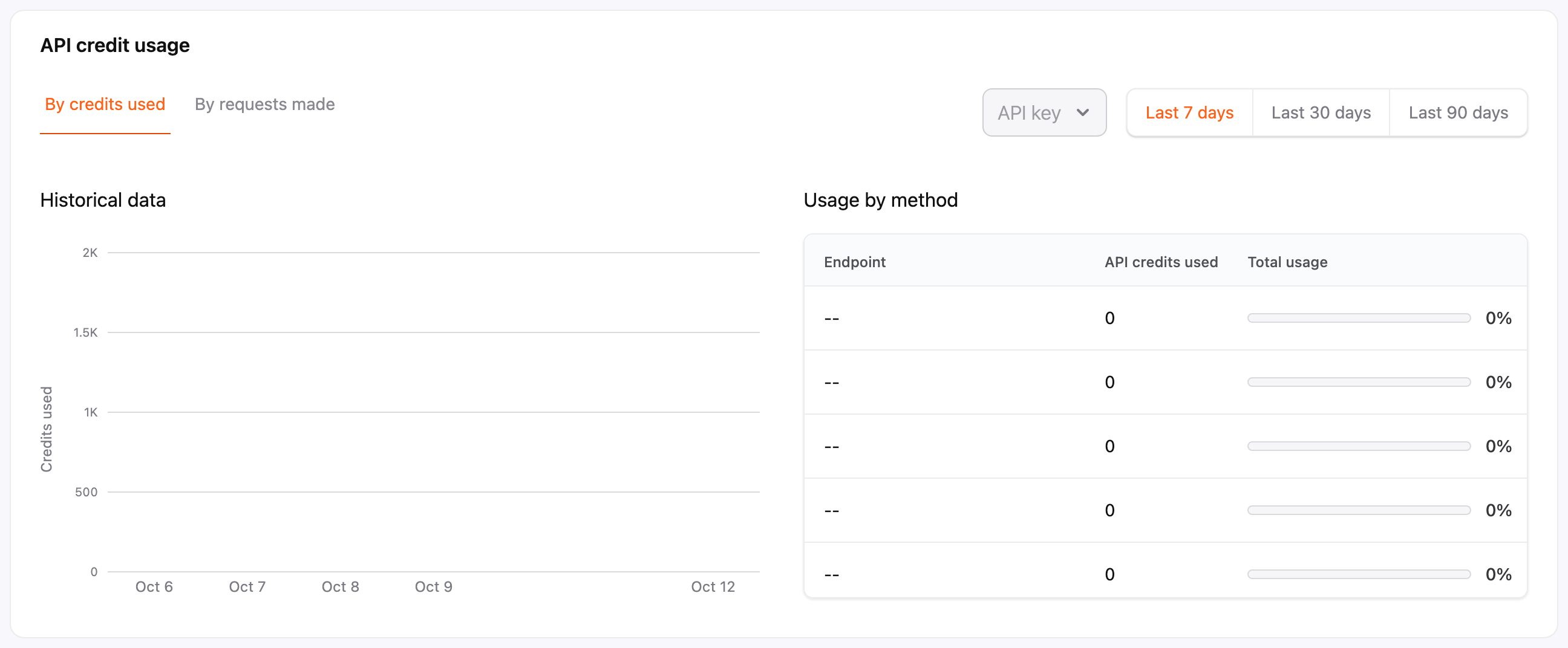
Viewing remaining API credits
The Remaining API credit section shows your two types of credits. To jump to this section from the API key section, click See usage.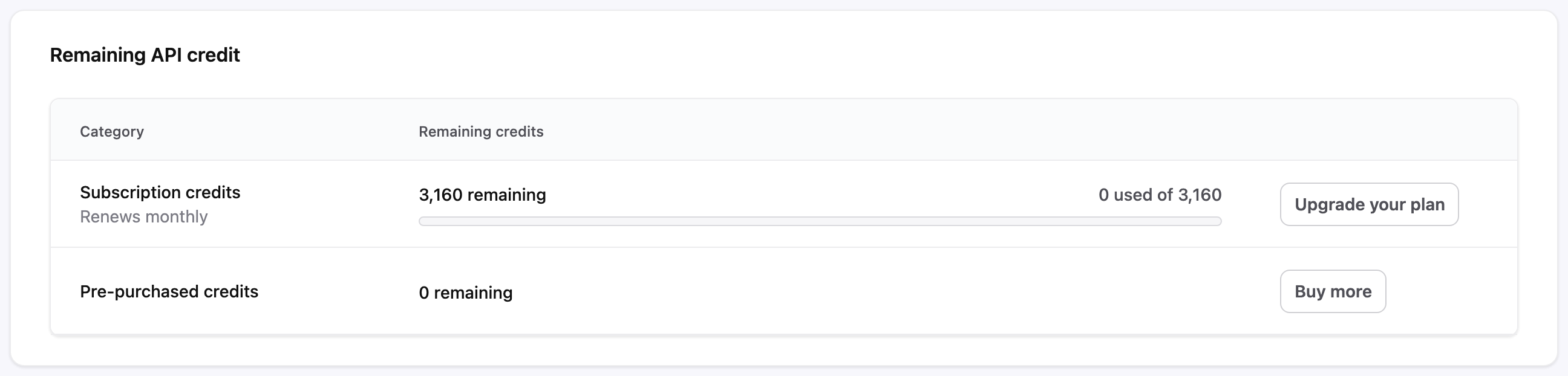
Subscription credits and pre-purchased credits combine into one pool. The Free plan includes no subscription credits. For details, see Managing Subscription Plans.
Buying API credits
You can buy credits on any plan, without upgrading. The price per credit depends on your plan.- Open the API dashboard.
- In the Remaining API credit section, click Buy more.
The Purchase V3 API credits page appears. - Select a preset amount or enter the amount of credits you want to buy.
The amount must be a multiple of 10. The minimum and maximum amount per purchase depend on your plan. - Optional: Click Discount code, enter your gift card or discount code, and then click Apply.
- Click Purchase.
The checkout page appears. - Enter your payment details and complete the payment.
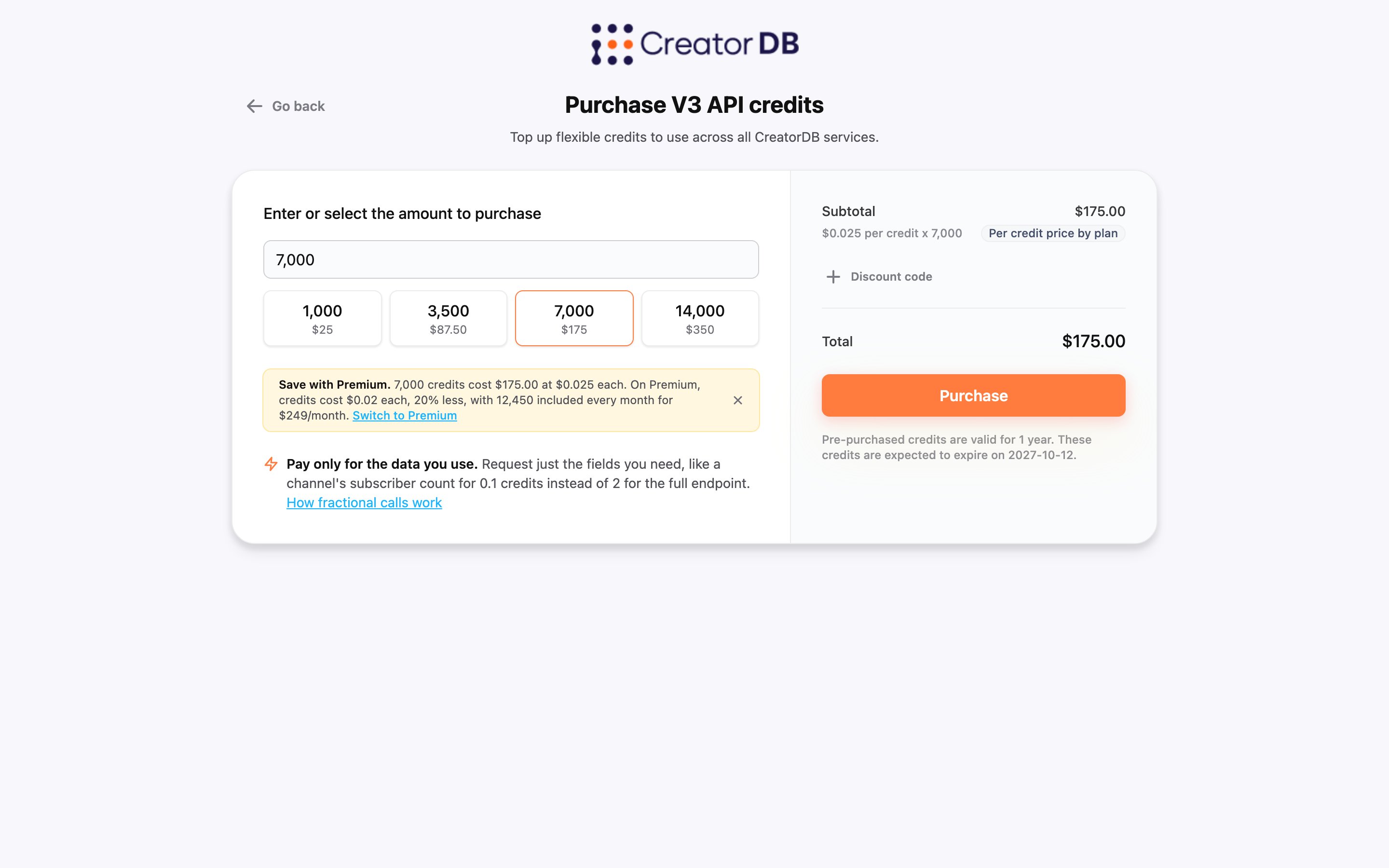
- Pre-purchased credits are valid for 1 year. The page shows the date your credits are expected to expire.
- You can also open the Purchase V3 API credits page from the Select your plan page by clicking Purchase credits.
- If your plan doesn’t support buying credits, the page asks you to contact sales.
Estimating API costs
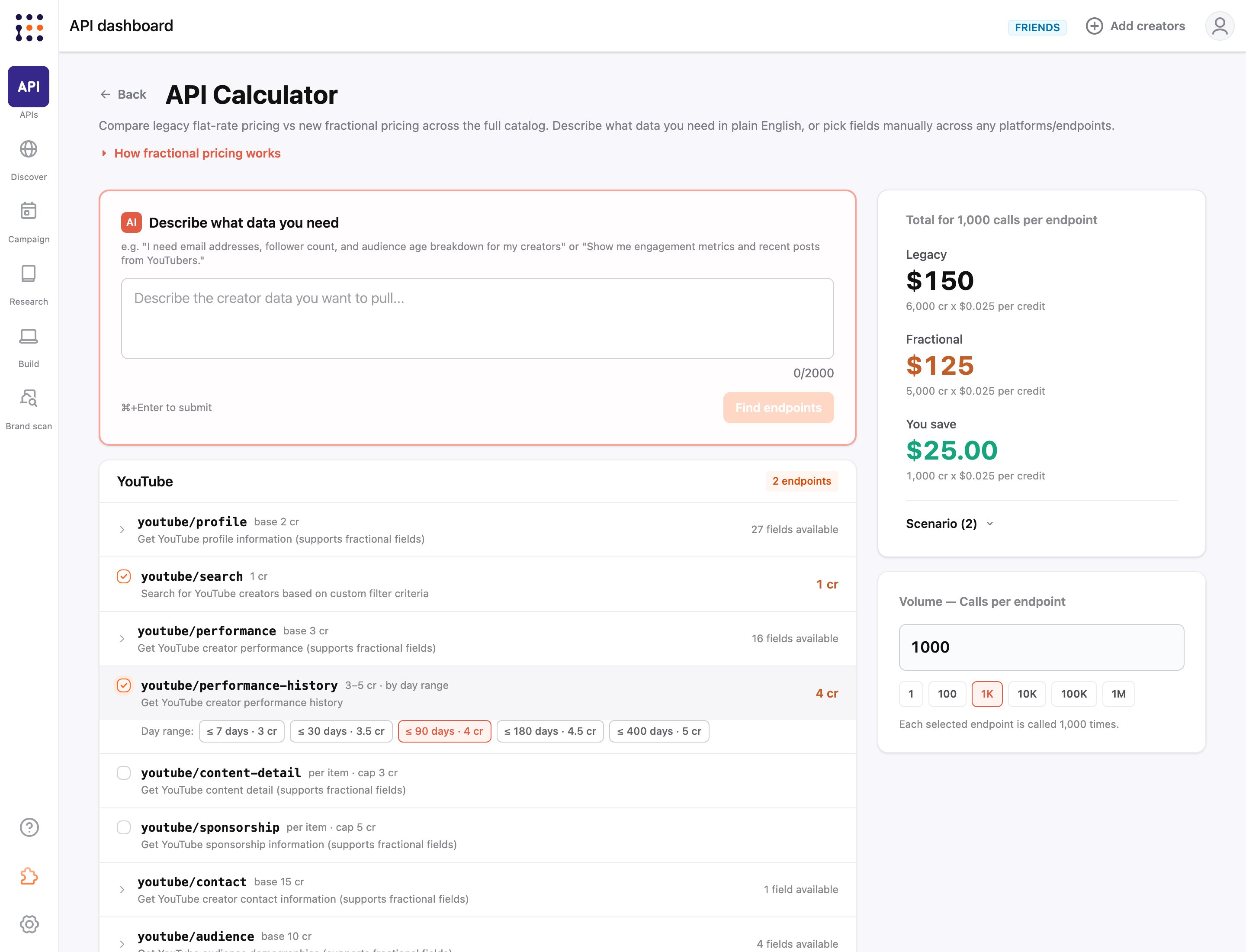
You can use the API Calculator to estimate how many credits your API calls will cost, and compare legacy flat-rate pricing with fractional pricing.- Open the API dashboard.
- In the Estimate your API costs section, click Go to API calculator.
The API Calculator page appears. - Select the data you need in one of the following ways:
- In Describe what data you need, describe the creator data you want in plain English, and then click Find endpoints.
- In the platform sections, select the endpoints and fields you want.
- In Volume, enter the number of calls per endpoint.
The page shows the Legacy and Fractional cost for your scenario and how much you save.