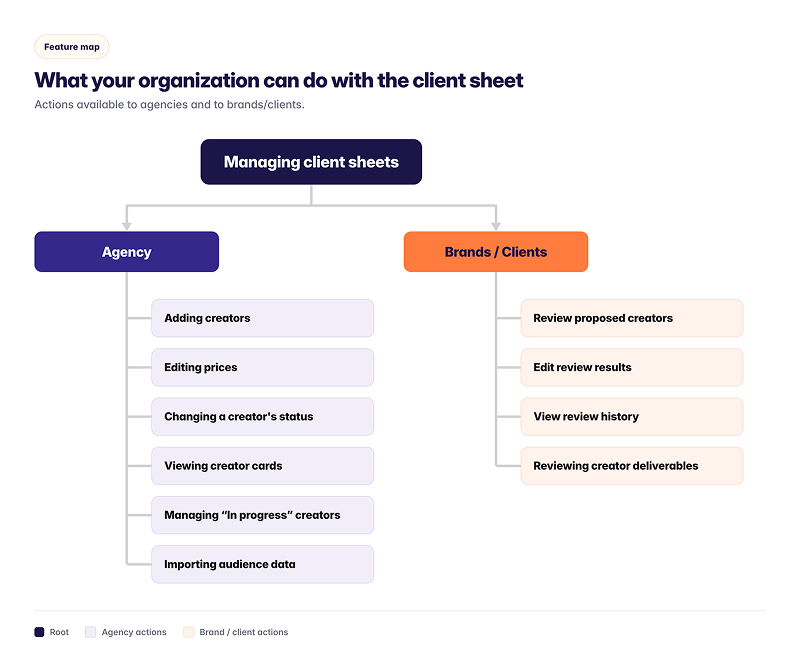
- For marketing or talent agencies, see Agency tasks.
- For brands or clients, see Brand and client tasks.
- Viewing creator cards, review history, and comments works the same for everyone. See Tasks for everyone.
- Client sheets require a paid plan. For details, see CreatorDB pricing.
- To open a client sheet, you need a CreatorDB account with access to that campaign’s client sheet. Campaign managers, members, and viewers get access through their campaign role once the campaign has a client sheet. External clients need to be invited to the campaign with the Guest role. Sharing the link alone doesn’t give access.
- The steps on this page assume you’re logged in to CreatorDB. If you don’t have an account yet, see Create an account.
Client sheet user interface
The client sheet user interface allows you to view and manage recommended creators for a campaign at a glance.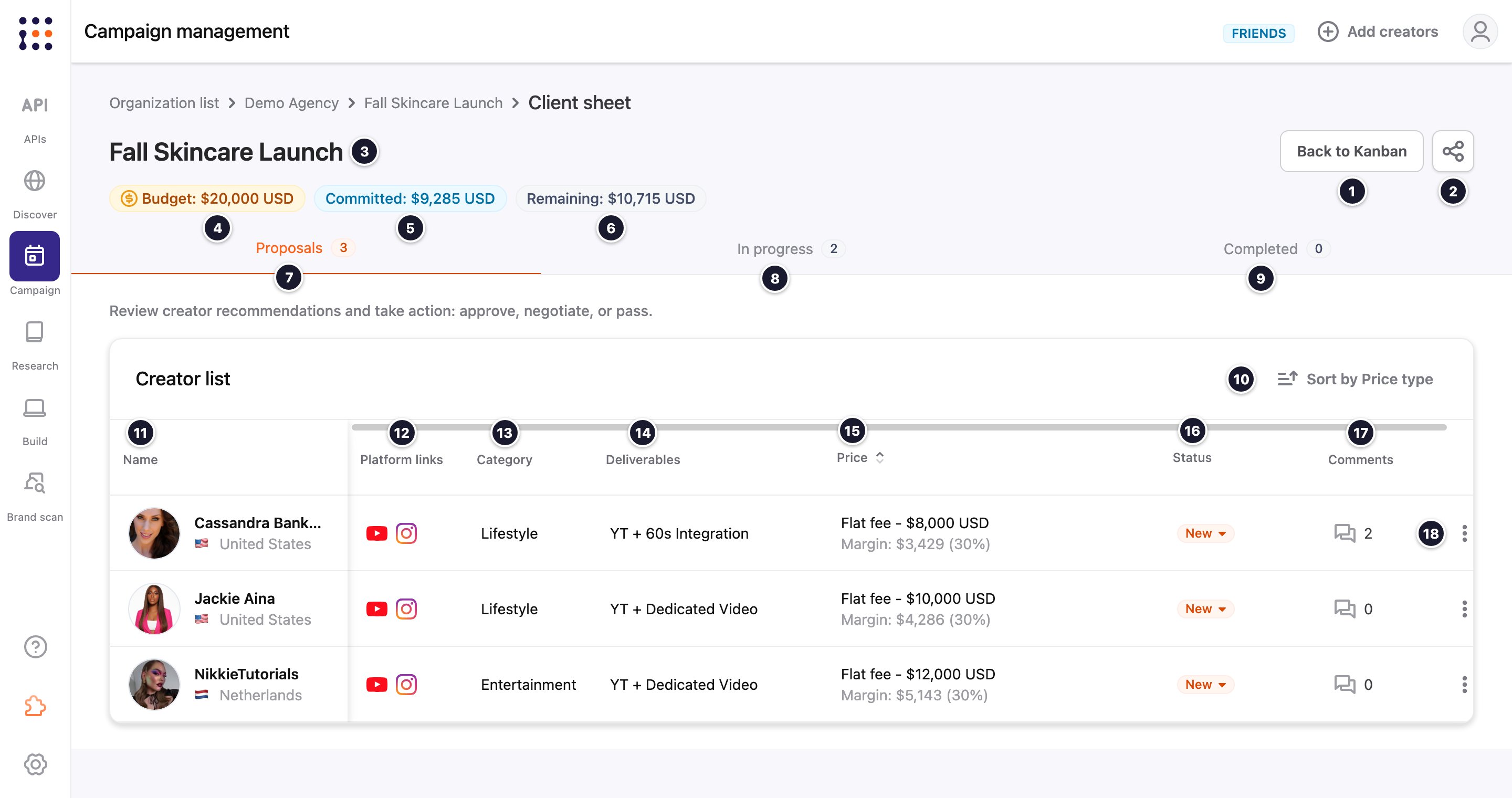
The In progress and Completed tabs add columns for the Expected publish date, Promo code, UTM link, and published content.
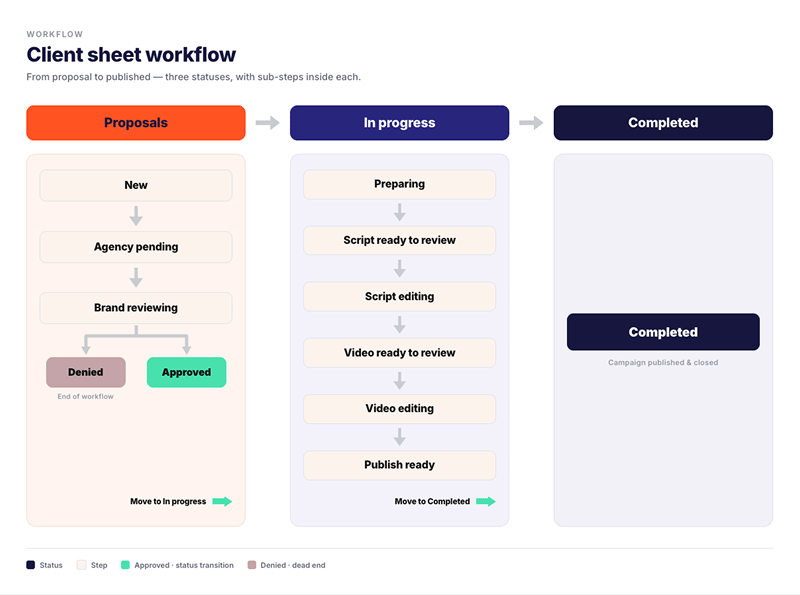
Client sheet stages and statuses
Proposals statuses
Proposals statuses
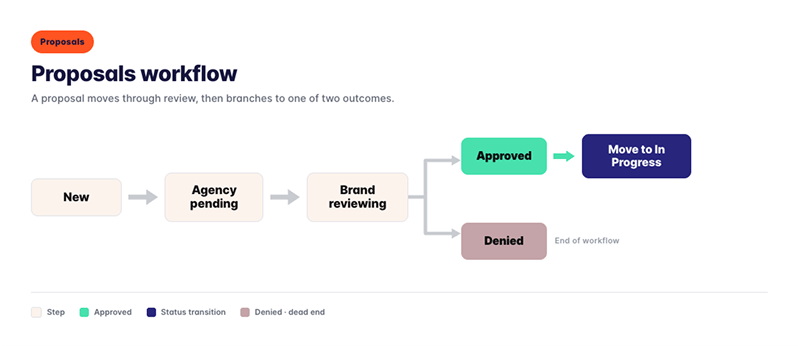
The brand or client reviews a proposed creator with Approve, Counteroffer, or Deny. For details, see Reviewing a proposed creator. The agency can also set Approved and Denied from the status menu.
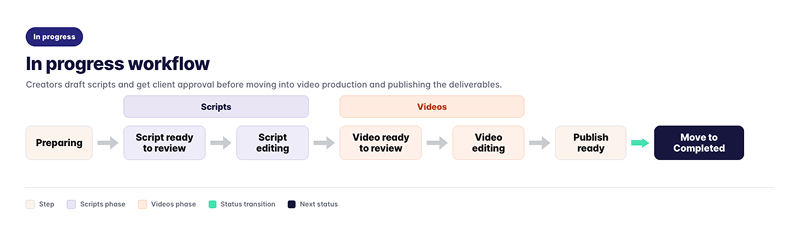
In progress statuses
In progress statuses
Opening a client sheet
Every procedure on this page starts from the client sheet.- Click Campaign, then select an organization and a campaign.
The campaign’s Kanban board appears. - Click the View client sheet icon at the top of the campaign.
The client sheet appears on the Proposals tab.

Agency tasks
As an agency, you add creators from the campaign’s Kanban board to the client sheet when you’re ready to pitch them, then track your client’s reviews and the creator’s deliverables until the content is published.Adding a creator to a client sheet
The creator must be in the campaign and have a Creator price set on their card.- On the campaign’s Kanban board, open the creator’s card.
- Check the Creator price and Deliverables. These carry over to the client sheet, so set them first.
- Click Add to sheet.
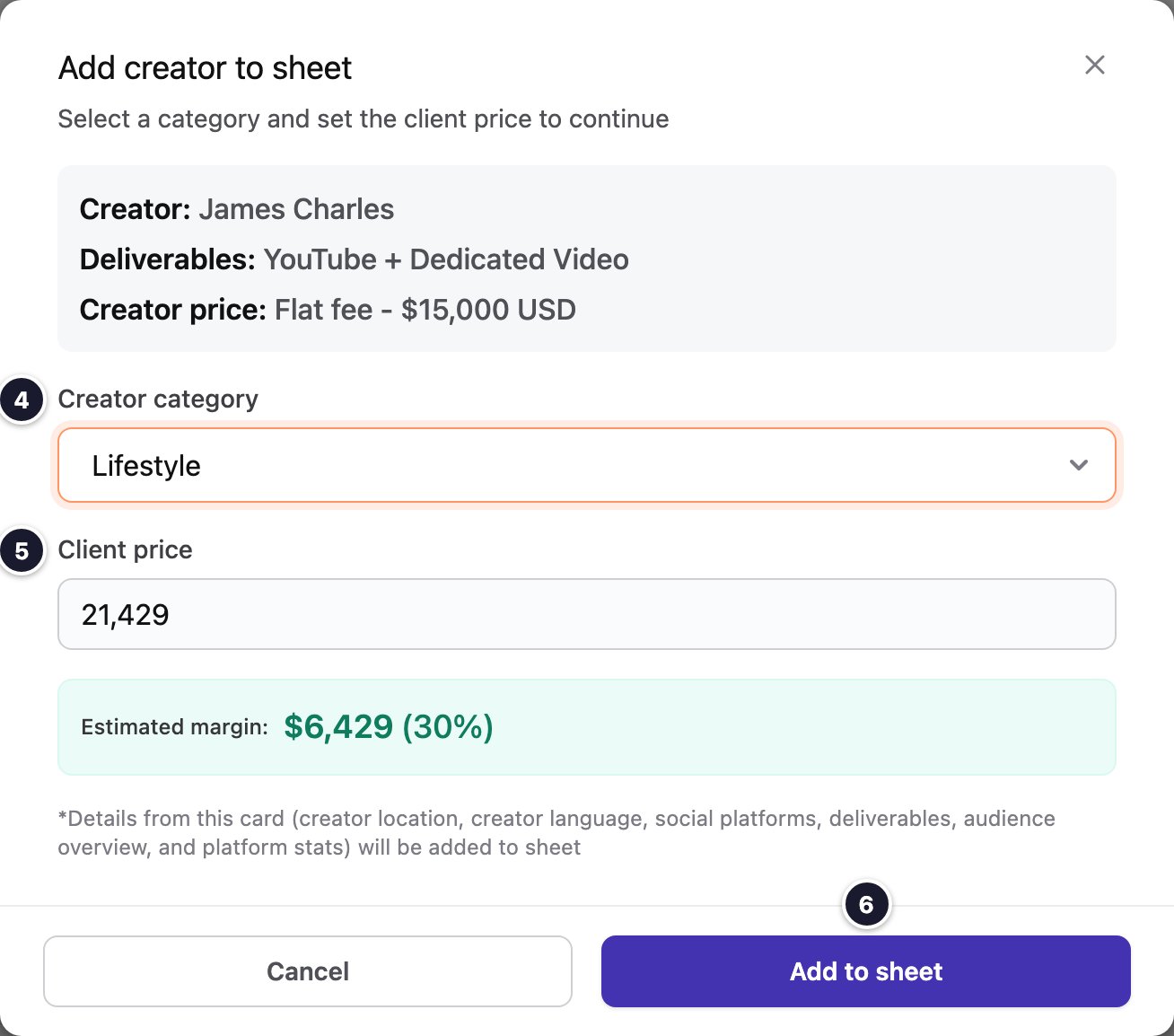
The Add creator to sheet window appears. - Select a Creator category.
- Optional: Change the Client price.
CreatorDB suggests a client price with a 30% agency margin and shows the Estimated margin as you type. The client price can’t be lower than the creator price. - Click Add to sheet.
The creator is added to the Proposals stage with the New status, and the card shows an Open client sheet link.
Editing the client-facing price
- Open the client sheet.
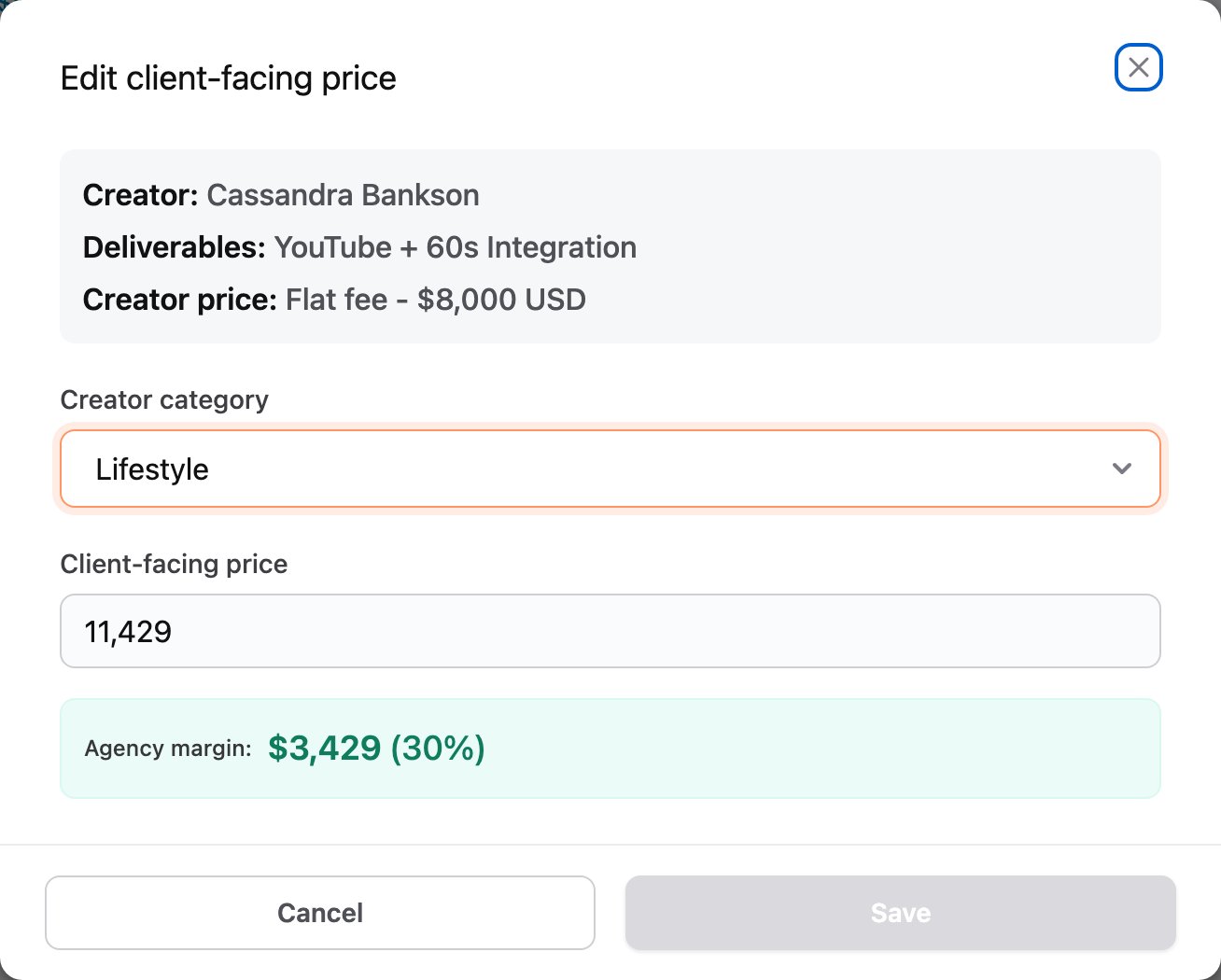
- Click the More actions (⋮) icon in the creator’s row and select Edit price.
- Enter the Client-facing price and click Save.
CreatorDB recalculates the agency margin.
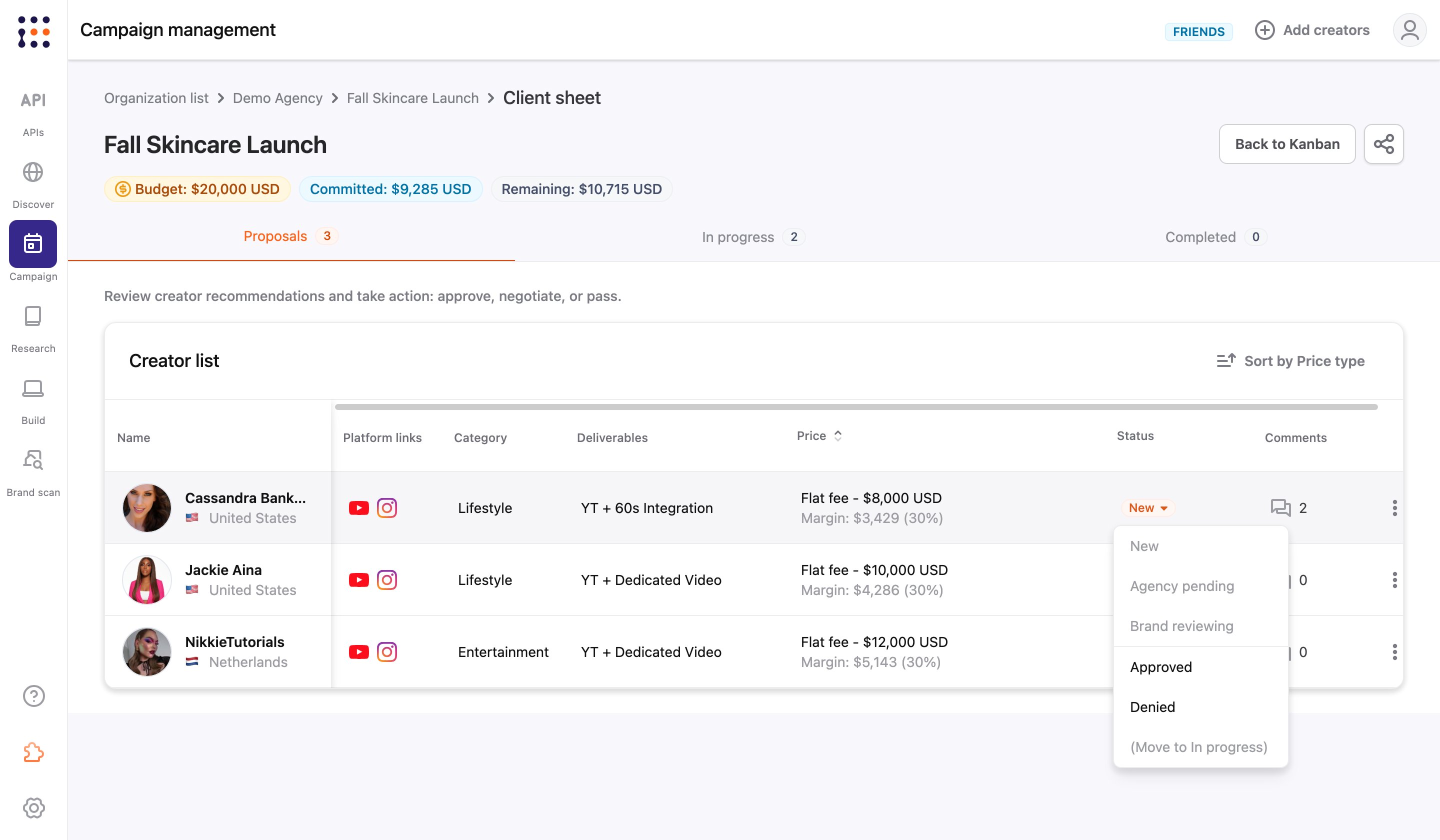
Changing a creator’s status
- Open the client sheet and select the tab the creator is in.
- Click the creator’s status.
A menu of the statuses for that stage appears. - Select a status and confirm.
Submitting a script or video for review
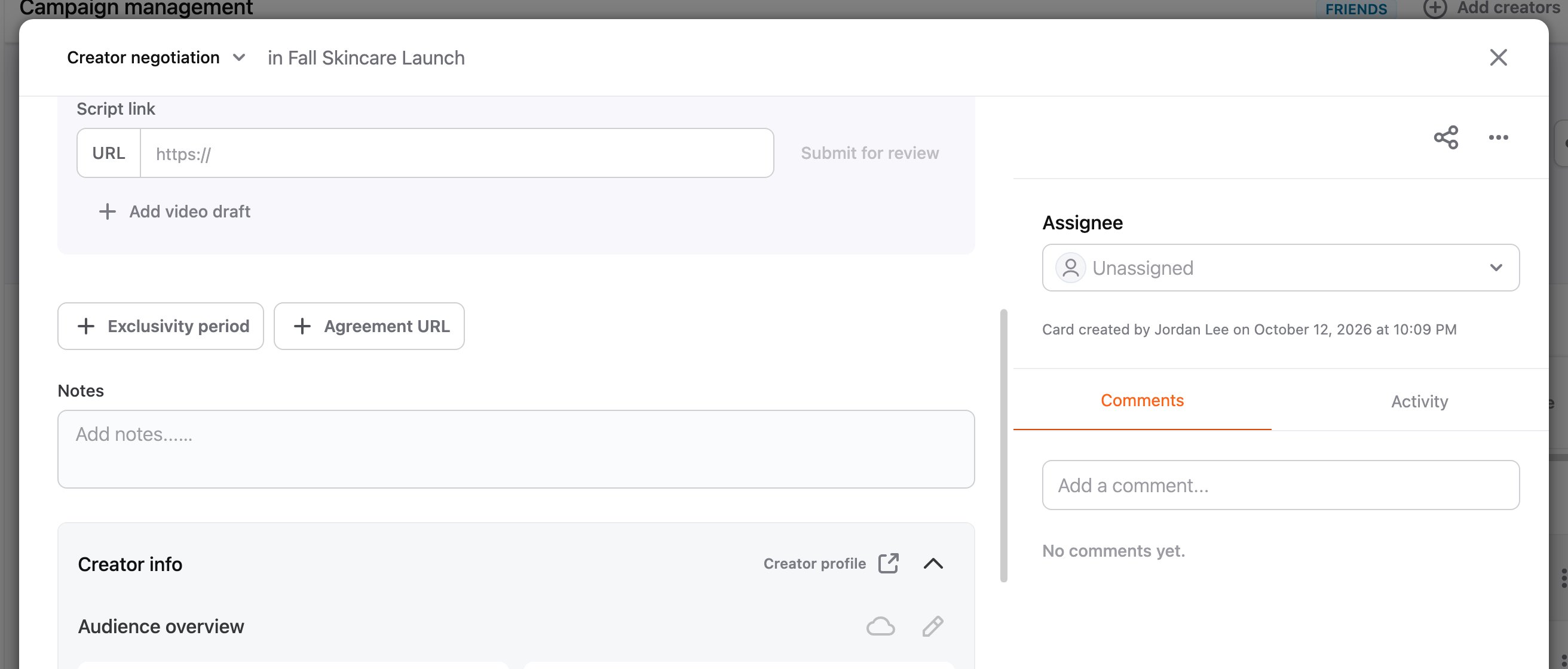
The creator must be in the In progress stage.- Open the client sheet and click In progress.
- Click the More actions (⋮) icon in the creator’s row and select View card.
- Click Add script or Add video draft, and enter the link.
- Click Submit for review and confirm.
The creator’s status changes to Script ready to review or Video ready to review.
Adding a promo code and UTM link
- Open the client sheet and click In progress.
- Click Add in the creator’s Promo code or UTM link column.
The creator’s card opens. - Enter the Promo code and UTM link. They’re saved to the creator’s card.
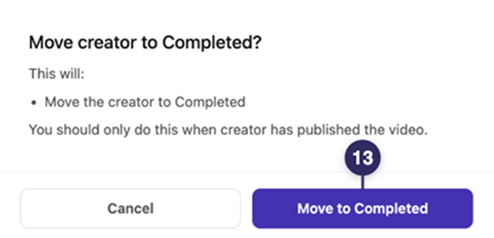
Moving a creator to Completed
The creator must be in the In progress stage and have published the content.- Open the client sheet and click In progress.
- Open the creator’s card (More actions (⋮) > View card), enter the published content URL, and close the card.
- Click the creator’s status and select (Move to Completed).
- Click Move to Completed.
The creator appears on the Completed tab with the published content link.
Sorting creators on the client sheet
Click Sort by above the creator list and choose a field. Each tab is sorted separately:Removing a creator from the client sheet
- Open the client sheet.
- Click the More actions (⋮) icon in the creator’s row and select Remove from sheet.
- Click Remove.
Brand and client tasks
As a brand or client, you review the creators your agency proposes and approve their scripts and videos before they’re published. As a Guest, you only have access to the client sheet. When you click Campaign and select the organization, CreatorDB lists the client sheets you’ve been invited to.Reviewing a proposed creator
- Open the client sheet.
The Proposals tab appears. - Click Review in the creator’s row, then click Review in the creator panel.
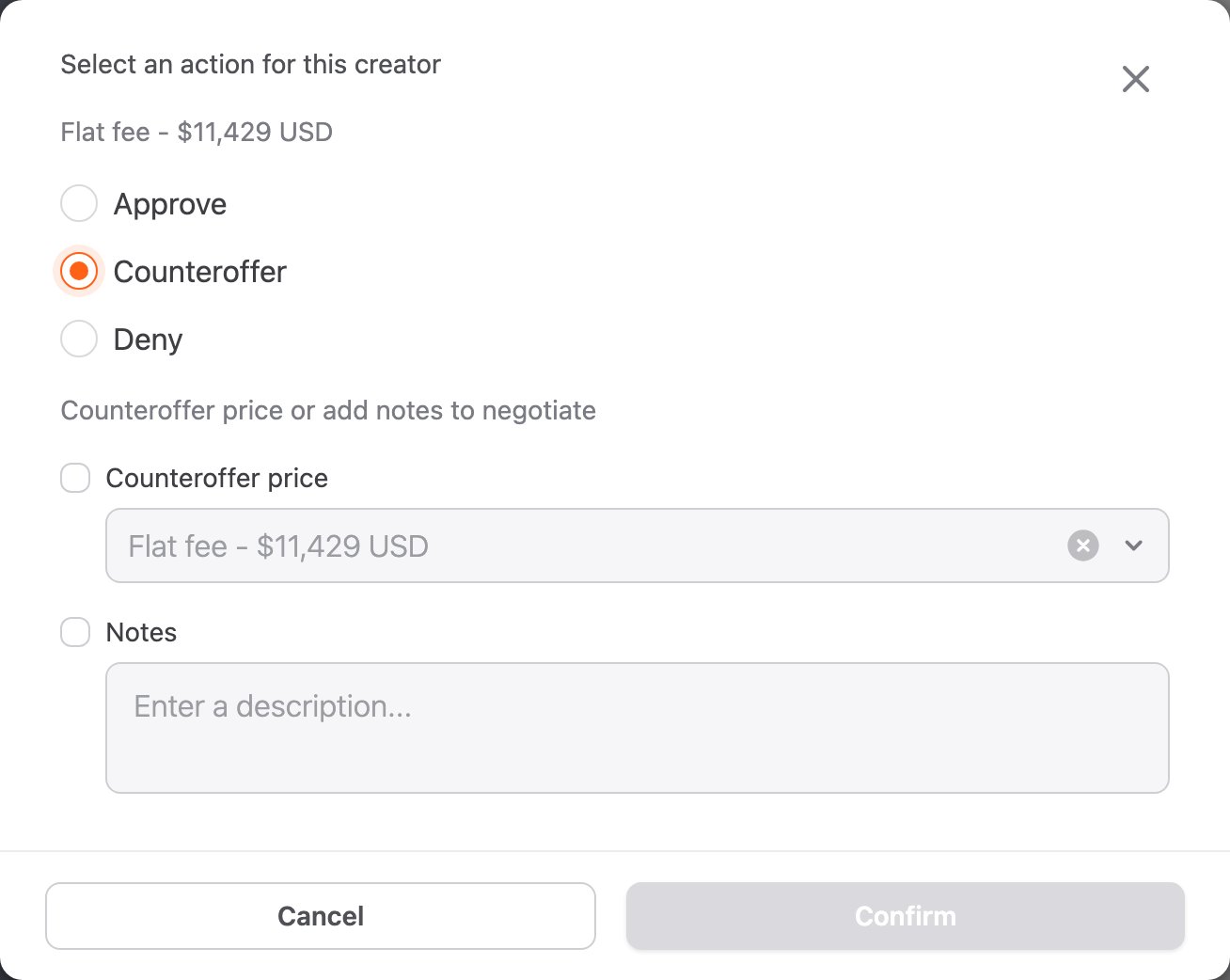
The Review creator window appears. - Select Approve, Counteroffer, or Deny. For a counteroffer, choose a price type and enter the new price.
- Optional: Enter a note or reason.
- Click Confirm.
The creator’s status changes to Agency pending until the agency responds.
Reviewing a creator’s deliverables
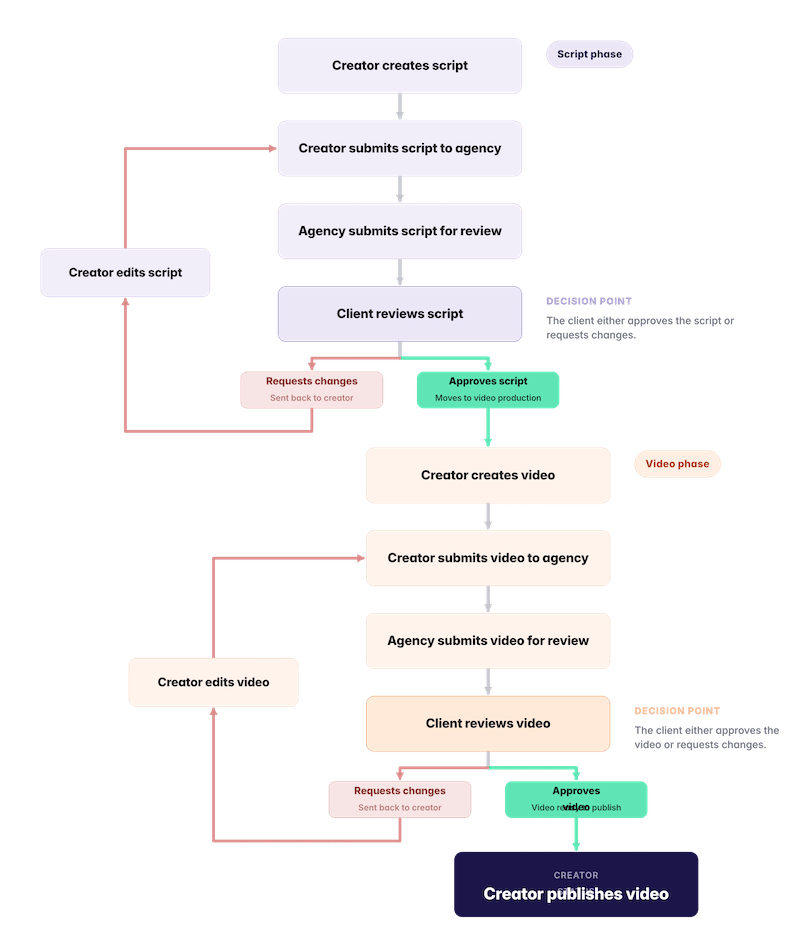
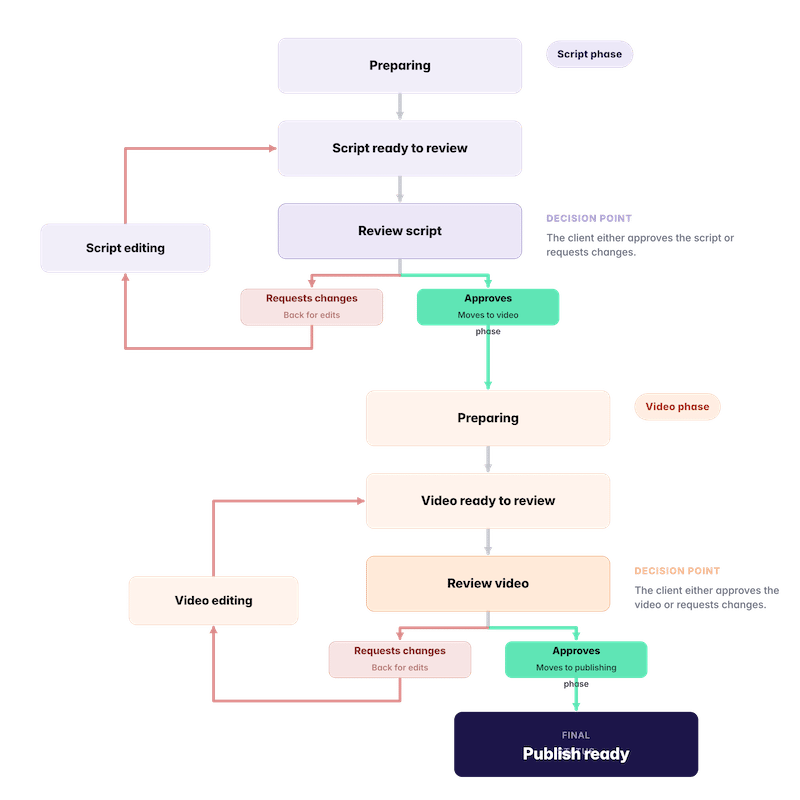
- Open the client sheet and click In progress.
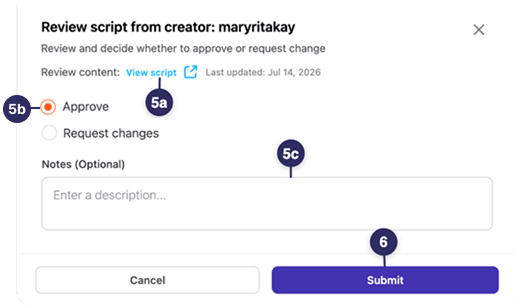
- Click Review script or Review video in the creator’s row, then click the same button in the creator panel.
These buttons only appear when the status is Script ready to review or Video ready to review. - Click View script or View video draft and review the content.
- Select Approve or Request changes, and enter a note or reason.
- Click Submit.
Tasks for everyone
Viewing a creator’s card
The creator card shows the creator’s audience and platform stats, plus the review and comment history for this campaign.- Open the client sheet.
- Click the Comments icon in the creator’s row. Agencies can also use More actions (⋮) > View card.
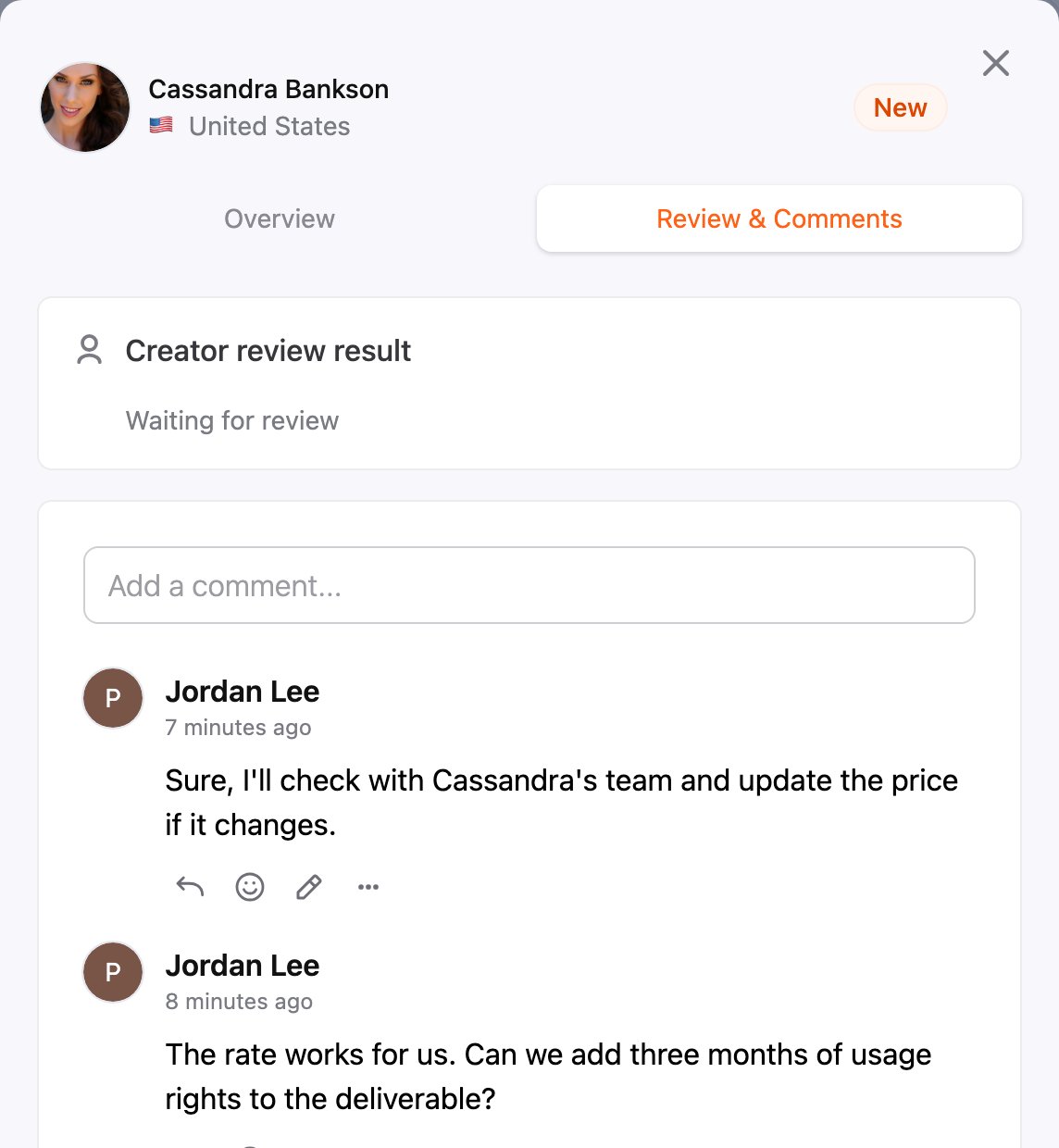
The creator panel opens on the Review & Comments tab. - Click Overview to see the creator’s audience and platform stats.
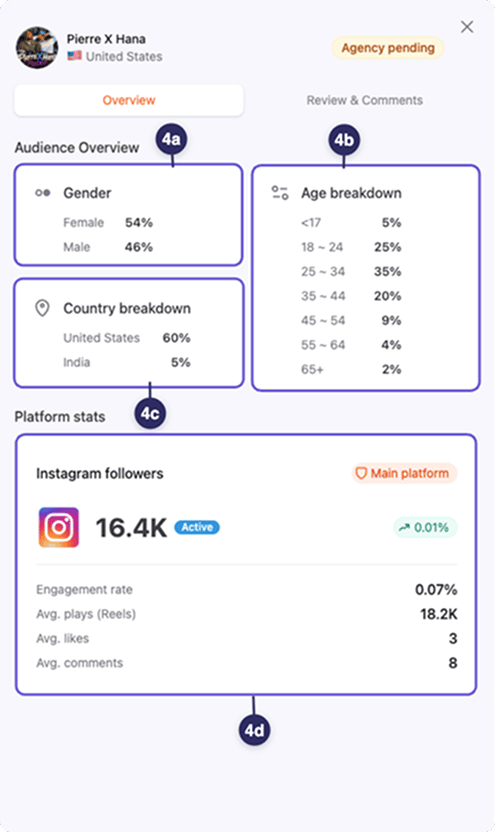
Audience data only appears if the agency imported it on the creator’s card before adding the creator to the sheet. For details, see Importing a creator audience demographic data from CreatorDB.
Viewing the review history
On the Review & Comments tab of the creator panel, click Review history. The Review history window lists every review result for the creator, with who submitted it, when, and any notes.Managing comments
On the Review & Comments tab of the creator panel, you can add comments and tag people with@. Comments are visible to the agency and the client team.
You can reply to or react to any comment, and edit or delete your own:
- Reply: click the Reply icon. The reply mentions the comment’s author.
- React: click the React icon and pick an emoji.
- Edit: click the Edit icon, change the text, and click Save.
- Delete: click More actions (⋮) > Delete, then confirm. This can’t be undone.