

- Searching for creators
- Managing filters
- Searching for creators by keywords
- Searching for brands (sponsors)
- Searching for content
- The number of creator, brand, and content search results you can view depends on your plan. To check your remaining quota, see Viewing SaaS quota usage. For plan details, see CreatorDB pricing.
- The steps on this page assume you’re logged in to CreatorDB. If you don’t have an account yet, see Create an account.
Searching for creators
Click Discover in the left sidebar, then Search. The Discover page opens with All platform selected.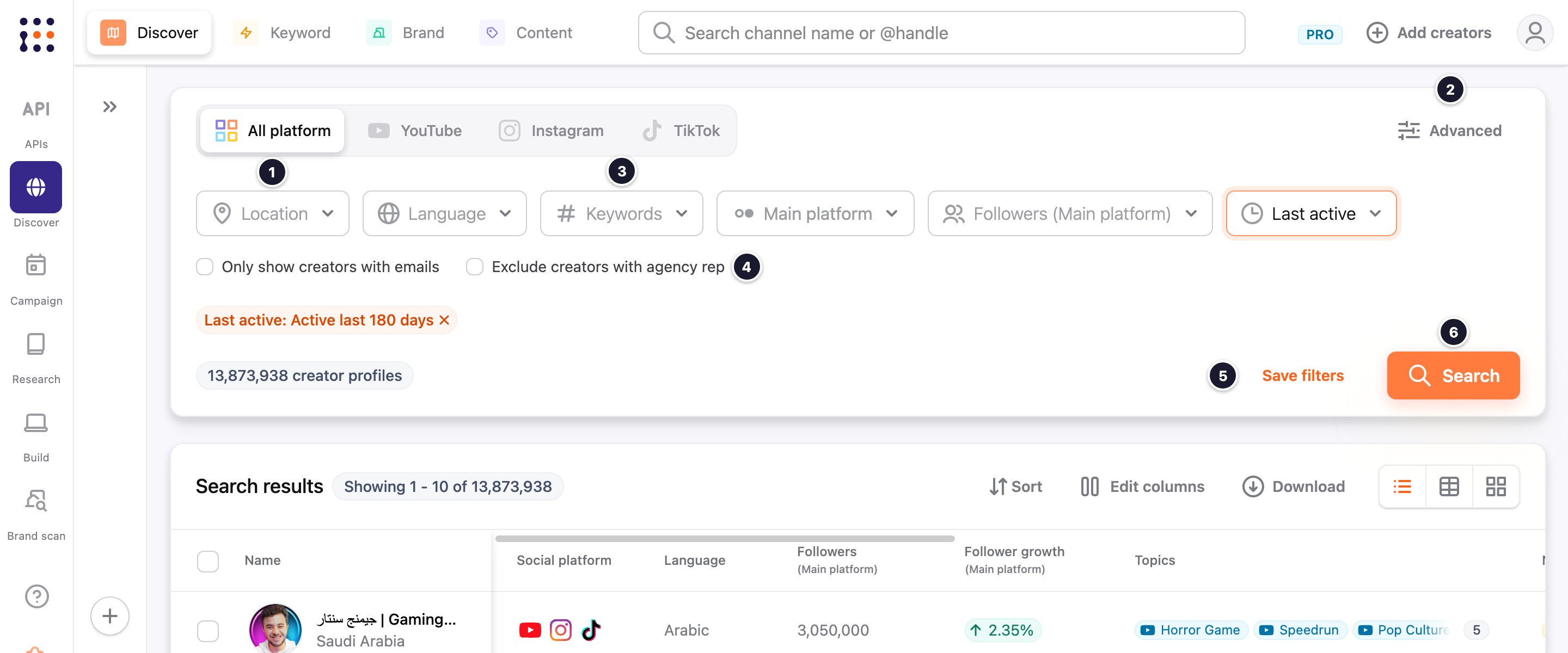
To search:
- Select a platform.
- Set filters. Click Advanced for more filters.
-
Optional: Select any of the options for that platform:
- Click Search.
Managing filters
You can save a set of search conditions as a filter and apply it again later. Include and exclude filters let you build allow lists and block lists, for example to leave out creators you’ve already worked with.Saving filters is available on paid plans.
Creating a filter
- On the Discover page, select a platform and set your filters.
- Click Save filters.
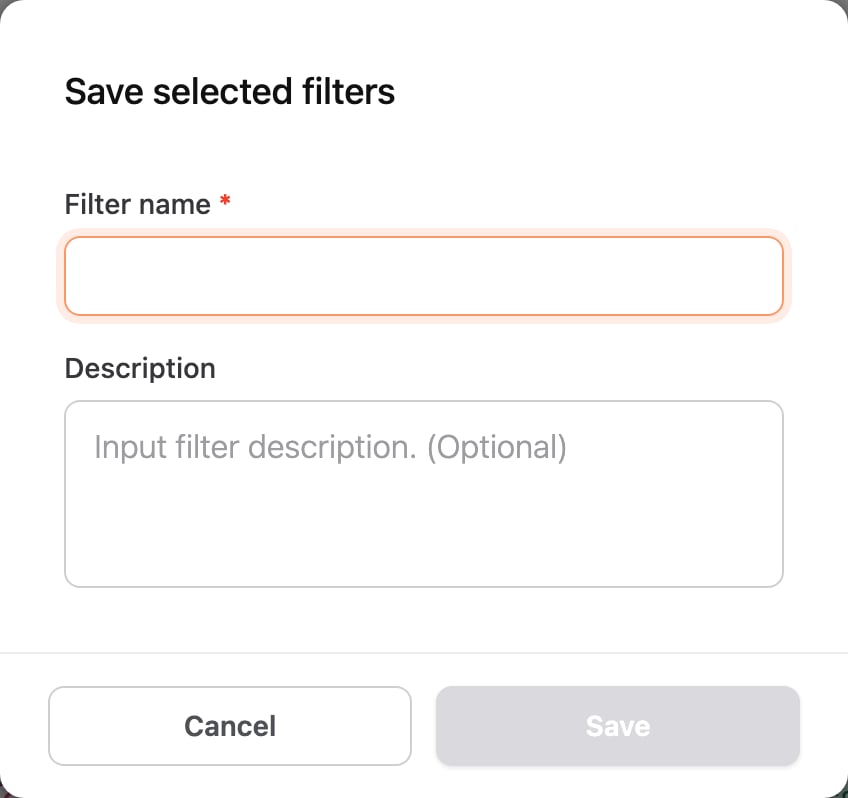
The Save selected filters window appears. - Enter a filter name and, optionally, a description.
- Click Save.
Applying or updating a saved filter
- On the Discover page, expand the side panel (») and open Saved filters.
- Click a filter to apply it.
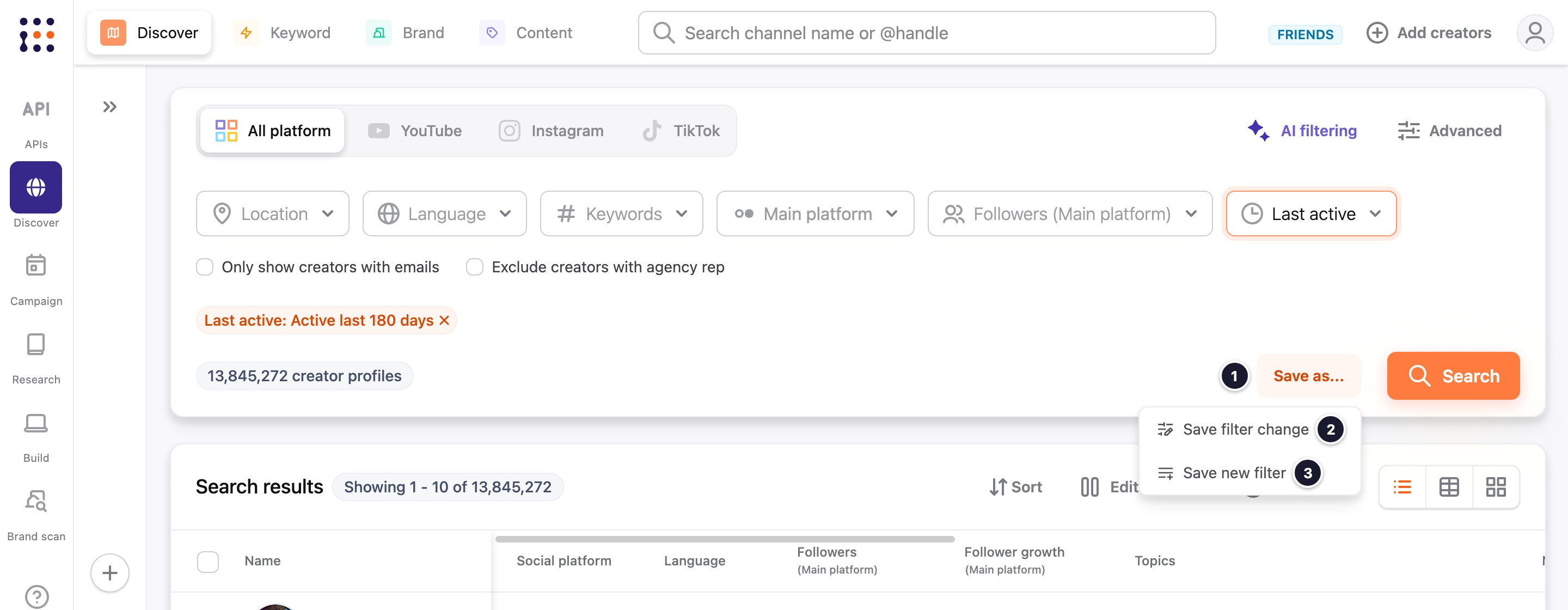
- Optional: Change the filters, then click Save as… (it replaces Save filters while a saved filter is applied) and choose:
- Save filter change to overwrite the saved filter, or
- Save new filter to save the current conditions as a new filter.
Renaming, duplicating, or deleting a filter
In Saved filters in the side panel, click the More actions (⋮) icon next to a filter, then choose Rename, Duplicate, or Delete.Searching for creators by keywords
- On the Discover page, click Keyword at the top.
- Enter a keyword.
Optional: Select a suggested keyword from the drop-down menu.
Searching for brands (sponsors)
- On the Discover page, click Brand at the top.
- Enter keywords.
- Optional: Select brand filters, a social media platform, or performance filters.
- Click Search.
Searching for content
- On the Discover page, click Content at the top.
- Select a social media platform, then select content and creator filters.
- Optional: Select Has sponsored content, or click Advanced for more filters.
- Click Search.