- Based on your CreatorDB plan, you can create 2 to 100 groups, with up to 5,000 creators per group. For details, see CreatorDB’s pricing plans.
- The steps on this page assume you’re logged in to CreatorDB. If you don’t have an account yet, see Create an account.
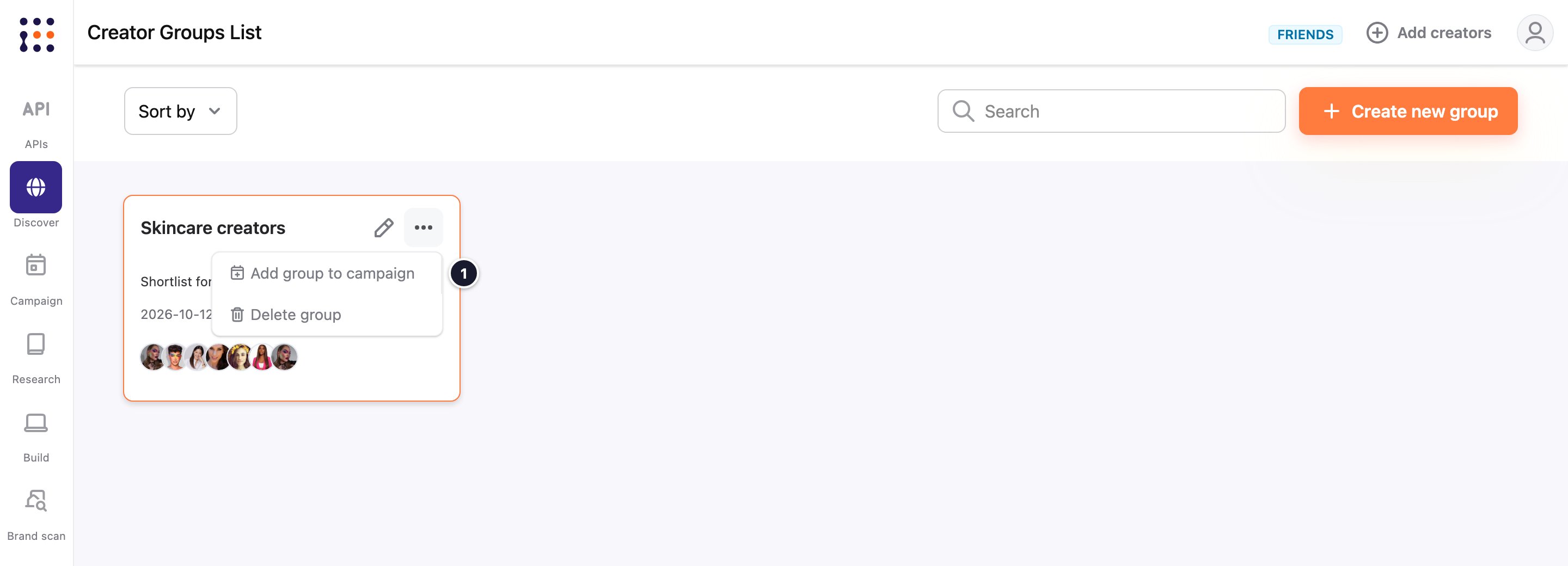
Opening your groups
Click Discover in the left sidebar, then click Group. The Creator Groups List page shows every group you’ve created. Click a group to open it. You can also open the list from the Discover page: expand the side panel, open Groups, and click Open group.Creating a group
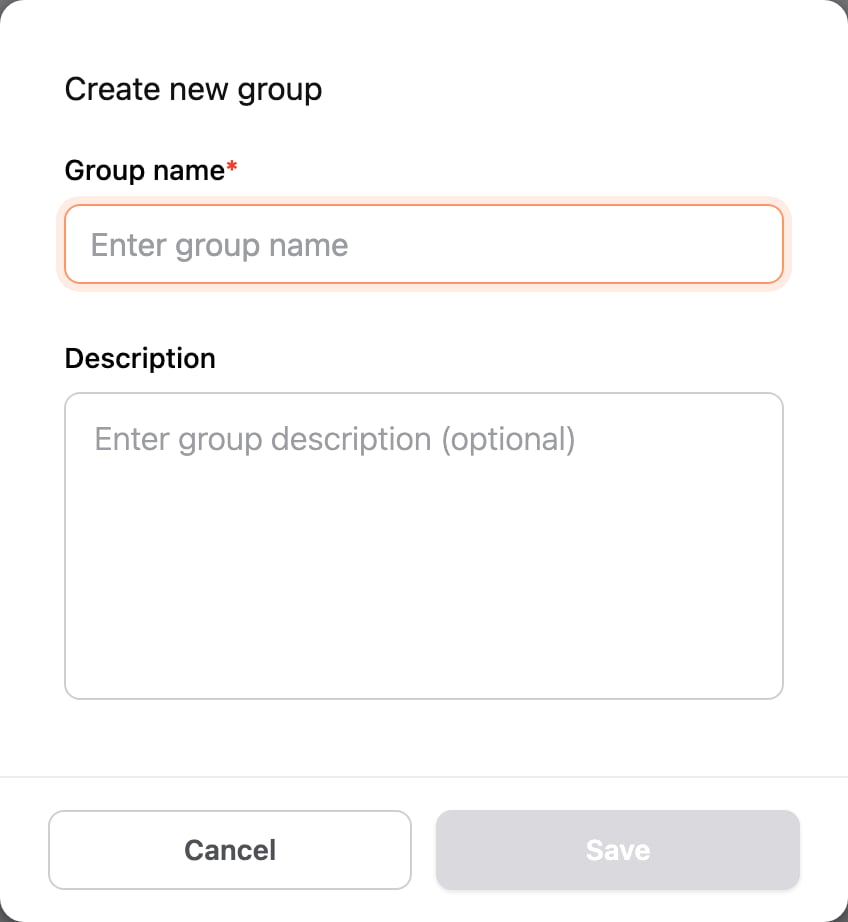
- Open your groups and click Create new group.
- Enter a Group name and, optionally, a Description.
- Click Save.
Adding creators to a group
From a creator profile: click Add to… at the top of the profile, then Manage groups. Select one or more groups and click Save.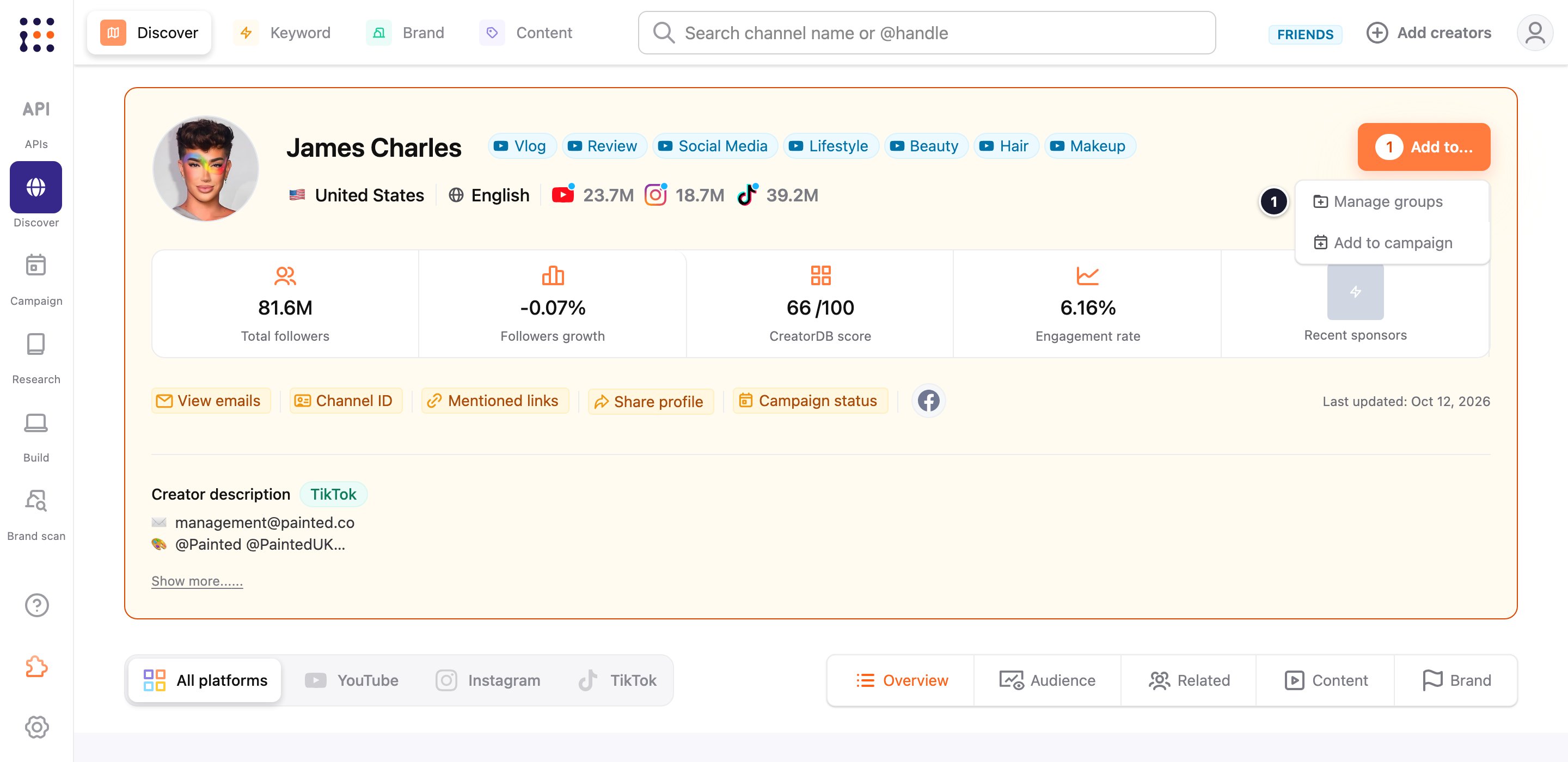
Importing creators by ID, handle, or file
- Open the group and click Import creators.
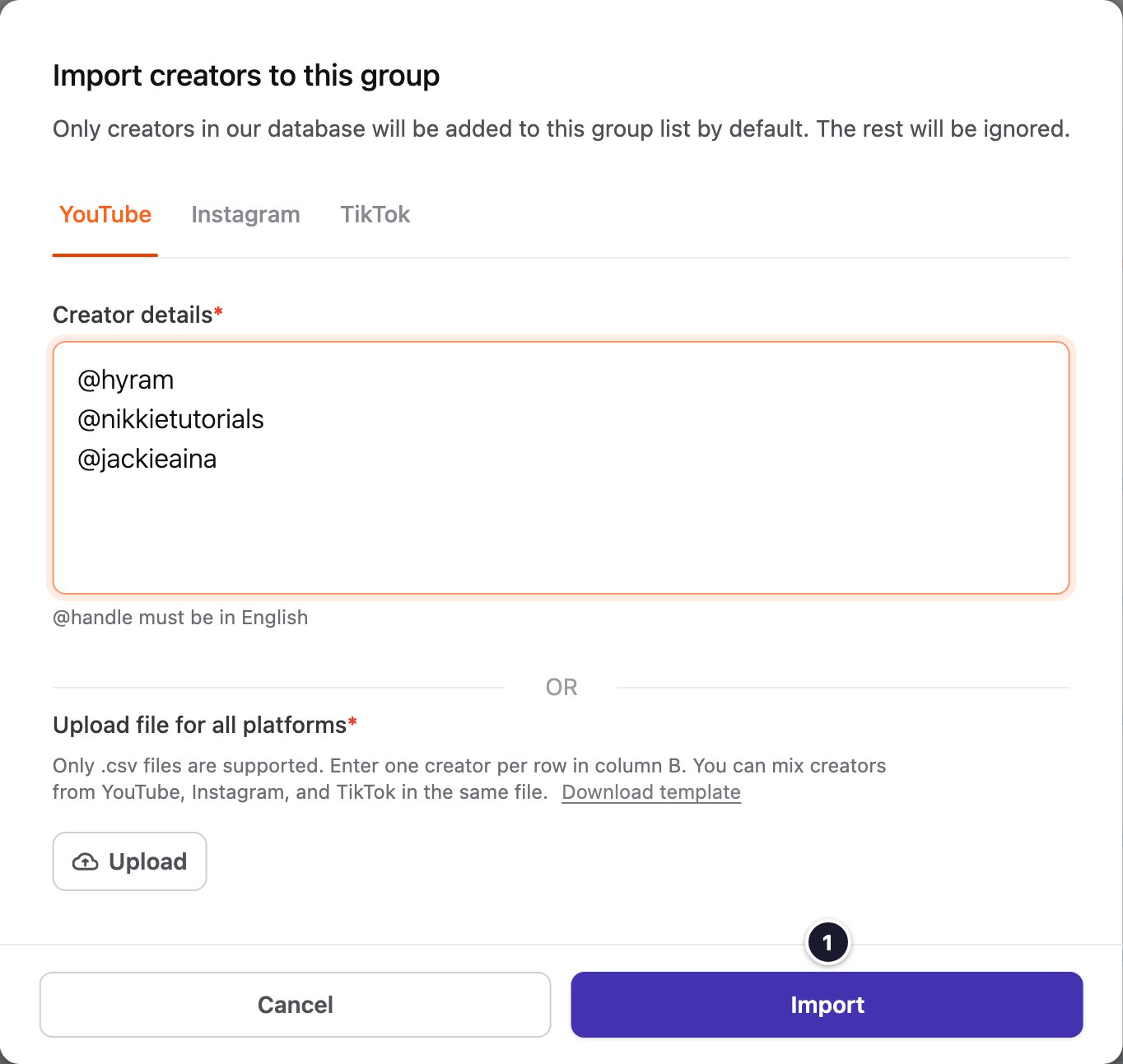
The Import creators to this group window appears. - Either:
- Select a social media platform and enter one creator ID, handle, or URL per line, or
- Click Upload and select a .csv file that follows the template. Click Download template to get it.
- Click Import.
Copying, moving, or removing creators
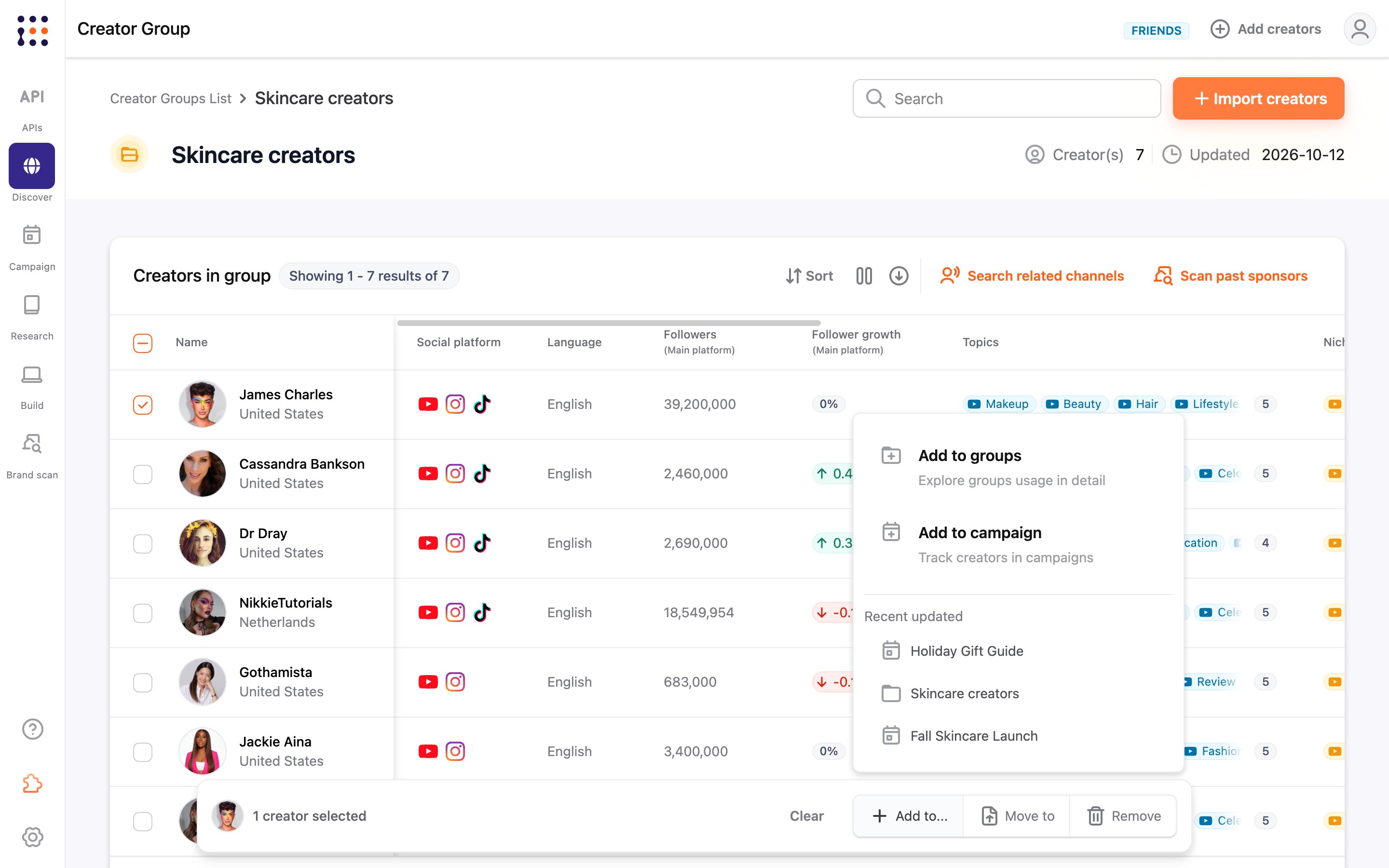
- Open the group and select one or more creators.
A bar appears at the bottom with Add to…, Move to, and Remove. - Choose an action:
- Copy to another group: click Add to… > Add to groups, select a group, and click Save. The creators stay in this group too.
- Move to another group: click Move to > Move to group, select a group, and click Save. The creators are removed from this group.
- Add to a campaign: click Add to… > Add to campaign.
- Remove from this group: click Remove and confirm.
Editing a group
On the Creator Groups List page, click the edit (pencil) icon on the group, change the name or description, and click Save.Adding a group to a campaign
You can add all creators in a group to one or more campaigns.You must have a Manager or Member role in a campaign to add creators to it. Only creators on the campaign’s selected platform can be added. For details, see Managing campaigns.
- Open your groups.
- On the group, click the More actions (…) icon, and then click Add group to campaign.
The Add creators to campaigns window appears. - Select one or more campaigns and click Save.