

There is no free trial. For current prices, quotas and features, see Pricing.
Plans and monthly credits
Credits pay for CreatorDB API and MCP calls. Each paid plan includes a number of credits every month and a per-credit rate for any extra credits you buy. The Free plan includes no monthly credits, but you can purchase credits at any time without upgrading your plan.
Prices shown are for monthly billing. Yearly billing costs less per month. To ask about the Custom plan, click Contact us on the Custom plan card.
- Plan credits refresh each monthly cycle, and unused plan credits do not roll over.
- Purchased credits expire one year from the purchase date.
- Plan credits and purchased credits combine into one pool.
Opening your plans
Click your profile image in the top-right corner, then click Learn more. The Select your plan page shows every plan. Select Monthly or Yearly billing at the top to see that billing period’s prices.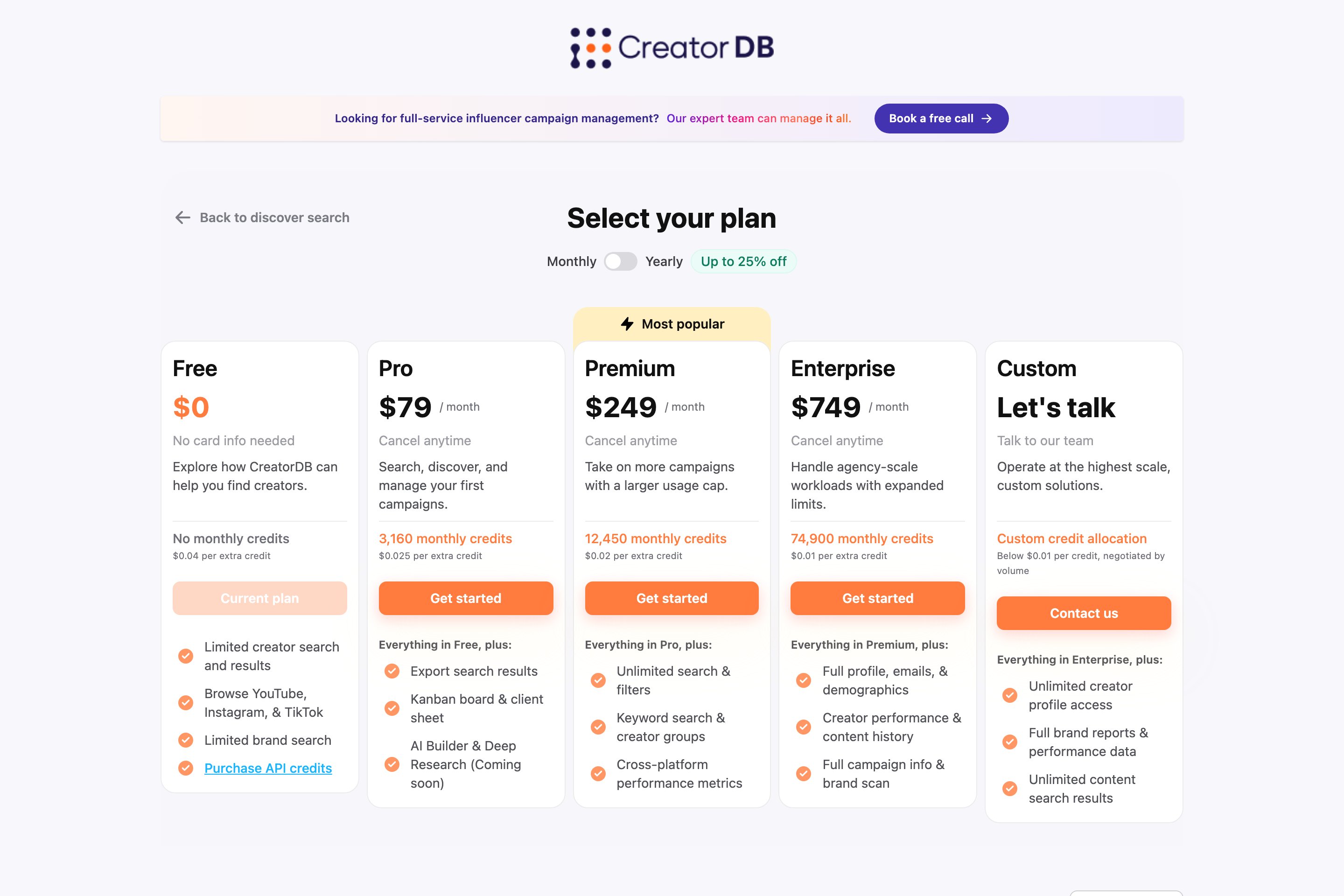
The steps on this page assume you’re logged in to CreatorDB. If you don’t have an account yet, see Create an account.
Subscribing to a paid plan
If you’re on the Free plan, open your plans, click Get started on the Pro, Premium, or Enterprise plan, and complete the payment on the checkout page.Upgrading a plan
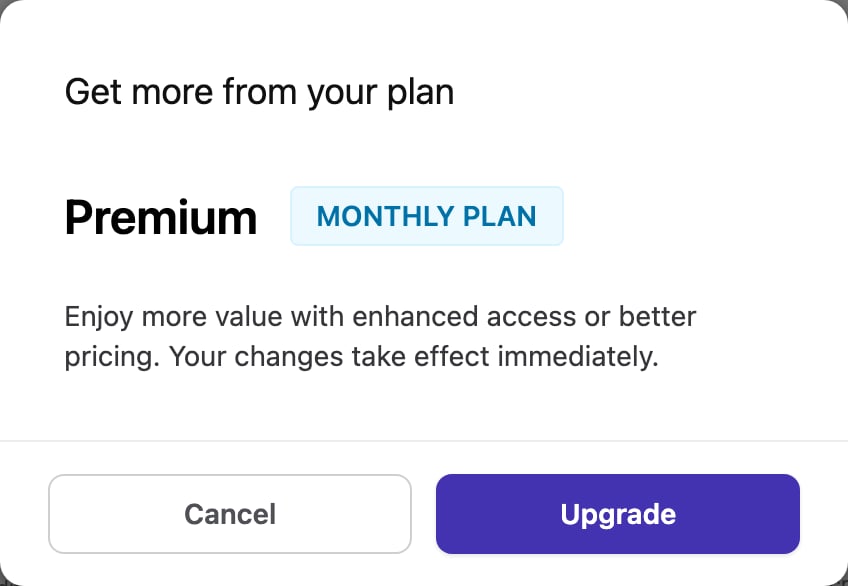
An upgrade takes effect immediately. The price difference is prorated, and purchased credits carry over unaffected.- Open your plans and select Monthly or Yearly billing.
- On the plan you want, click Upgrade.
- In the confirmation window, click Upgrade.
The Your change has been applied. message appears.
Downgrading a plan
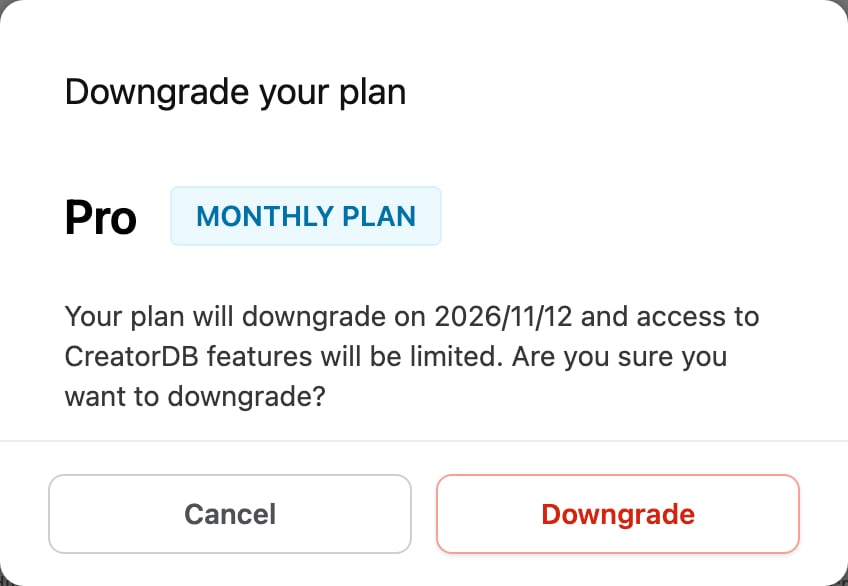
A downgrade takes effect at the start of the next billing cycle. Purchased credits are unaffected. To move from a paid plan to the Free plan, cancel your plan instead.- Open your plans and select Monthly or Yearly billing.
- On the plan you want, click Downgrade.
- In the confirmation window, click Downgrade.
The Your change has been applied. message appears.
Canceling a plan
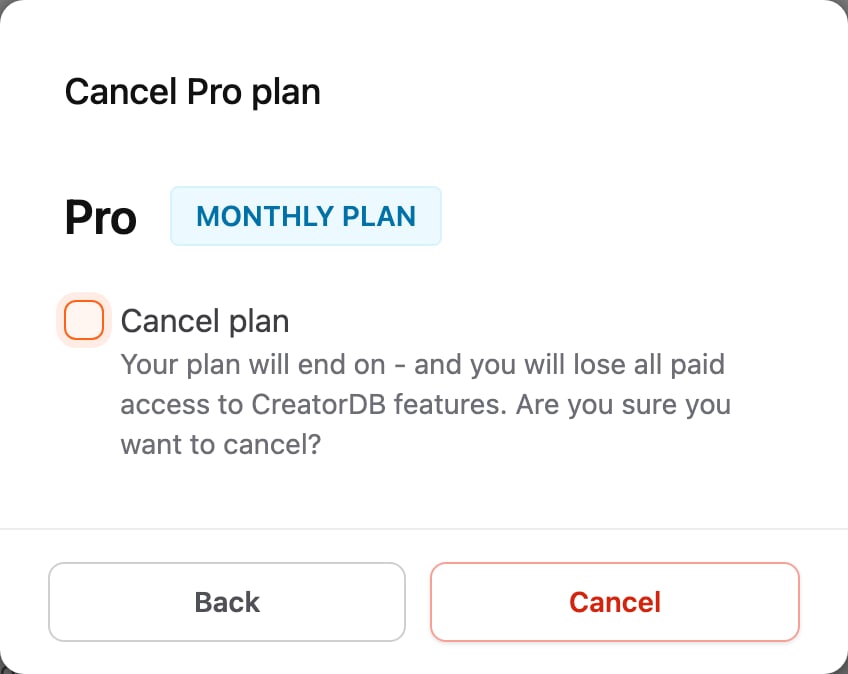
When you cancel, your plan stays active until the end of the current plan period. After that, you lose all paid access to CreatorDB features.- Click Settings (the gear icon at the bottom of the left sidebar), then click Current plan.
You can also click Cancel on your current plan’s card on the Select your plan page. - Click Cancel.
- In the confirmation window, select Cancel plan, then click Cancel.
The Your change has been applied. message appears.
Viewing SaaS quota usage
Go to Settings > Usage. The Remaining SaaS Quota table shows, for each category, how much you’ve used this cycle, your plan’s limit, and what’s left:- Creator search results and Content search results: search results you’ve viewed.
- Creator profile details: creator profiles you’ve opened.
- Contact email: creator contact emails you’ve retrieved.
- Brand reports: brand profiles you’ve opened.
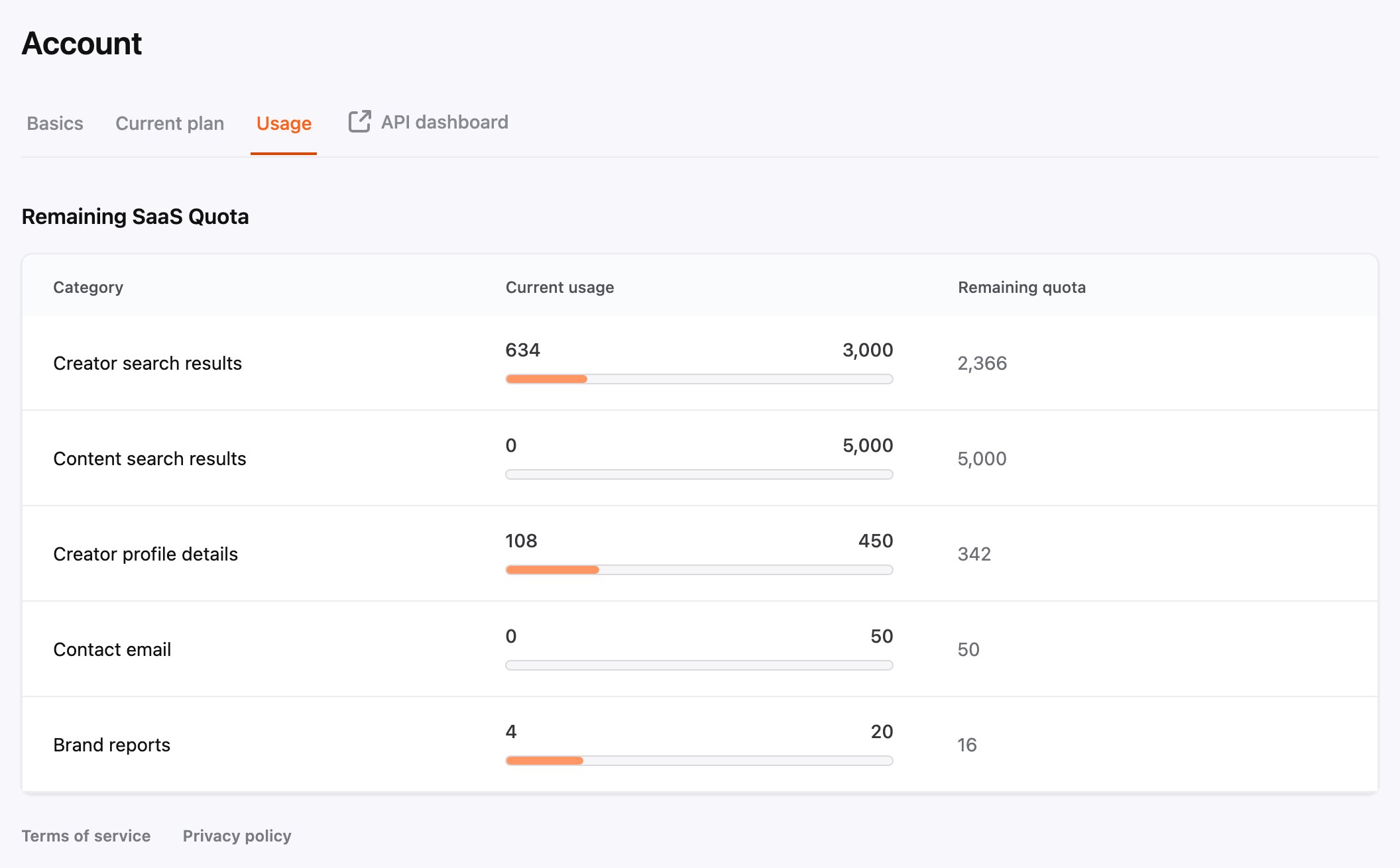
- The Usage tab only appears when you’re on a paid plan. Your quota depends on your plan. For details, see Pricing.
- API credits aren’t shown here. To view your remaining API credits, see Managing the API dashboard.