The steps on this page assume you’re logged in to CreatorDB. If you don’t have an account yet, see Create an account.
Adding creators to the database
You can add new creators to the database using any of the following methods:- Adding a creator to the database during a search
- Adding creators to the database by entering their account details
- Adding creators to the database by uploading a file
Adding a creator to the database during a search
When you cannot find a creator through the search bar, you can submit this new creator to the CreatorDB database.- Enter a creator’s ID or name in the search bar.
- Click a social media platform.
- Enter the creator’s ID or handle.
-
Click Add creators.
The creator is added to the database.
Adding creators to the database by entering their account details
- Click Add creators.
The Add new creators to CreatorDB window appears.
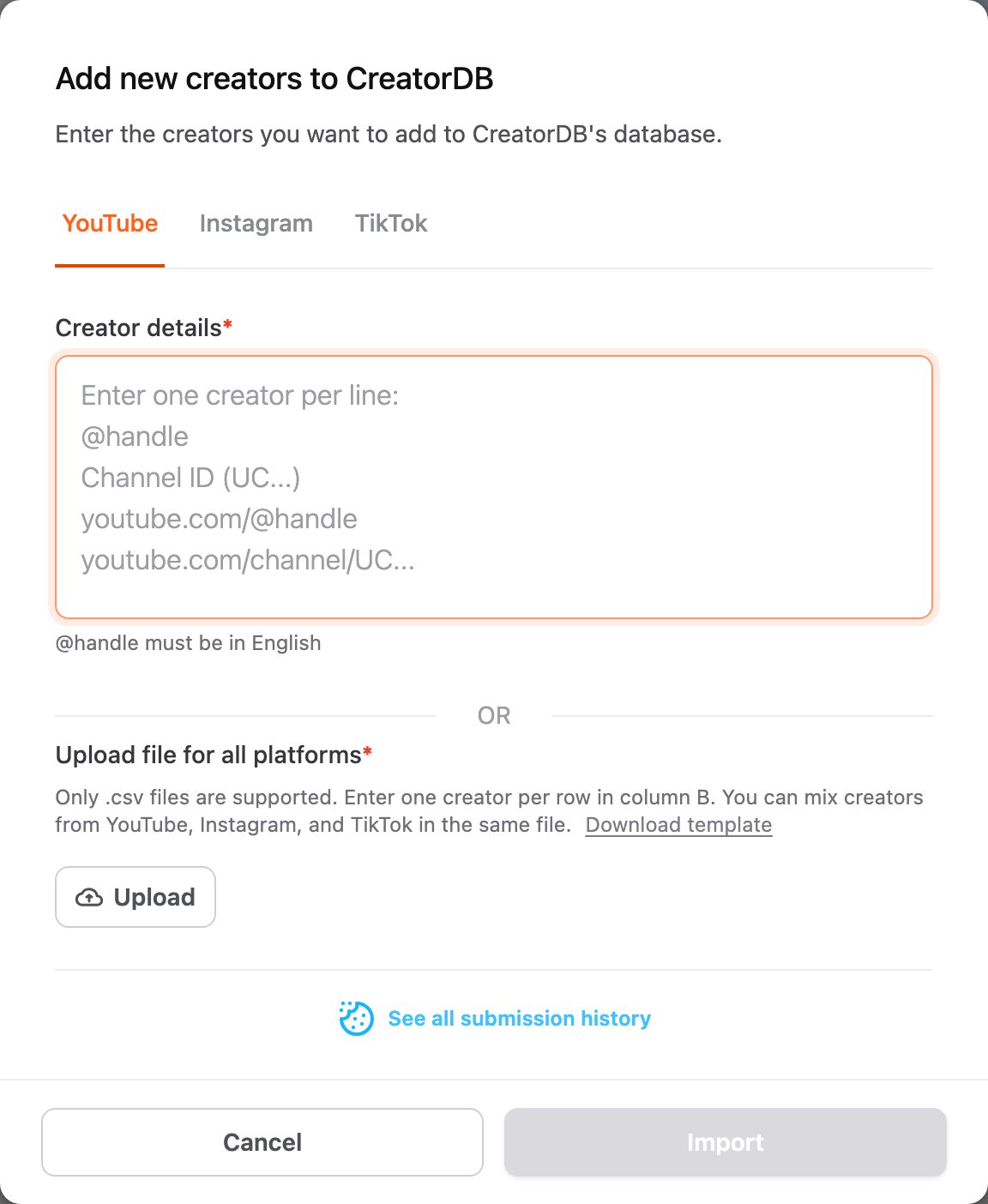
- Select a social media platform.
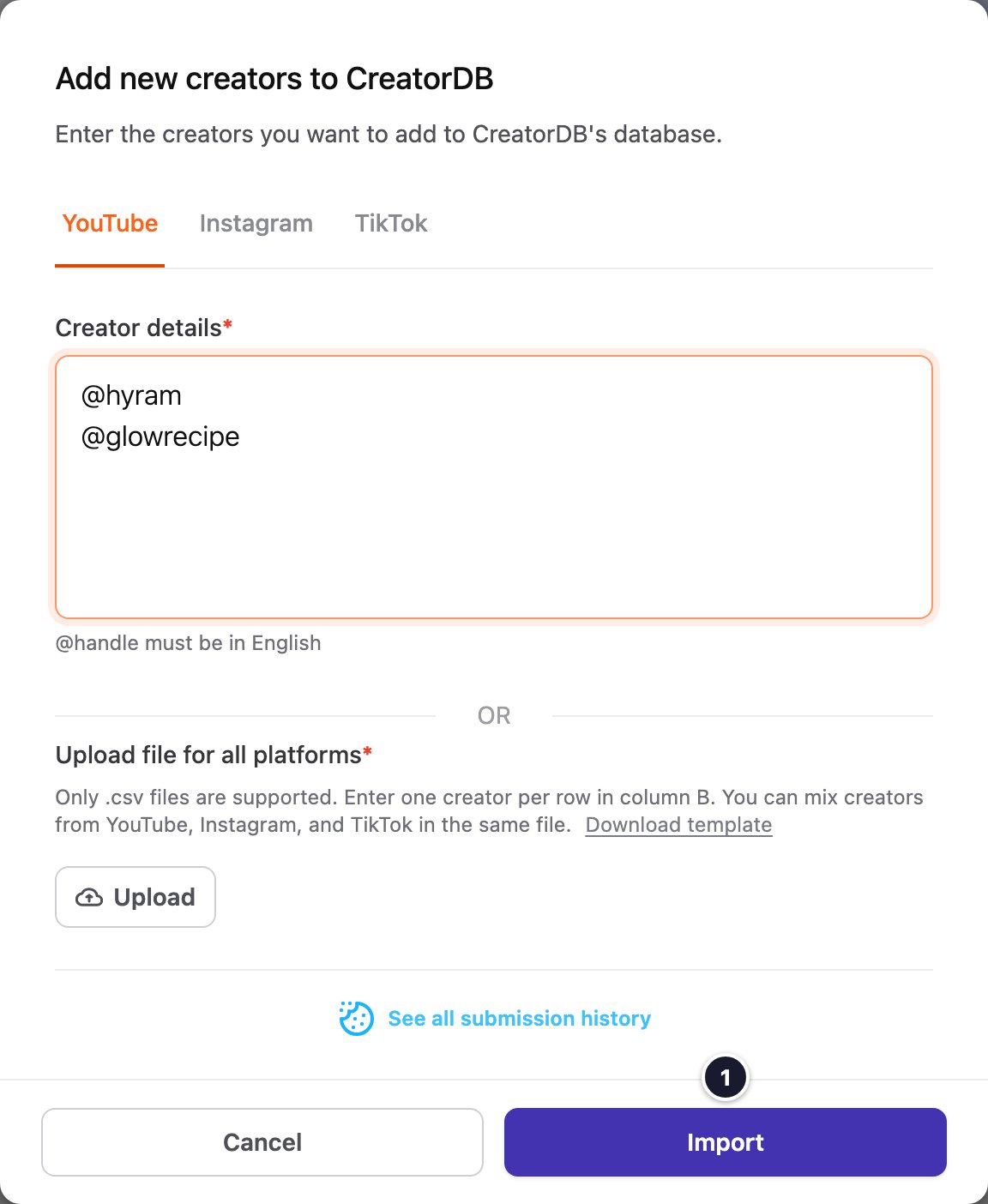
- Enter the creator’s ID, handle, or URL in Creator details.
- Click Import.
The Submission history window appears and shows the status of each creator you submitted.
Adding creators to the database by uploading a file
To upload multiple creators from a file, save the file in .csv format and follow the template format. Click Download template to get the template. Enter one creator per row in column B. You can mix creators from YouTube, Instagram, and TikTok in the same file.
-
Click Add creators.
The Add new creators to CreatorDB window appears. -
Click Upload.
A window appears. - Select a file.
- Click Open.
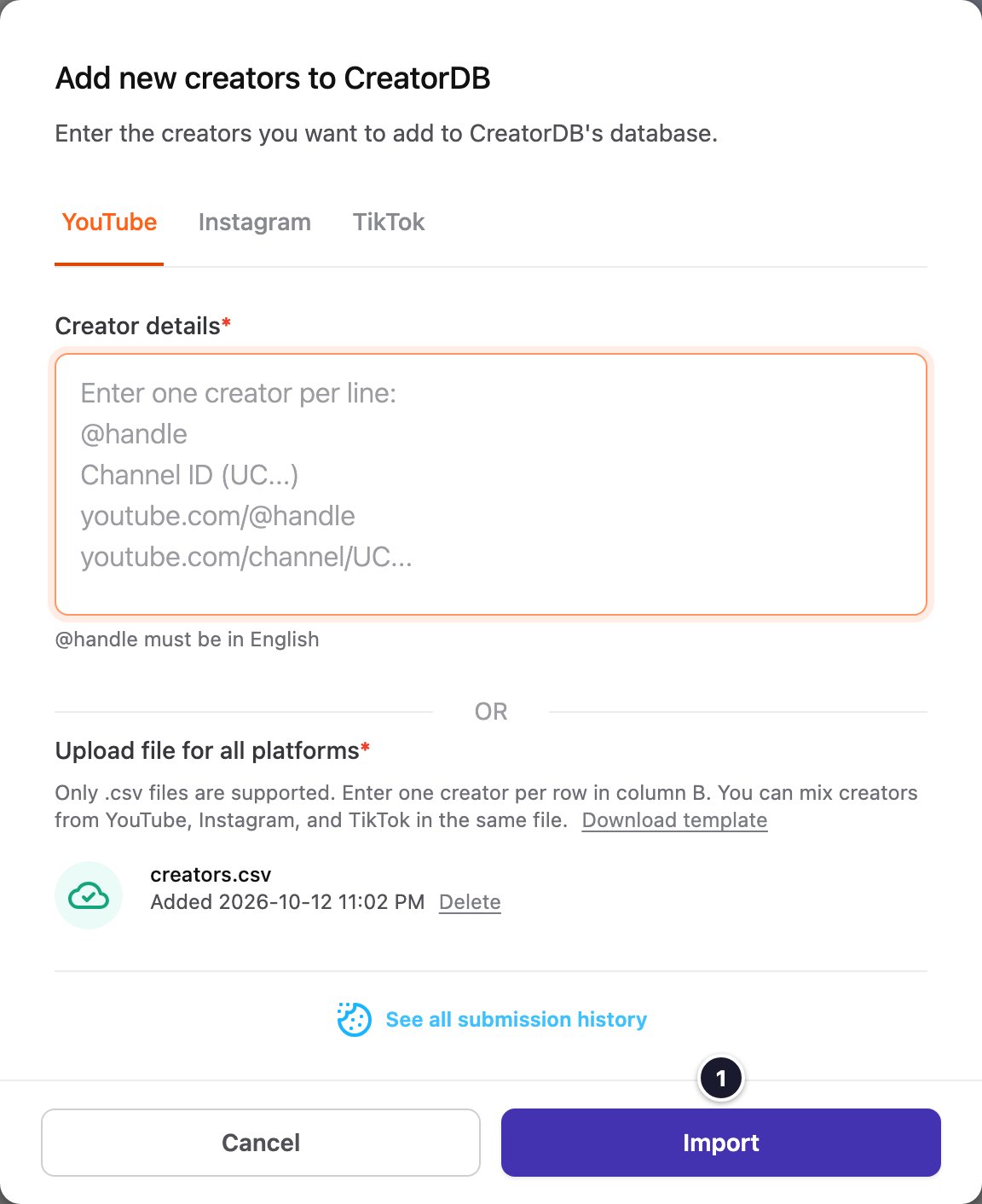
- Click Import.
The Submission history window appears and shows the status of each creator you submitted.
Viewing creator submission history
The Submission history shows the creator records you submitted to the CreatorDB database. It shows whether the creator was successfully submitted. The creator appears in CreatorDB once their data is collected and verified. To open it, click See all submission history in the Add new creators to CreatorDB window.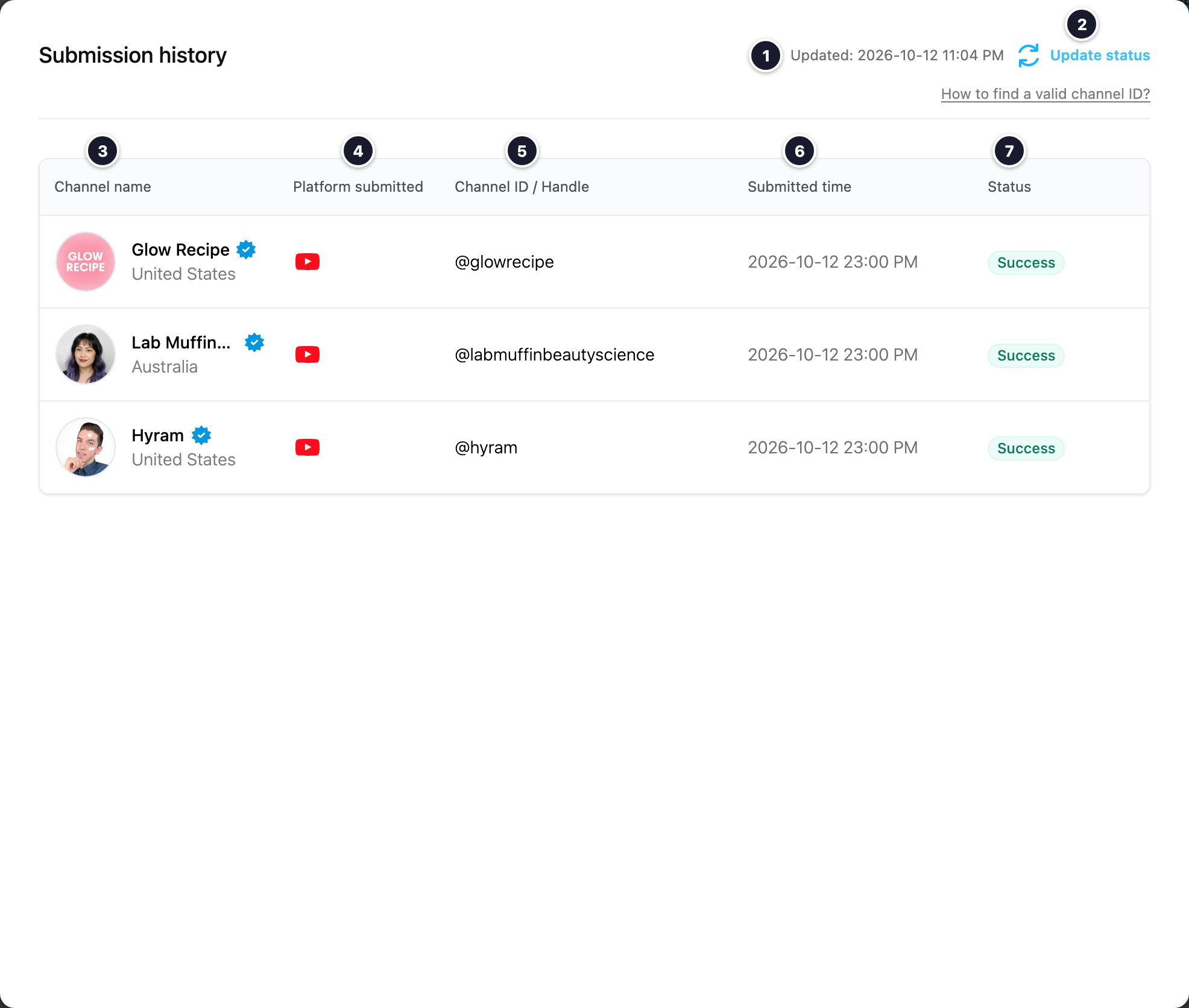
Viewing a creator’s profile and performance
Click a creator anywhere in CreatorDB, such as in search results, a group, or a campaign, to open their profile. CreatorDB collects public data from each platform regularly and adds AI classifications, rankings, and estimates on top.Profile header
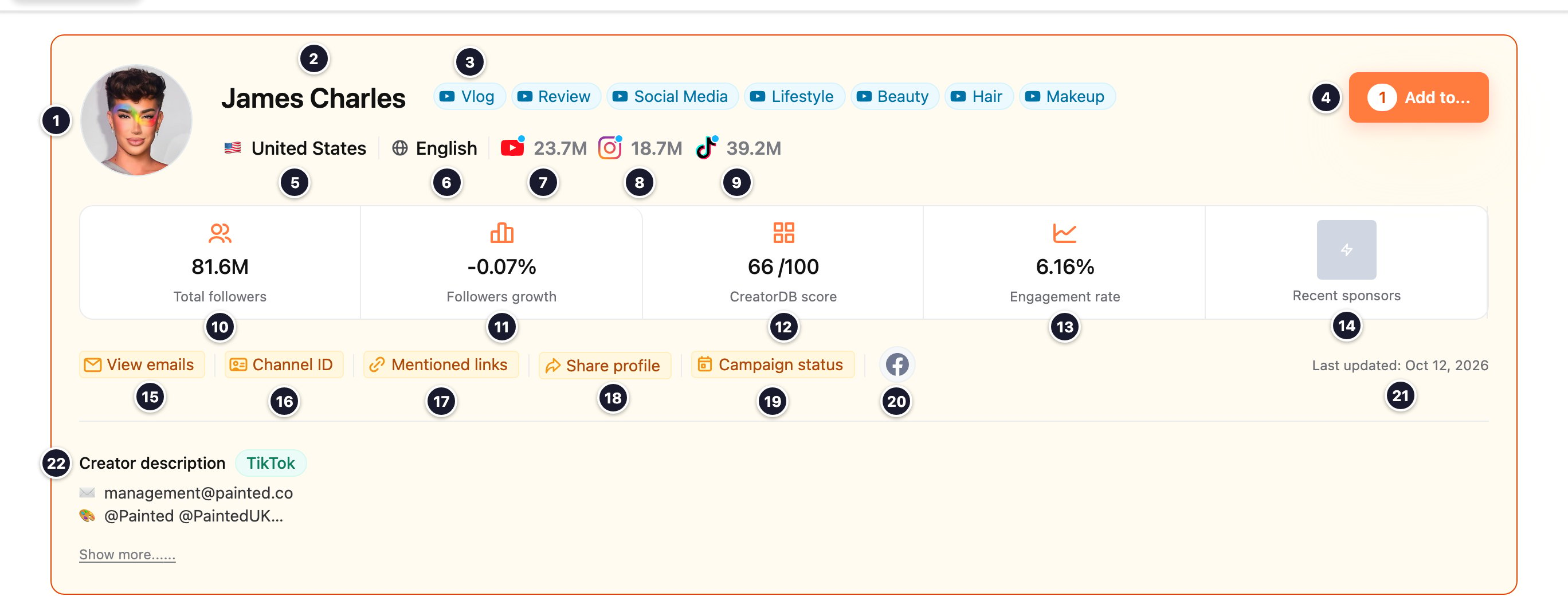
- A grayed-out button, such as Mentioned links, means that data isn’t available. When no email is available, the button reads No email found.
- When your plan reaches its profile view limit, the profile shows a You’ve reached your plan’s profile view limit banner and some data is hidden until your quota renews. Click View usage to check your quota.
Platform and section tabs
Below the header, choose a platform on the left and a section on the right:- All platforms, YouTube, Instagram, or TikTok. All platforms combines the creator’s accounts; a platform tab shows only that account. Only platforms where the creator has an account appear.
- Overview, Audience, Related, Content, or Brand.
Overview
Platform statistics
On All platforms, the top of Overview has one card per platform.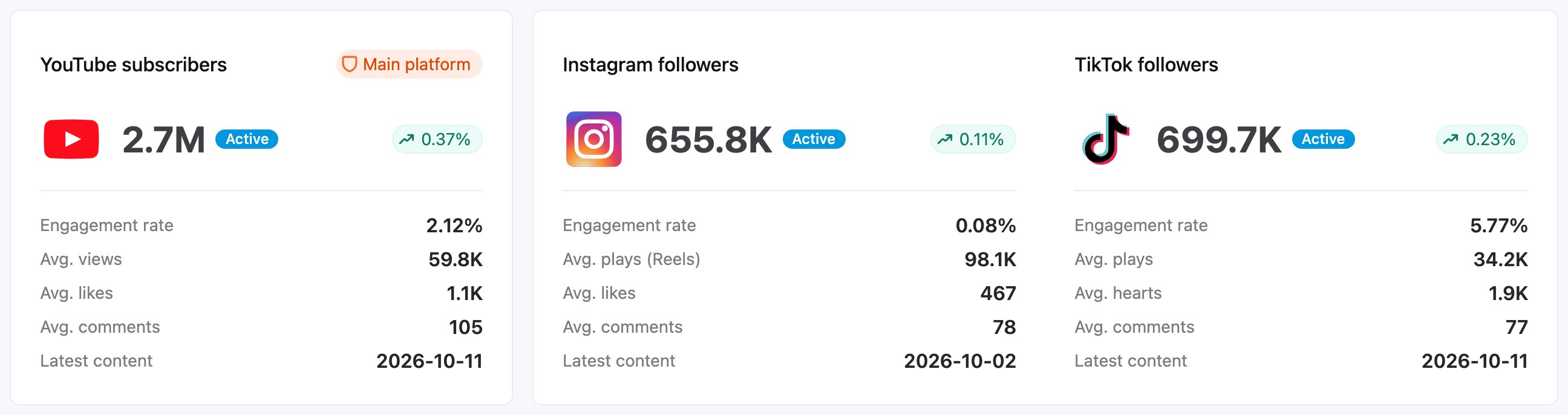
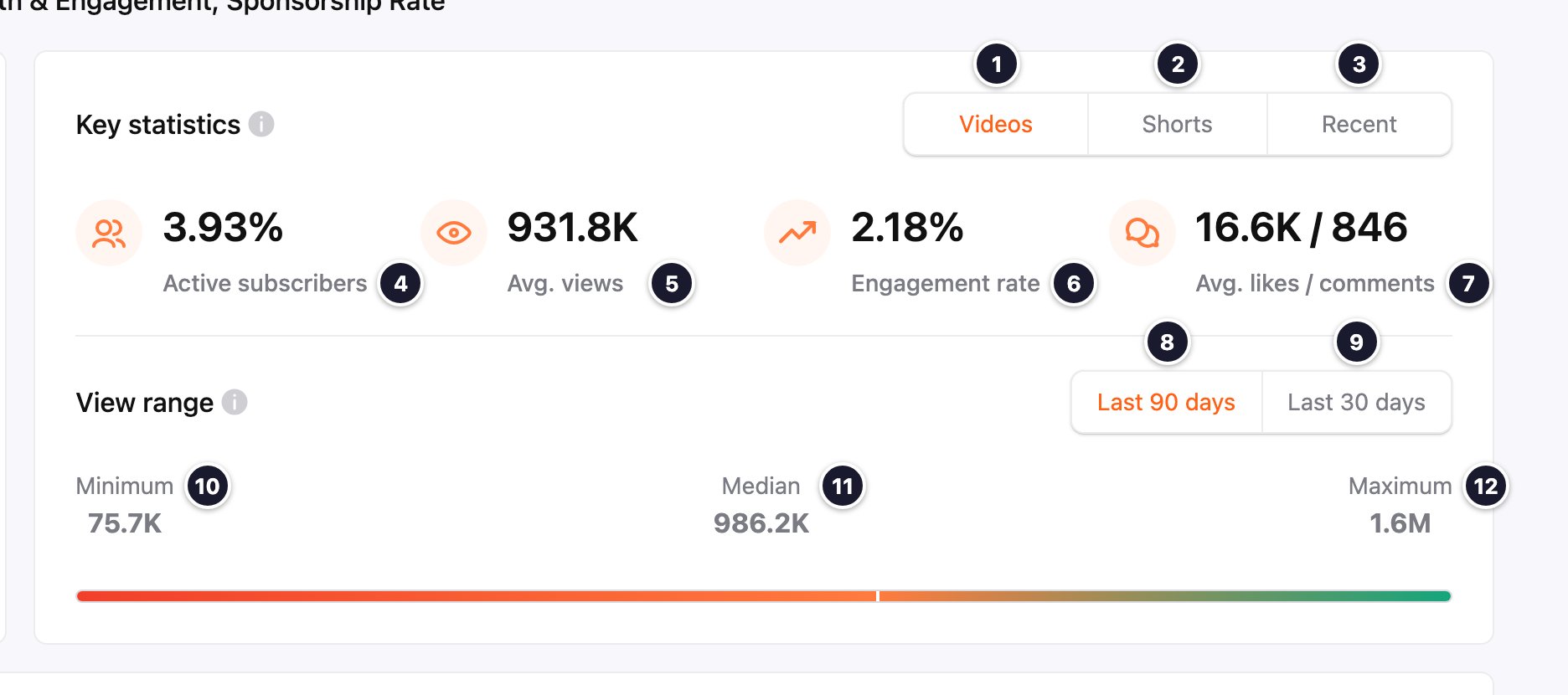
On YouTube, Sponsorship rate shows CreatorDB’s AI estimate of what the creator charges for sponsored content in US dollars, as a Flat fee and a Target CPM (cost per 1,000 views). Select Videos or Shorts for each content type. It isn’t available on the Free plan.

CreatorDB score and rankings
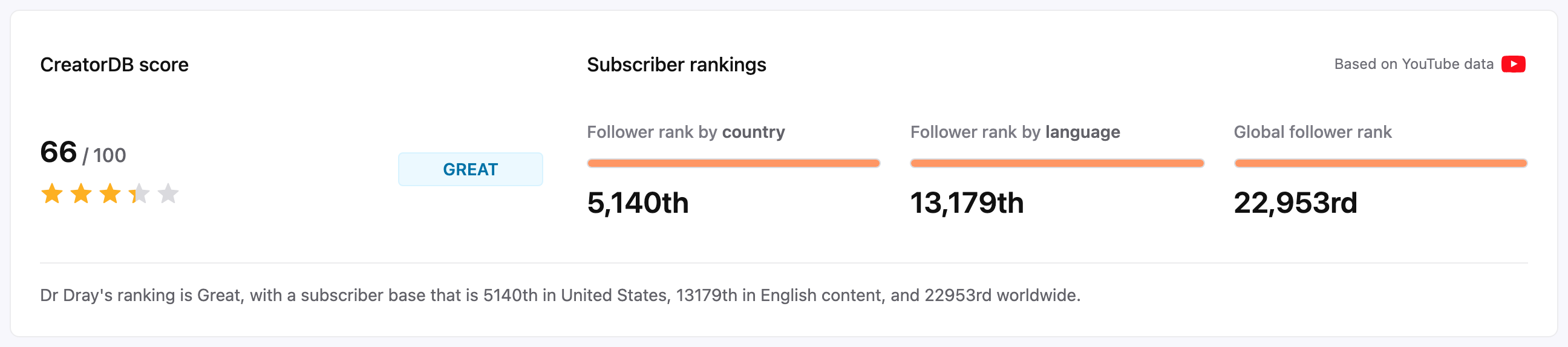
The rankings show where the creator’s followers rank among creators in the same country, in the same language, and globally.
Growth, upload time, and content mix
Further down Overview:- Followers by platform: follower count and growth over the last 7, 30, and 90 days, and a chart of each platform’s followers. Follower growth switches the chart to growth rate. On a platform tab, the chart can show average views, subscribers, or engagement rate, and their growth rates, over 7, 30, or 90 days.
- Monthly gain in total followers: followers gained or lost each month for the past year, and when the creator was added to CreatorDB.
- Upload time (heat map): when the creator posted their most recent 20 pieces of content, by day of the week and time of day (night, morning, afternoon, evening) in the creator’s local time.
- Content breakdown: the share of each content type (YouTube videos and Shorts, Instagram posts and reels, TikTok videos) in the last 90 days. On All platforms, switch to Platform to see the share by platform.
- Performance (All platforms) or Ranking metrics (platform tabs): how the creator’s views, followers, engagement, and growth compare with similar accounts, rated from Poor to Superb. On a platform tab, you can compare by content type or by topic.
- Views interquartile range (platform tabs): the minimum, 25% quartile, median, 75% quartile, and maximum views of recent content, so you can see how consistent the creator’s views are.
- Recent sponsorships: the latest brands to sponsor the creator. Click View details to go to the Brand section.
Audience
Audience shows the demographics of the creator’s audience on the selected platform (on All platforms, the main platform): top region, gender, and age group, average age, the top countries, a gender split, and an age breakdown. Audience data is generated by CreatorDB’s AI models.Related
Related lists similar creators that CreatorDB recommends based on the creator’s content. Use it to find creators in the same niche or to research competitors.Content
Content shows the creator’s most recent content and its performance. Click a piece of content to see its details. Below it:- Content analytics: how often the creator posts (Content per week and Content per month) over the past 12 months.
- Content tags: the creator’s most-used hashtags, up to 32. Larger text means more frequent use.
- Top 5 topics and Top 10 niches: the creator’s main topics and the more specific niches CreatorDB’s AI assigns to their content.
Brand
Brand shows the creator’s sponsored YouTube and Instagram content from the past year. CreatorDB doesn’t collect sponsorship data for TikTok.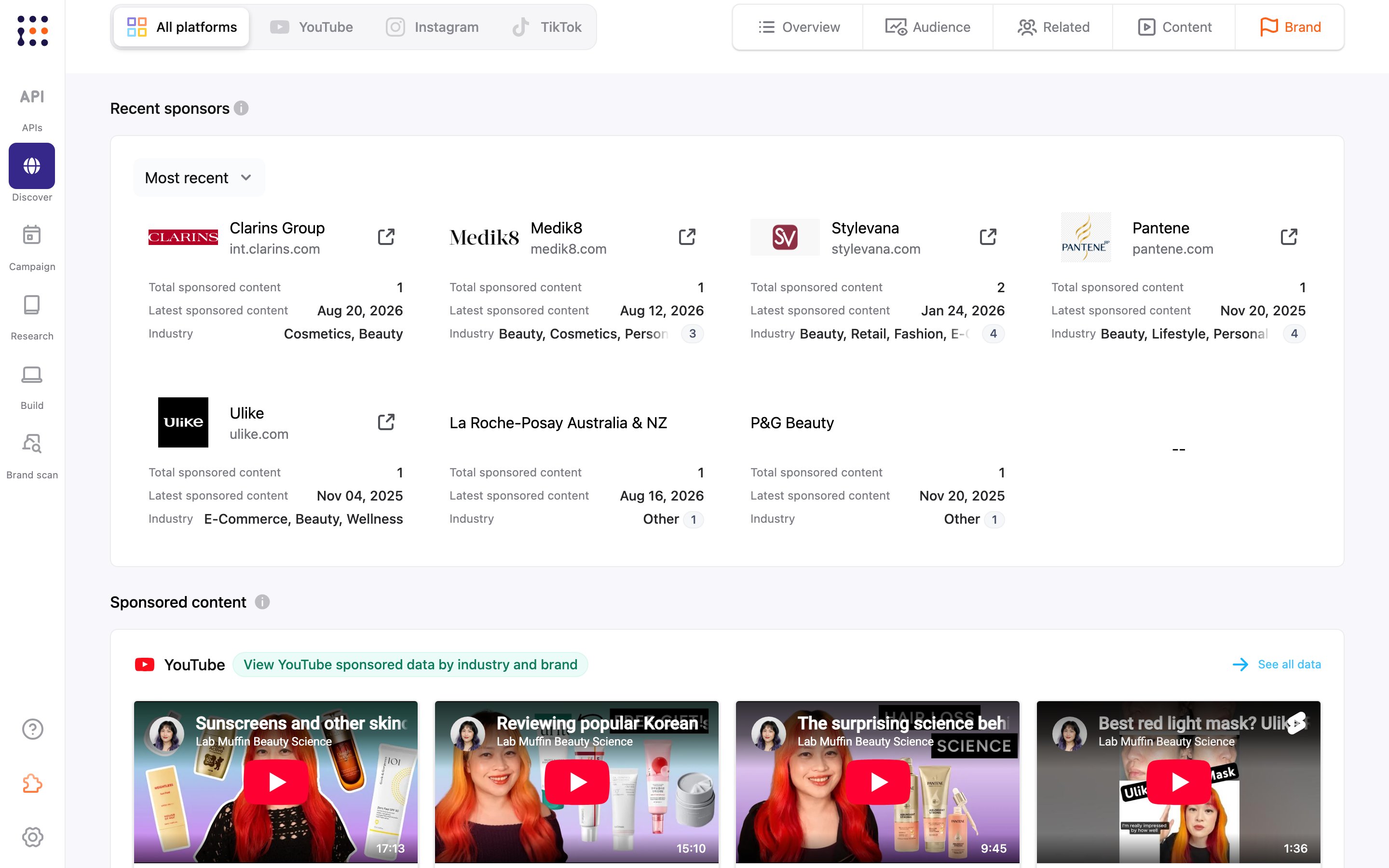
YouTube brand
- Content breakdown and Sponsored content / Total content: how many videos were sponsored out of all videos in the past year, and the engagement rate, average views, likes, and comments of sponsored videos next to all videos.
- Industries: the industries of the creator’s sponsors. Click one to show only those sponsors.
- Recent sponsors: each sponsoring brand with its total and latest sponsored content. Sort by Most recent or Total sponsored content. Click a brand to show only its videos, or the link icon to open its brand profile.
- Sponsored content: the sponsored videos. Sort by Most recent, Views, Likes, or Engagement rate.
Instagram brand
The Instagram Brand section has the same parts as YouTube brand, for sponsored posts and reels.Platform differences
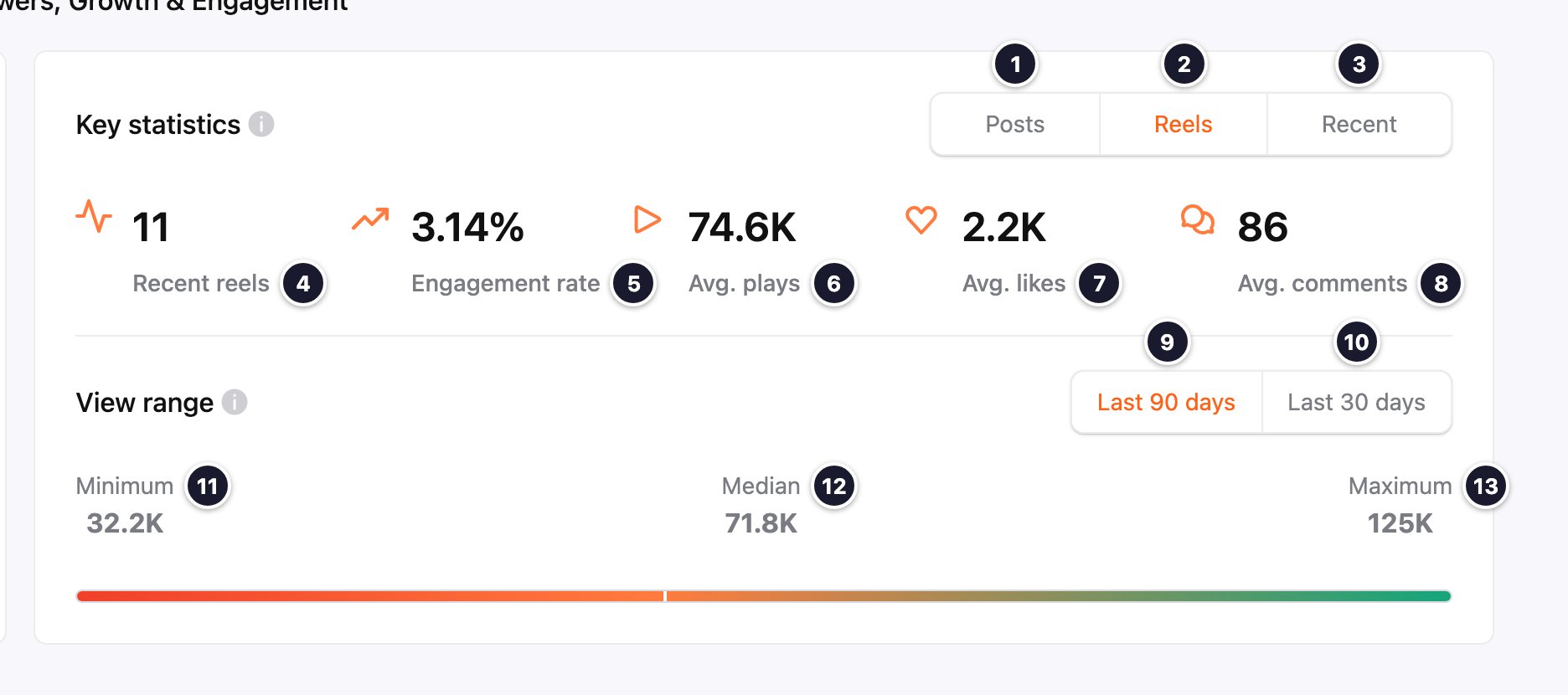
On Instagram, Key statistics has Posts, Reels, and Recent views; Recent reels or Recent posts shows how many items the numbers are based on.
Downloading creator profiles
You can download up to 1,500 creator profiles on the same page each time. Downloading is available on paid plans.- The system will download all creator profiles on the same page.
- The system currently does not support downloading selected creators. To download only selected creators, add them to a group and download the group. For details, see Downloading creators in a group.
- You can cancel the download anytime by clicking Cancel.
- You can run one download at a time. If a file you requested earlier is still being prepared, the Download CSV window shows Preparing your previous file…. Wait for it to finish, or click Cancel to start a new download.
- Search for creators.
For details, see Searching for creators. - Click Download.
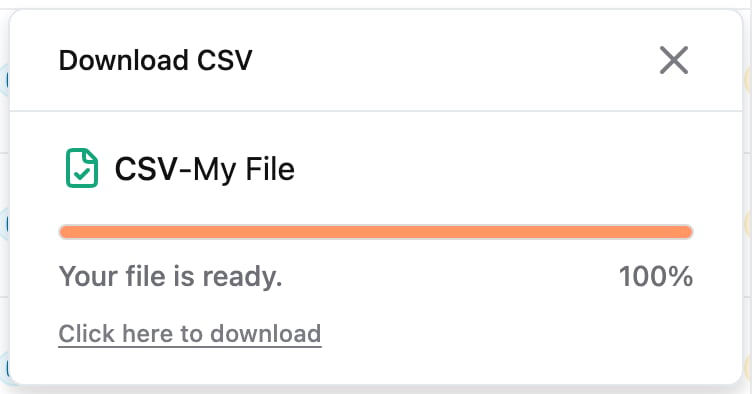
The Download CSV window appears and shows Preparing your file…. Downloading all creator profiles on the same page may take a few minutes. - When Your file is ready. appears, click Click here to download.