

The Kanban board requires a paid plan, and the number of active campaigns and members in an organization depends on your plan. For details, see Plan limits.The steps on this page assume you’re logged in to CreatorDB. If you don’t have an account yet, see Create an account.
Kanban board user interface
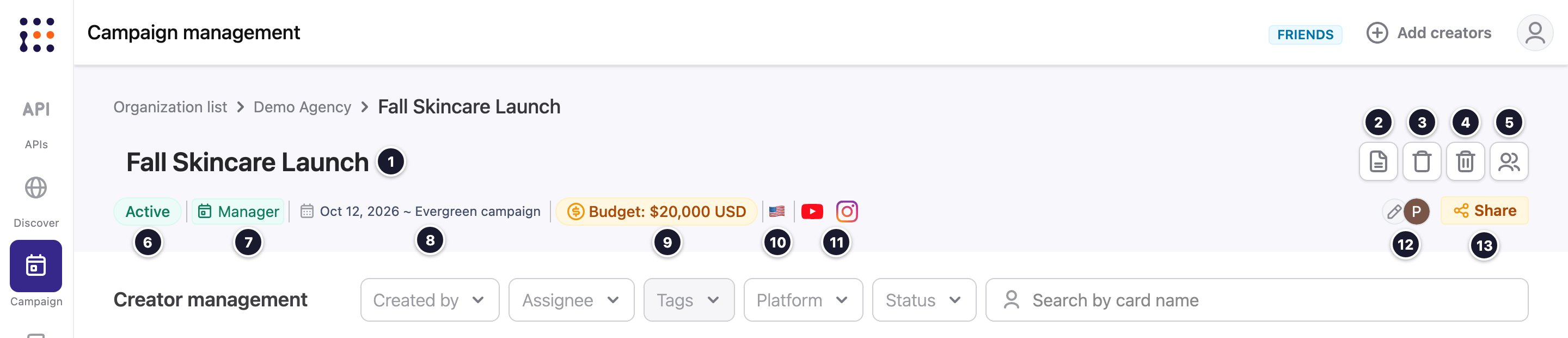
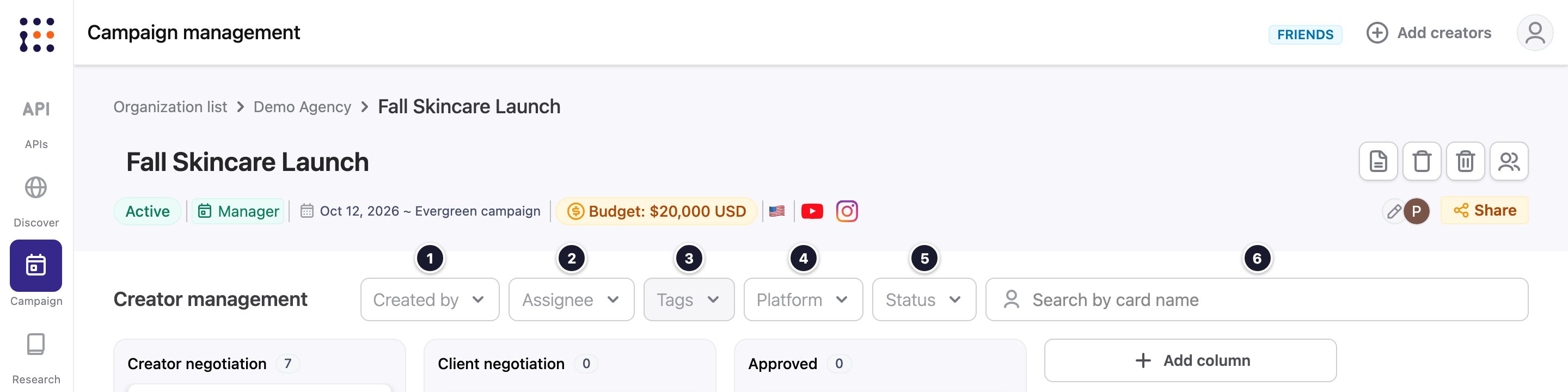
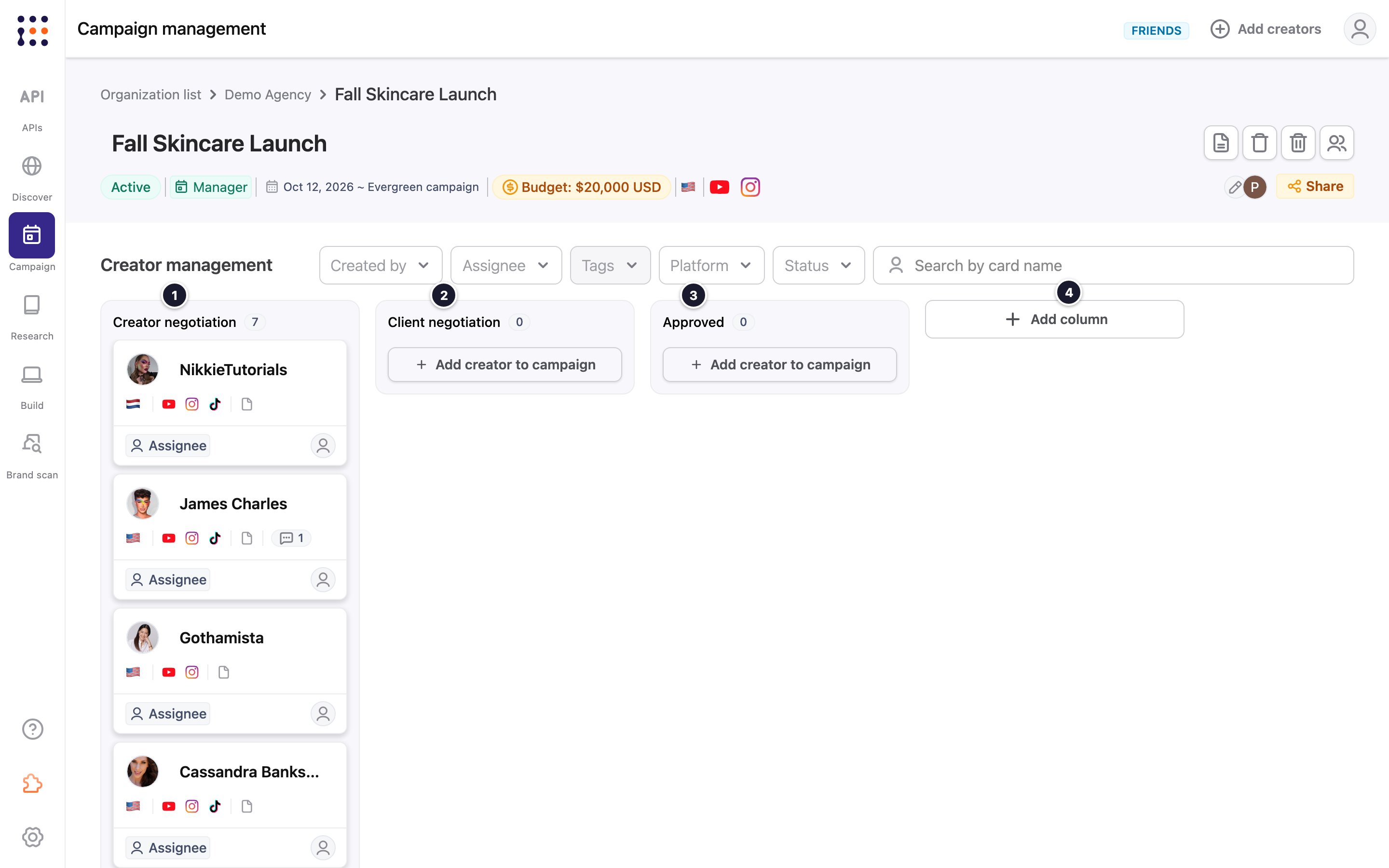
The Kanban board is comprised of three major sections: the top toolbar area that provides key campaign information and main actions, followed by a filter and search bar that allows you to quickly organize campaign cards by certain conditions, and lastly, the Kanban board that groups creator cards by columns that allows for workflow visualization.Toolbar
Filters and search bar
Kanban board
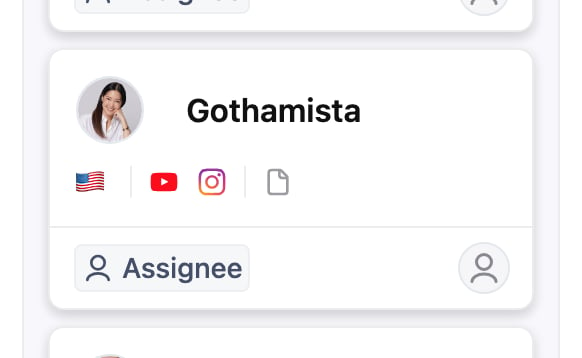
Creator card
Kanban board roles and permissions
The Kanban board in CreatorDB uses a role-based permission system to control what each team member can do. When you add a member to a campaign, you assign them one of four roles: Manager, Member, Viewer, or Guest. Each has a different level of access across role management, campaign settings, creator tracking, and card activity. CreatorDB recommends assigning the most restrictive role that still lets a person do their work.Kanban board roles
The table below describes each role and its intended use.Kanban board permissions
The tables below cover the Manager, Member, and Viewer roles. Guests can’t open the Kanban board, so they don’t have any of these permissions.Role permissions
Campaign management permissions
Kanban board management permissions
Creator management permissions
Card management permissions
Card management permissions cover actions across eight areas within a card: card actions, card logs, pricing, deliverables, fields, content, files, and notes. Card actions
Card logs
Pricing
Deliverables
Fields
Content
Attachments
Notes
Tag management permissions
- For details on campaign-level permissions, see Campaign roles and permissions.
- For details on organization-level permissions, see Organization roles and permissions.
Opening a campaign’s Kanban board
Every procedure on this page starts from the campaign’s Kanban board, and most start from a creator card.- Click Campaign.
The Organization list page appears. - Select an organization, then select a campaign.
The campaign’s Kanban board appears. - To open a creator card, click it.
The creator card window appears. Use the filters and search bar to find a card quickly.
Inviting campaign members
- Open the campaign’s Kanban board.
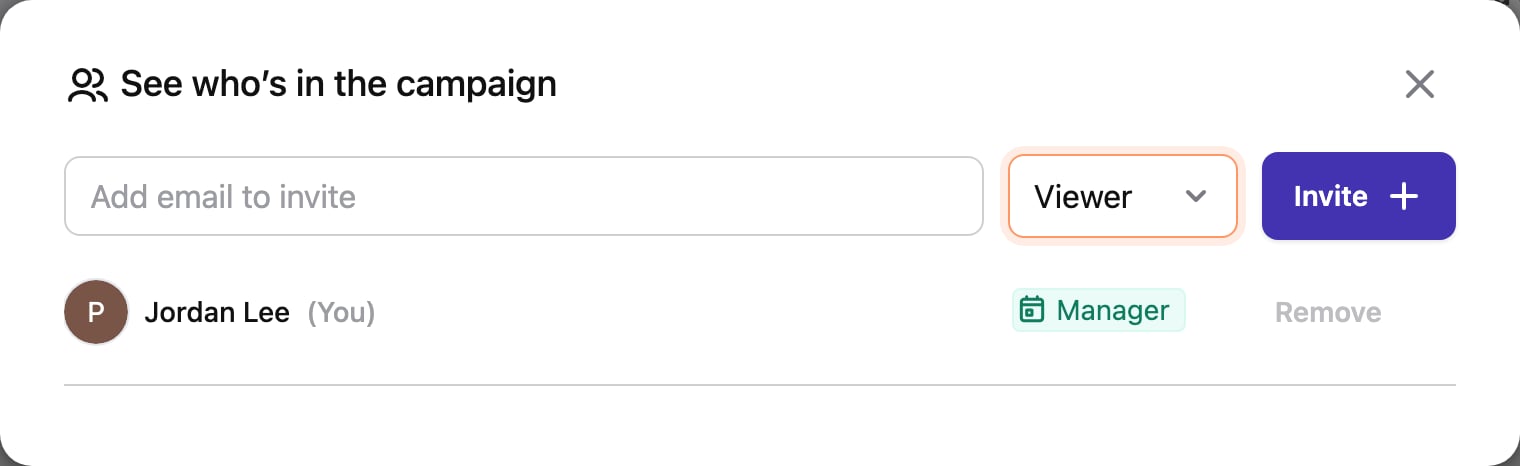
- Click the See who’s in the campaign icon at the top of the campaign.
- Enter the team member’s email address and choose a role: Manager, Member, Viewer, or Guest.
- Click Invite.
Adding and deleting columns
- Add a column: click Add column to the right of the last column, enter a name, and press Enter.
- Delete a column: click x (Delete the column) on the column, then click Delete.
Managing creators in a campaign
- What you can do depends on your campaign role. For details, see Creator management permissions.
- Only creators active on the campaign’s platforms are added to a campaign.
Adding a creator to a campaign
You must be a campaign manager or member to add creators. From the Kanban board- Open the campaign’s Kanban board.
- Click Add creator to campaign in a column.
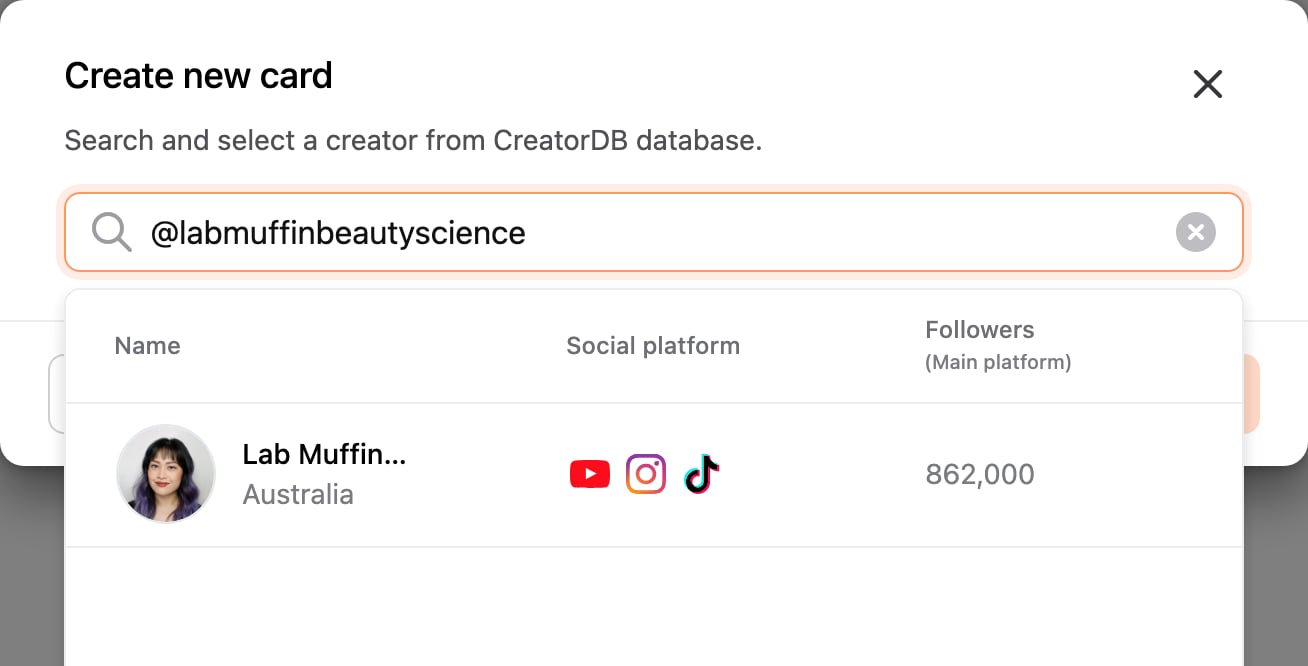
The Create new card window appears. - Enter the creator’s full channel name or @handle, select the creator, and click Create card. Partial names may not return a match.
- Choose where to add from:
- Creator profile: click Add to… at the top of the profile.
- Search results: select one or more creators, then click Add to….
- Group: click Group, then click More actions on a group.
- Select Add to campaign (or Add group to campaign).
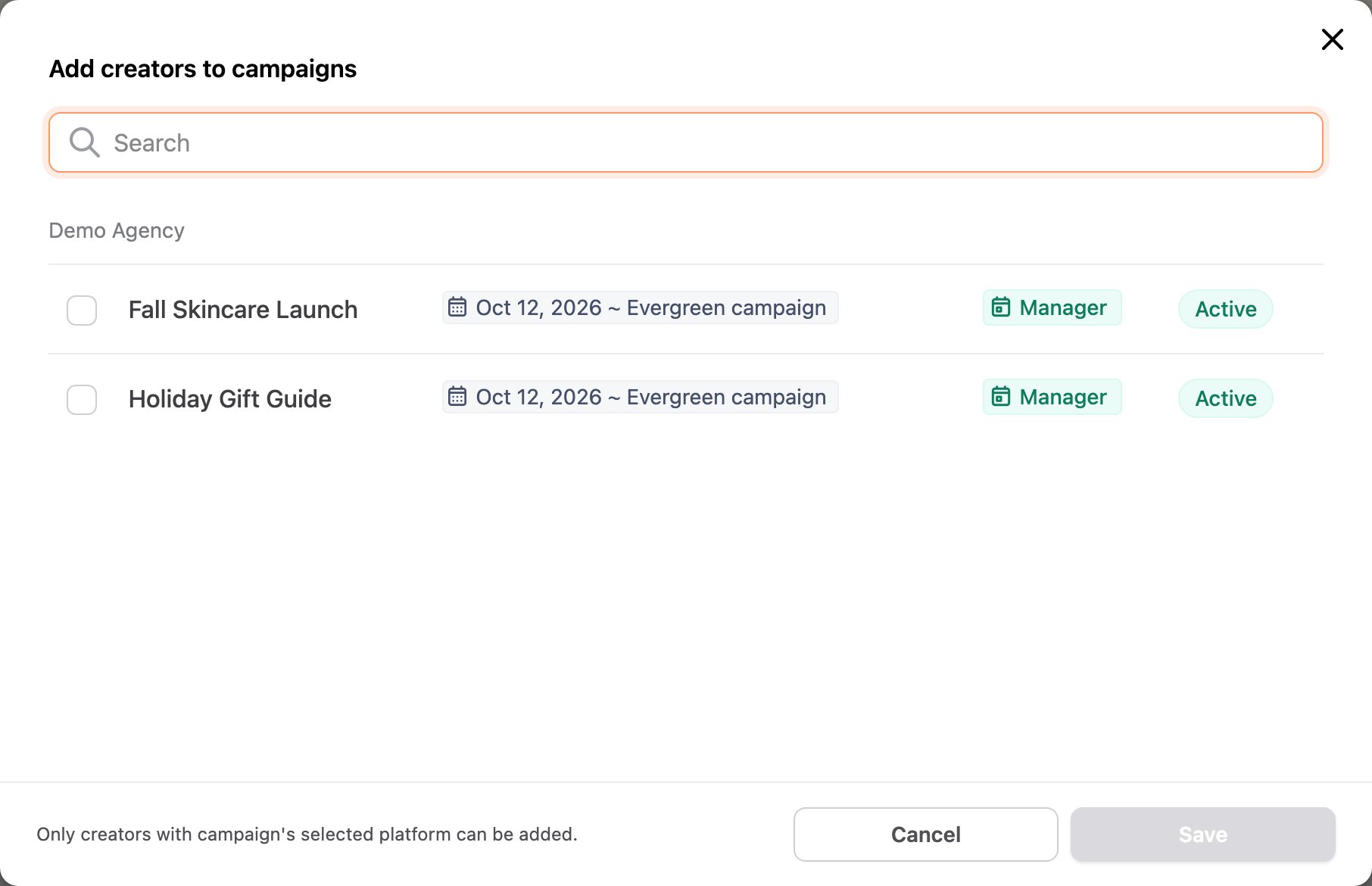
The Add creators to campaigns window appears. - Select one or more campaigns and click Save.
Editing a creator card
You must be a campaign manager or member to edit a creator card. Open the creator card and change any of these fields. Changes save automatically.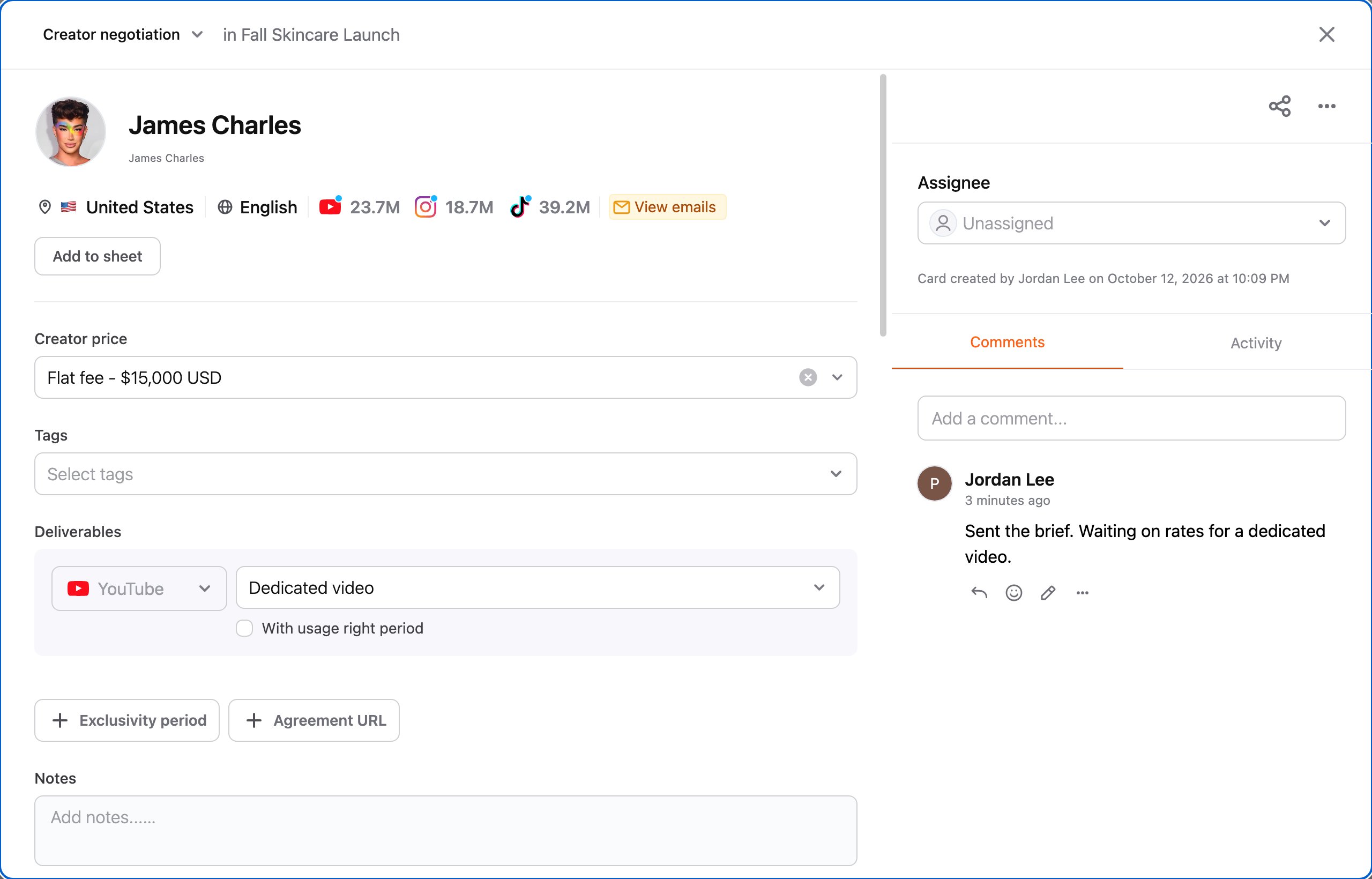
The Creator info section at the bottom of the card shows the creator’s audience overview and stats for each platform. For what each stat means, see Platform statistics.
Importing a creator audience demographic data from CreatorDB
- Open the creator card and scroll to Audience overview.
- Click the Import audience data from CreatorDB (cloud) icon.
- Select a platform and click Import.
The Edit audience data window appears with the imported values. - Optional: Adjust the values, then click Save.
Moving a creator card and updating their status
Drag a card to another column, or open the card and choose a new status at the top. Either way, the card’s status and column update together. Campaign managers and members can move cards. Viewers can change a card’s status. For details, see Creator management permissions.Assigning a member to a creator card
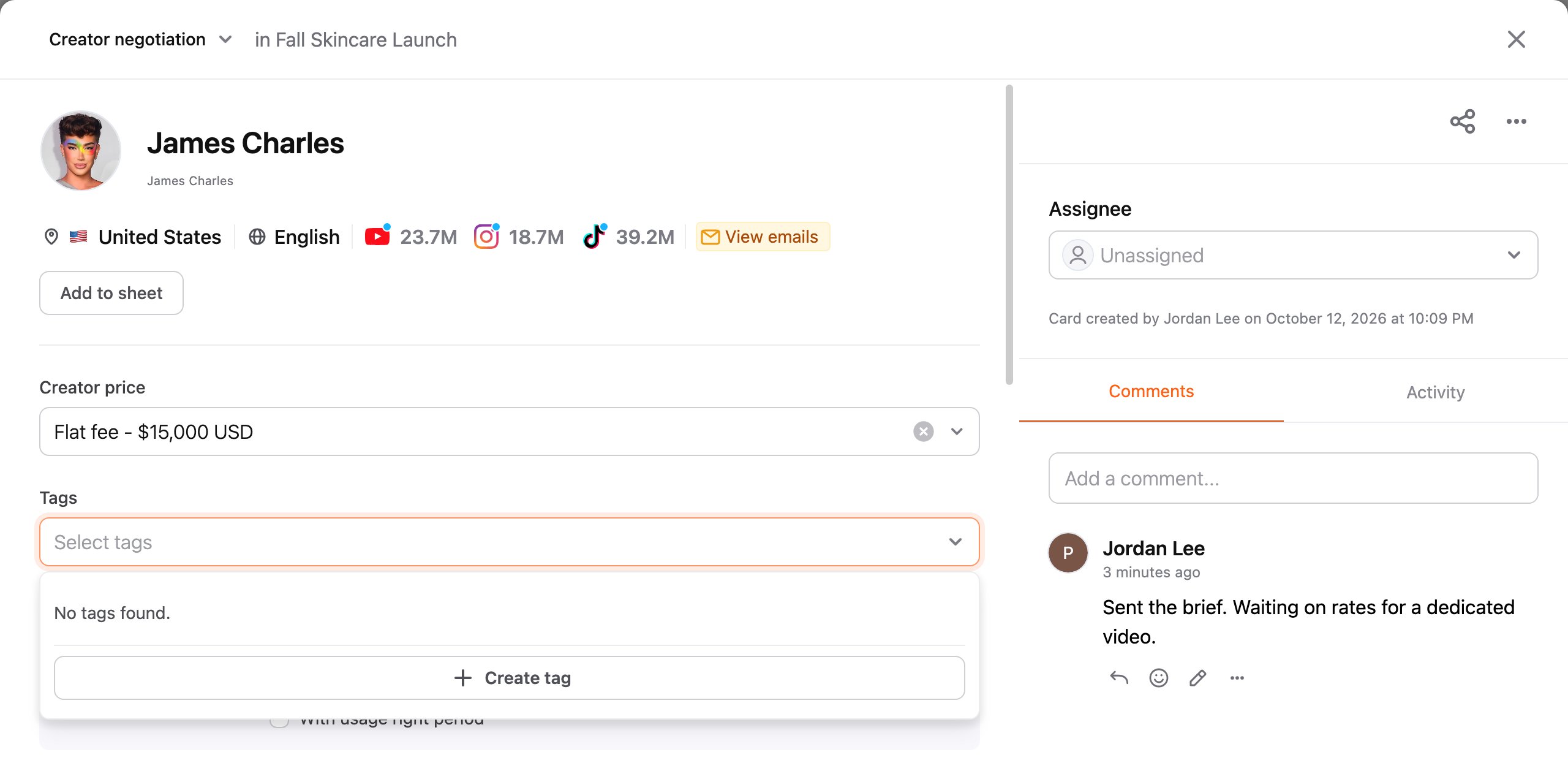
Open the creator card, click Assignee, and select a campaign member. You can search for a member by name. You must be a campaign manager or member.Adding tags to a card
- Open the creator card and click Tags.
- Select one or more tags.
- Optional (managers): to create a tag, click Create tag, enter a name, and click the checkmark.
Sharing a creator card
Open the creator card and click the Share card link icon at the top right. Click the link to copy it. Managers, members, and viewers can share cards.Duplicating or deleting a creator card
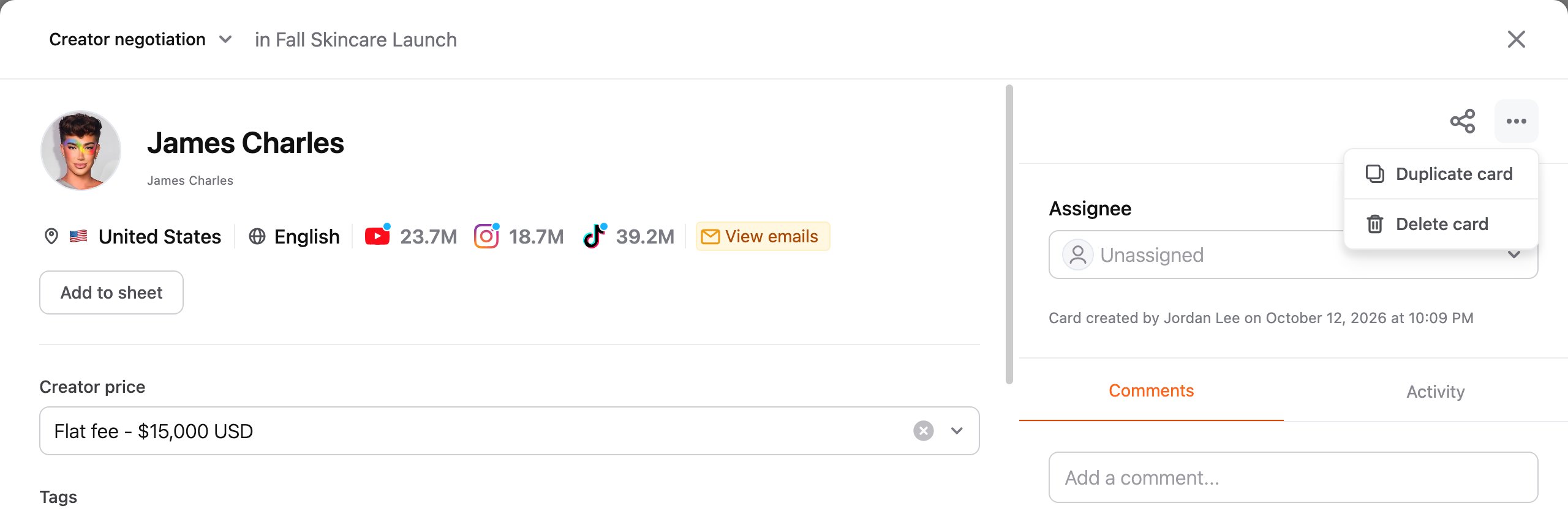
- Open the creator card and click More actions (…) at the top right.
- Select Duplicate card or Delete card. For Delete card, click Delete to confirm.
Managing a card’s attachments
Supported file types are
JPG, JPEG, PNG, PDF, DOC, and DOCX. Each file can be up to 20MB, and each card can have up to 15 files.- Add: click Add and select a file.
- Pin or unpin: click the pin icon on a file to keep it at the top.
- Rename, download, or delete: hover over a file and click Rename, Download, or Delete.
Card log management
Every creator card keeps a log of comments and changes so your team can follow the latest updates. The Comments and Activity tabs are on the right side of the creator card (see the card image in Editing a creator card). Managers, members, and viewers can view logs and comment. For details, see Card management permissions.Commenting on a card
- Open the creator card and click Comments.
- Enter a comment and click Save.
- Reply: click Reply, enter your reply, and click Save.
- Edit: click Edit, change the text, and click Save.
- Delete: click More actions > Delete, then click Delete to confirm.