

CreatorDB offers a 14-day free trial for the Pro Plan that is only effective once. Once the free trial period is over, you will switch to the paid Pro Plan. You can upgrade to other tier plans, such as Premium or Enterprise, if you need more features. Each tier plan offers different quotas for accessing database features. You can upgrade or downgrade your subscription plan anytime through the CreatorDB platform and view all service quota usage.Documentation Index
Fetch the complete documentation index at: https://docs.creatordb.app/llms.txt
Use this file to discover all available pages before exploring further.
Upgrading a subscription plan
- Log in to CreatorDB.
-
Click on your profile image.
A drop-down menu appears. -
Click Learn more→.
The Select your plan page appears.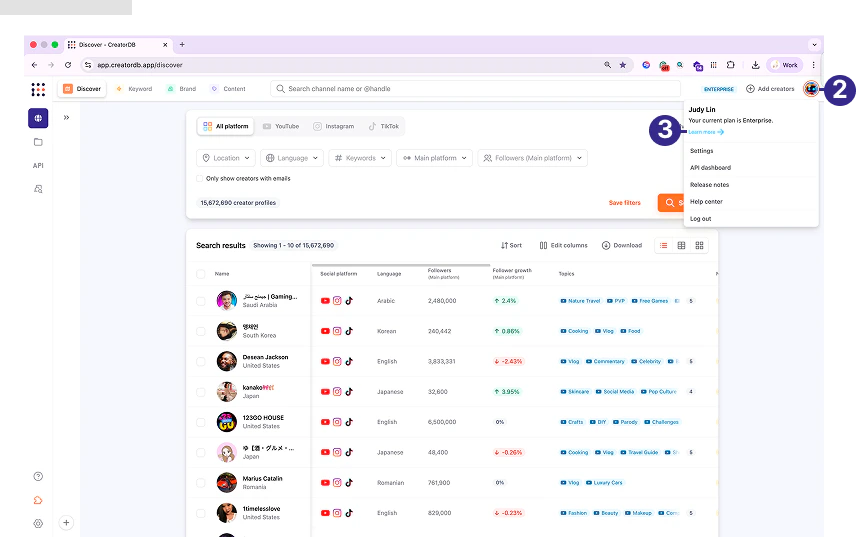
- Enable monthly or yearly billing.
-
Click Upgrade.
A confirmation message appears.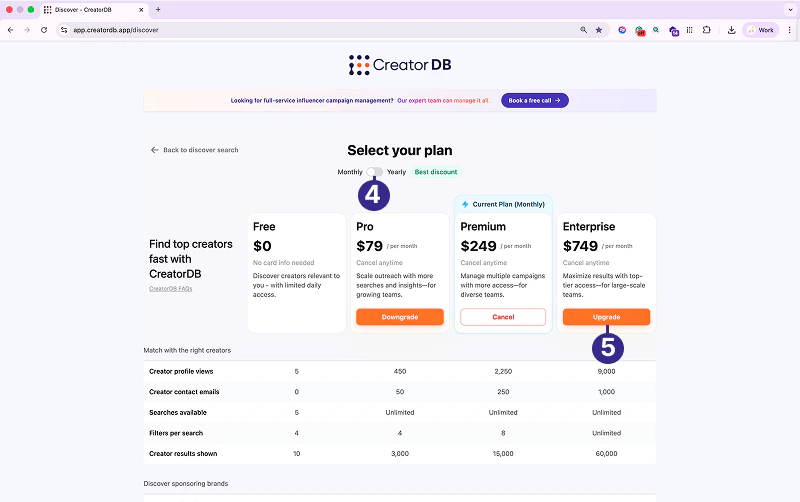
-
Click Upgrade.
.png?fit=max&auto=format&n=1qbXt1aF4MuKbg8e&q=85&s=ae22fb5722085a2c389d3f906686b6ce)
Downgrading a subscription plan
- Log in to CreatorDB.
-
Click on your profile image.
A drop-down menu appears. -
Click Learn more→.
The Select your plan page appears. - Enable monthly or yearly billing.
-
Click Downgrade.
A confirmation message appears.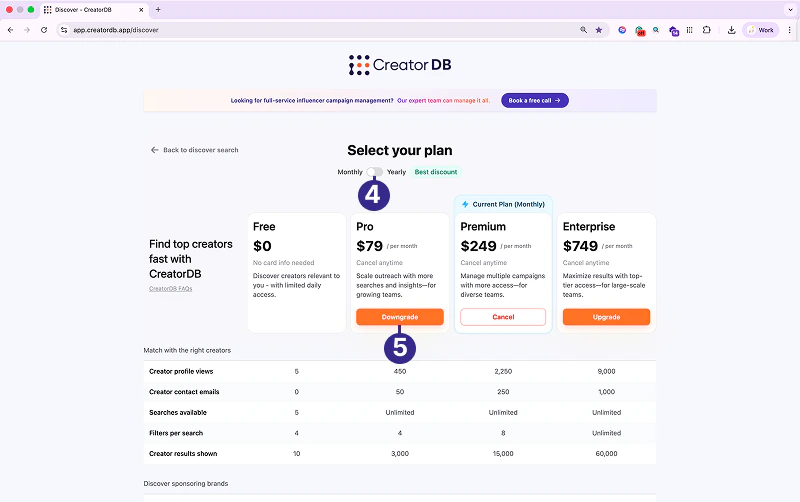
-
Click Downgrade.
.png?fit=max&auto=format&n=1qbXt1aF4MuKbg8e&q=85&s=711122b1aeacb1fad462f9baa22dfff4)
Canceling a subscription plan
- Log in to CreatorDB.
-
Go to Settings > Current plan.
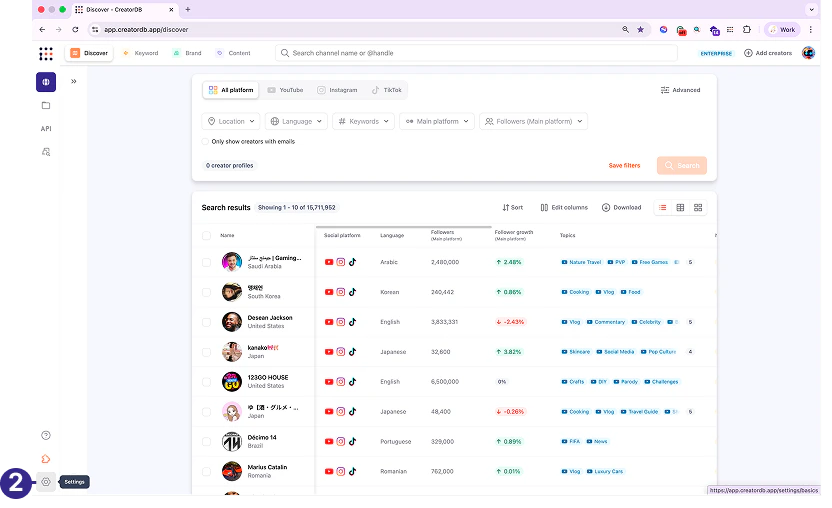
- Click Current plan.
-
Click Cancel.
A confirmation message appears.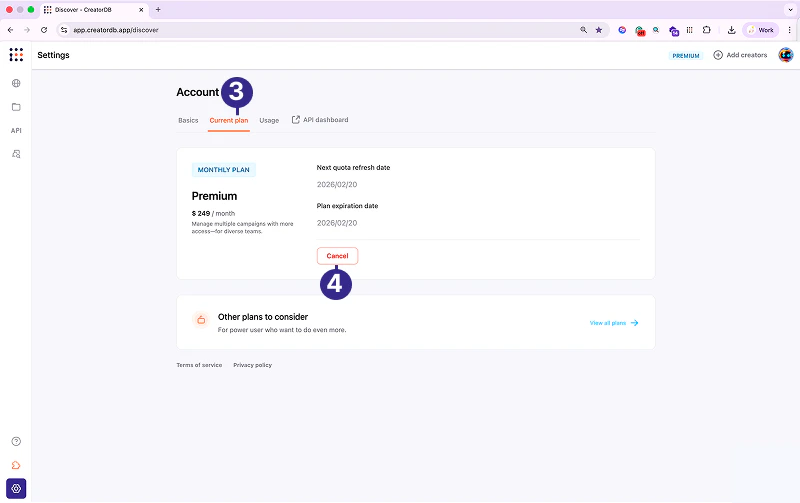
- Select Cancel plan.
-
Click Cancel.
.png?fit=max&auto=format&n=1qbXt1aF4MuKbg8e&q=85&s=ac966fb055046c039d095ef3a52e388c)
Viewing SaaS quota usage
Your SaaS quota depends on your subscription tier. For details, see Pricing plans.
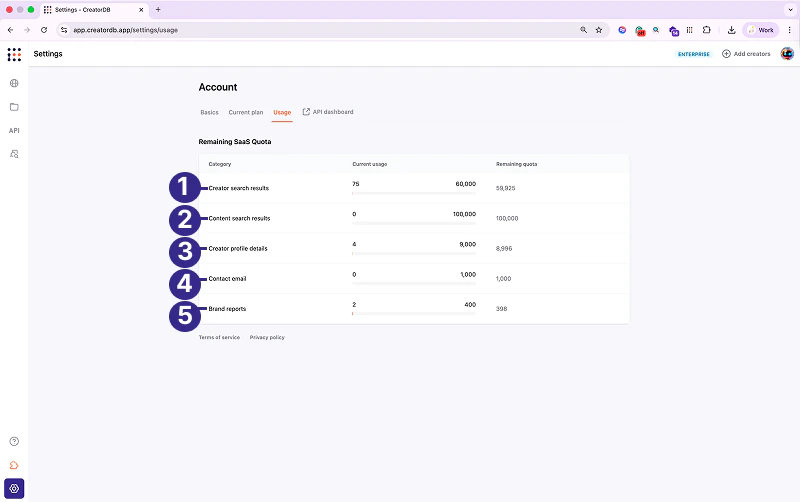
| No. | Label | Description |
|---|---|---|
| 1 | Creator search results | Shows the number of creator searches you’ve made and the remaining searches available. |
| 2 | Content search results | Shows the number of content searches you’ve made and the remaining searches available. |
| 3 | Creator profile details | Shows the number of creator profiles viewed and the remaining ones available. |
| 4 | Contact email | Shows the number of creator contact emails obtained and the remaining retrievable emails. |
| 5 | Brand reports | Shows the number of brand reports obtained and the remaining reports available. |