Creating a group
Based on your CreatorDB plan, you can create 2 to 100 groups. For details, see CreatorDB’s pricing plans.
- Log in to CreatorDB.
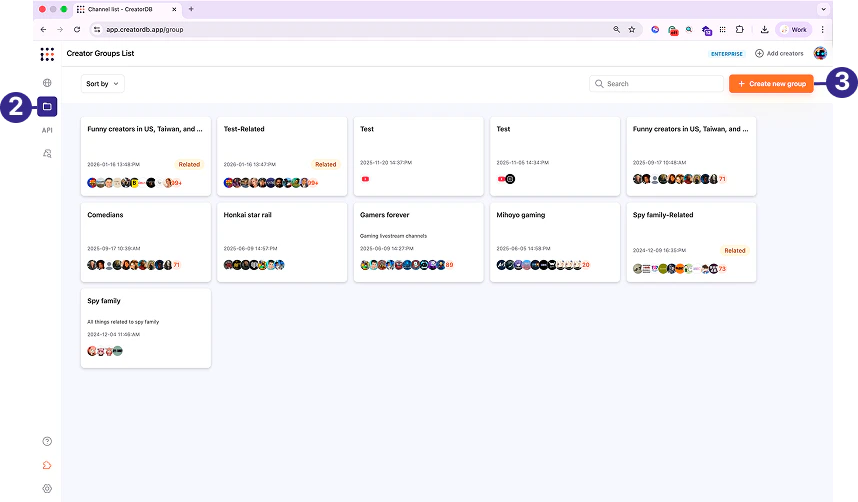
- Click Group.
- Click + Create new group.
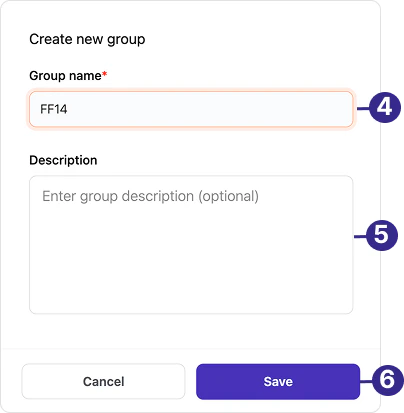
- Enter a Group name.
- Optional: Enter a group description.
- Click Save.
Adding a creator to a group through a creator profile
You can add up to 5,000 creators per group based on your pricing plan. For details, see CreatorDB’s pricing plan.
- Log in to CreatorDB.
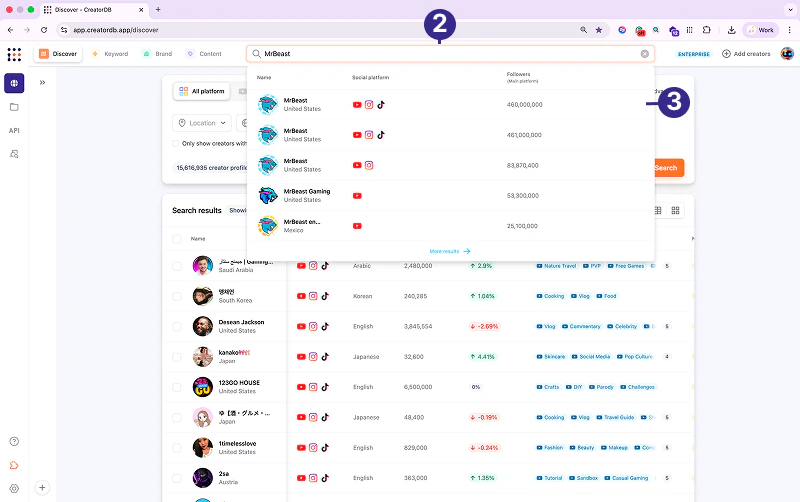
- Enter the creator ID or name in the search bar.
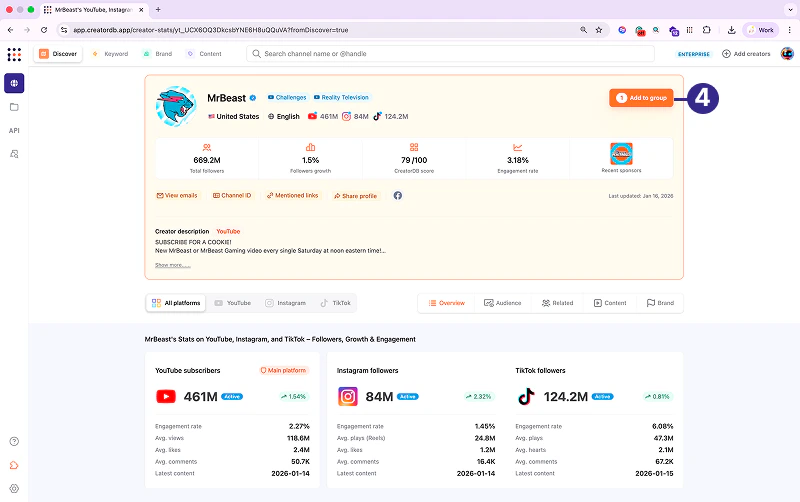
- Click on the creator.
- Click Add to group.
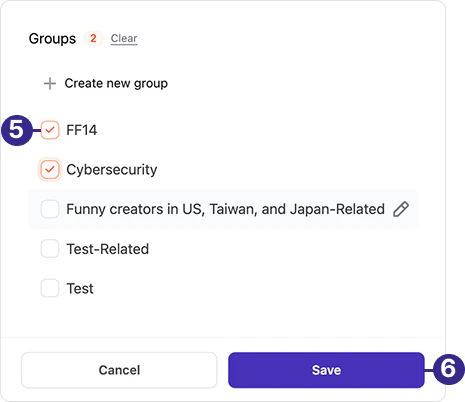
- Select a group.
- Click Save.
Adding creators to a group through the search results table
You can add up to 5,000 creators per group based on your pricing plan. For details, see CreatorDB’s pricing plan.
- Log in to CreatorDB.
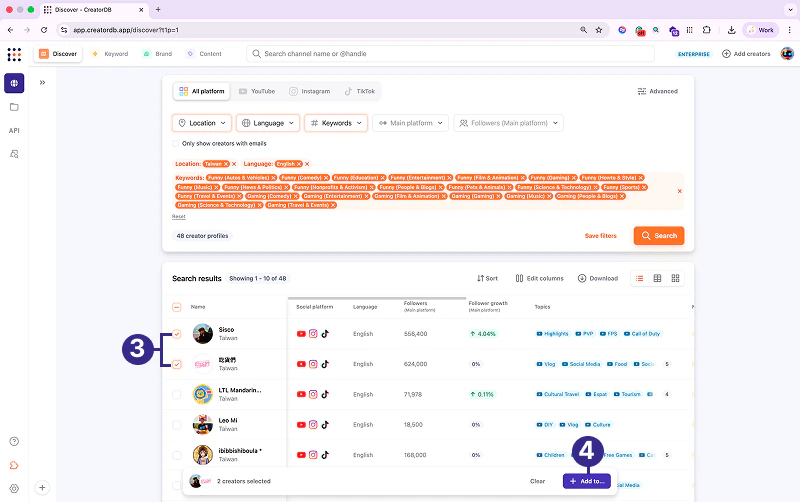
- Search for creators.
For details, see Searching for creators. - Select creators.
- Click Add to…
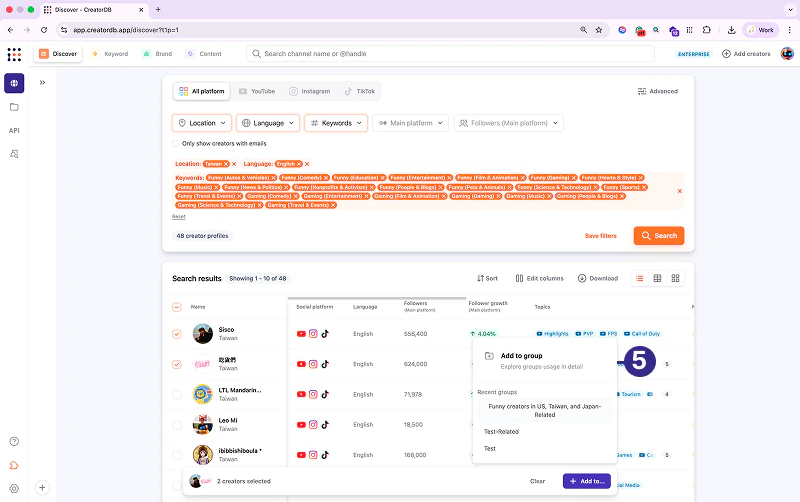
A window appears.
- Click Add to group.
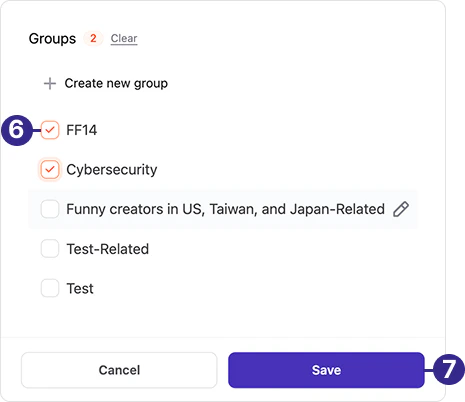
- Select a group.
- Click Save.
Importing creators to groups by entering creator IDs
You can add up to 5,000 creators per group based on your pricing plan. For details, see CreatorDB’s pricing plan.
- Log in to CreatorDB.
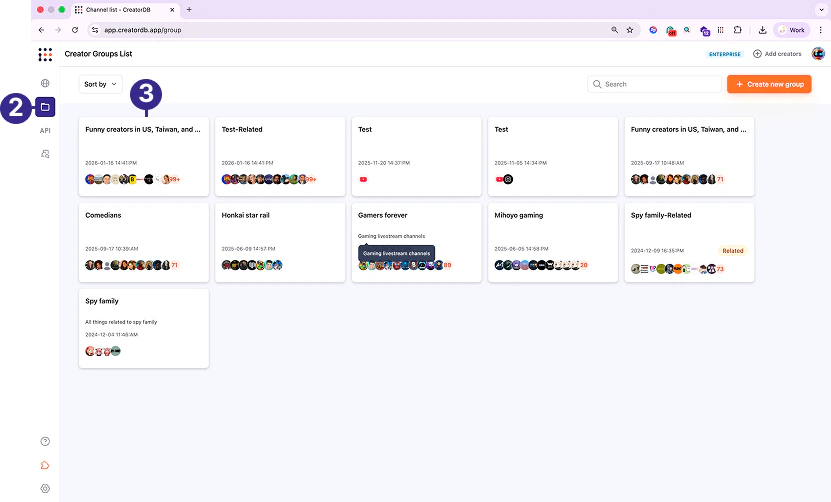
- Click Group.
- Select a group.
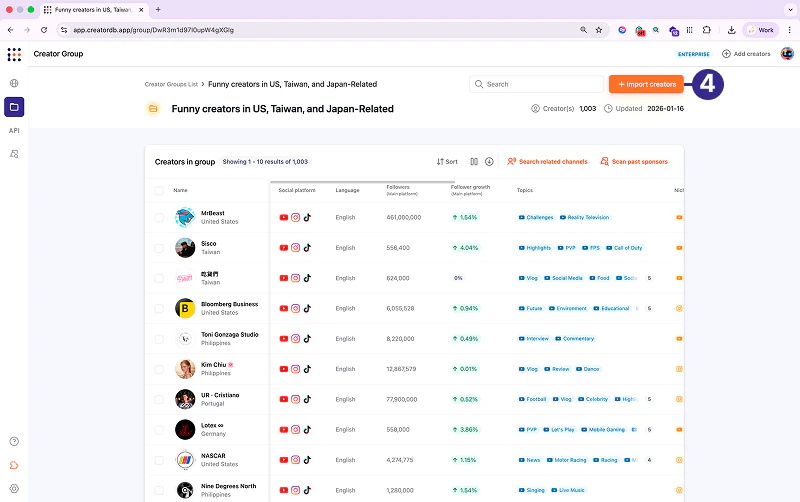
- Click + Import creators.
A window appears.
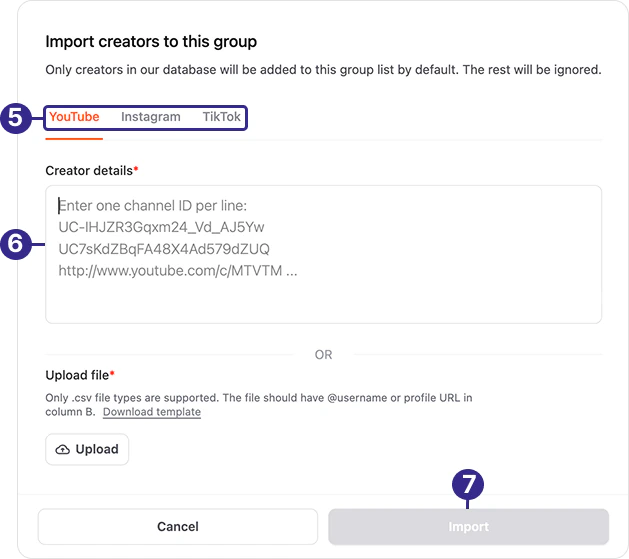
- Select a social media platform.
- Enter the information as shown on the screen.
- Click Submit.
Importing creators to groups by uploading a file
You can add up to 5,000 creators per group based on your pricing plan. For details, see CreatorDB’s pricing plan.
- Log in to CreatorDB.
- Click Group.
- Select a group.
- Click + Import creators.
A window appears.
- Click Upload.
A window appears.
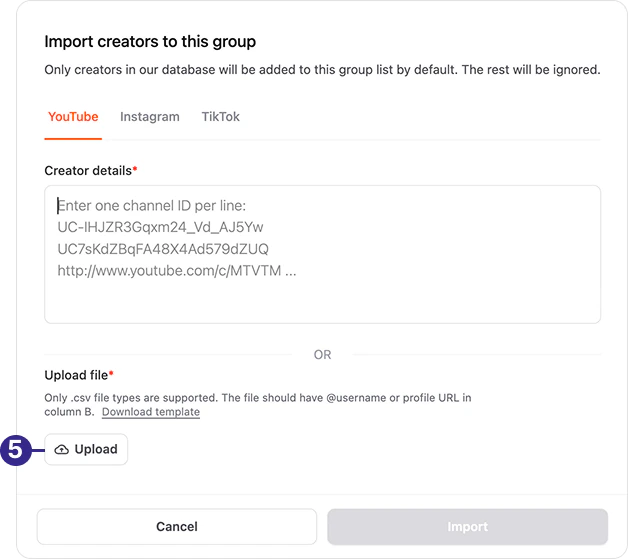
- Select a file.
- Click Open.
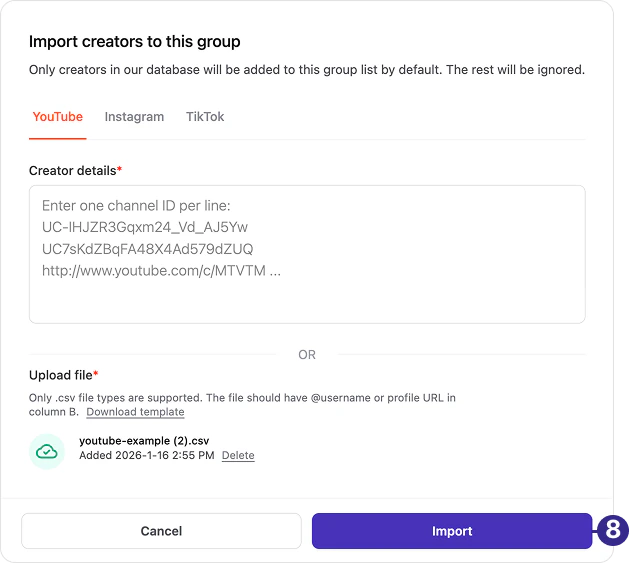
The file is uploaded.
.png?fit=max&auto=format&n=M0s7g-bE8-r_Bv1t&q=85&s=dac9447d79168fb643f00054ac020292)
- Click Submit.
Copying creators in a group
Copying creators in a group will make duplicate copies of the selected creators. The copied creators will appear in both the original and new groups.- Log in to CreatorDB.
- Click Group.
- Select a group.
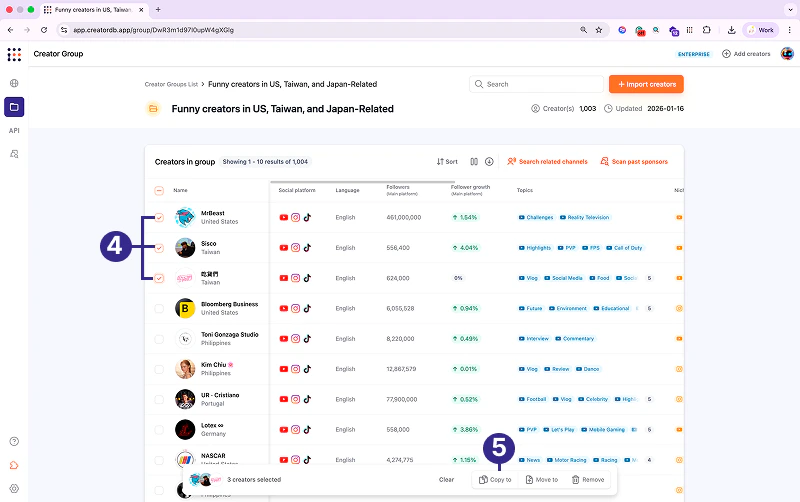
- Select creators.
-
Click Copy to.
-
Click Copy to group.
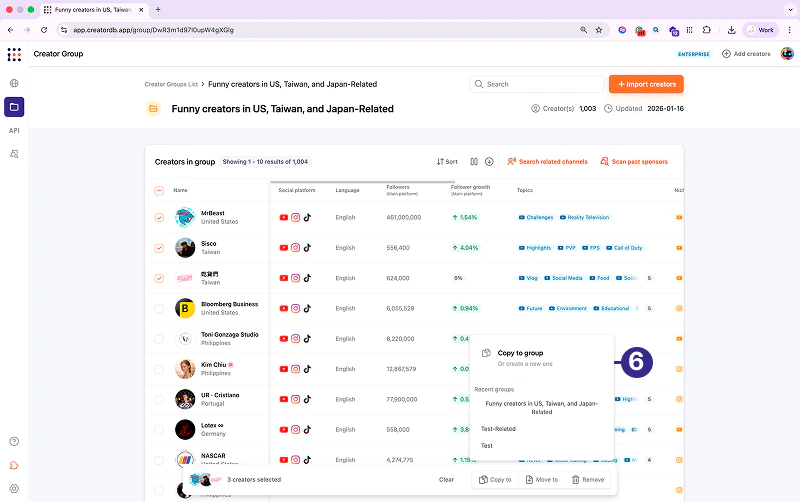
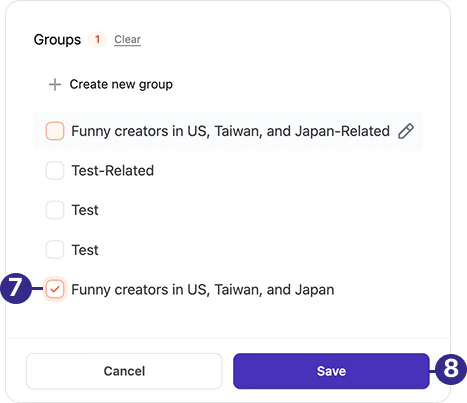
- Select a group.
-
Click Save.
Moving creators to another group
Moving creators in a group will move the selected creators from the original group to the newly selected group.- Log in to CreatorDB.
- Click Group.
-
Select a group.
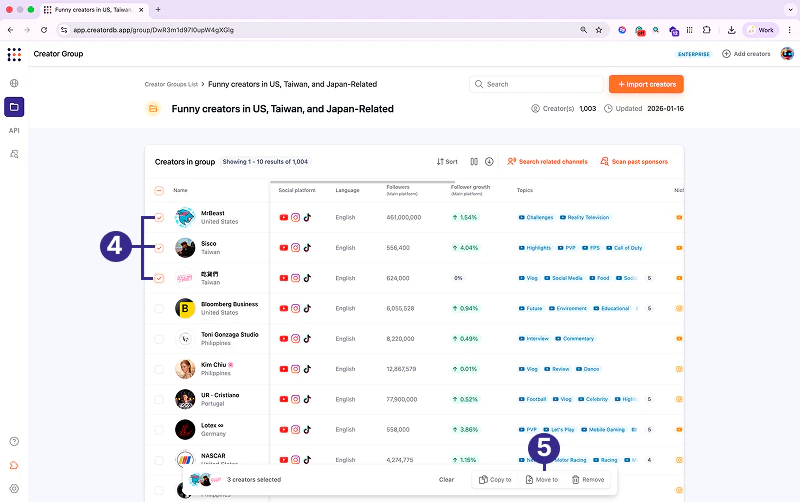
- Select creators.
-
Click Move to.
-
Click Move to group.
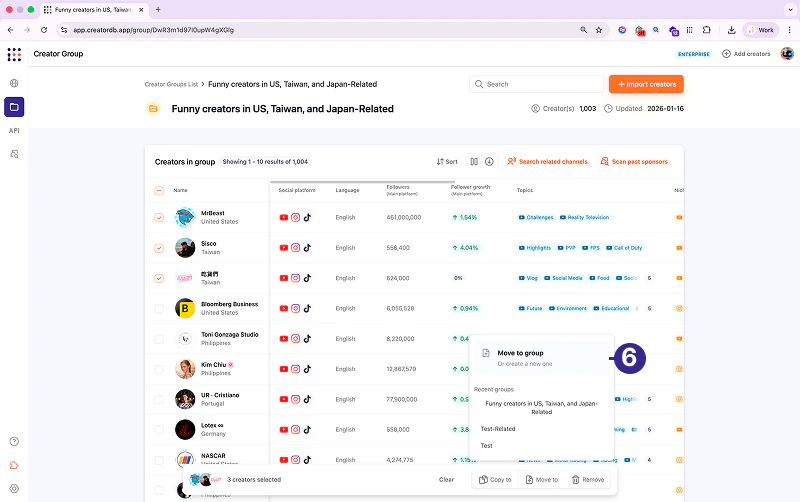
- Select a group.
-
Click Save.
Editing a group
- Log in to CreatorDB.
- Click Group.
-
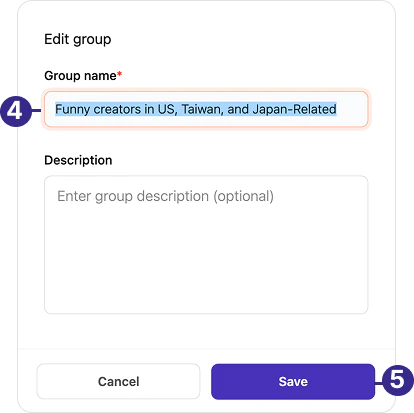
Select a group and click the edit icon.
A window appears.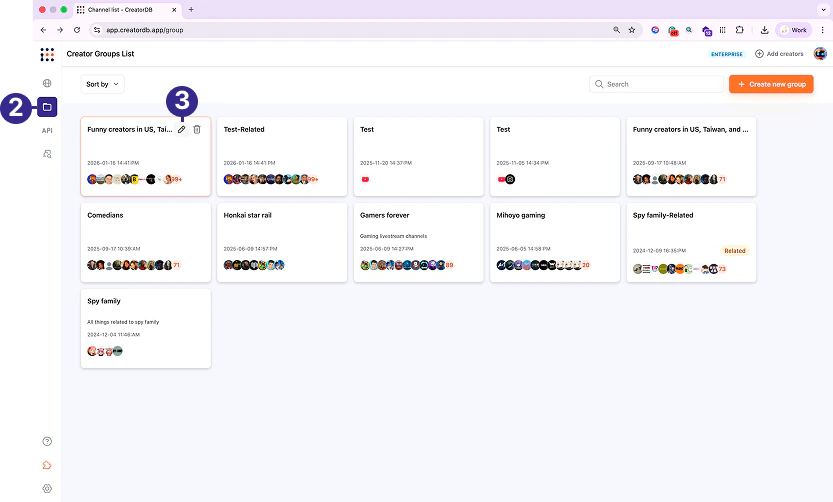
- Edit the group name or description.
-
Click Save.
Deleting a group
- Log in to CreatorDB.
- Click Group.
-
Select a group and click the delete icon.
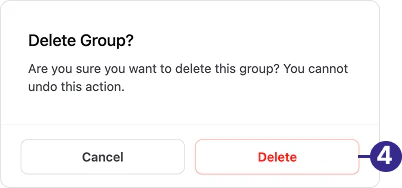
A confirmation window appears.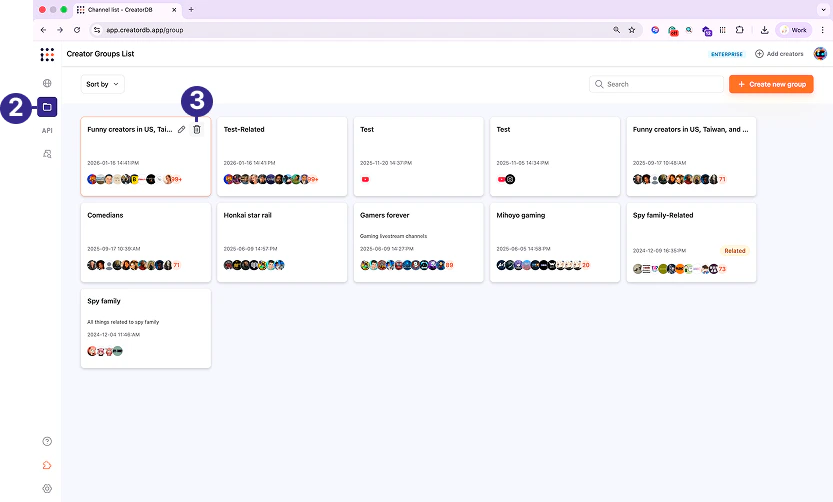
-
Click Delete.
Downloading creators in a group
The downloaded creator’s profile data will be in .csv format.
- Log in to CreatorDB.
- Click Group.
-
Select a group.
-
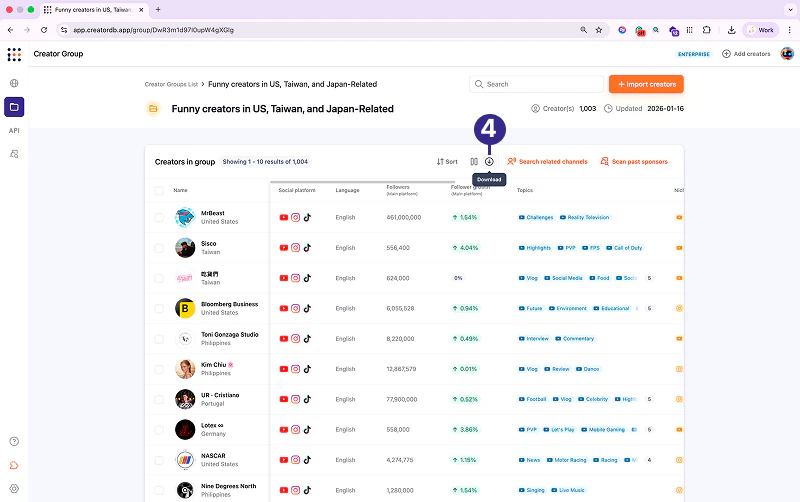
Click Download.
The data of all creators in the group will be downloaded.