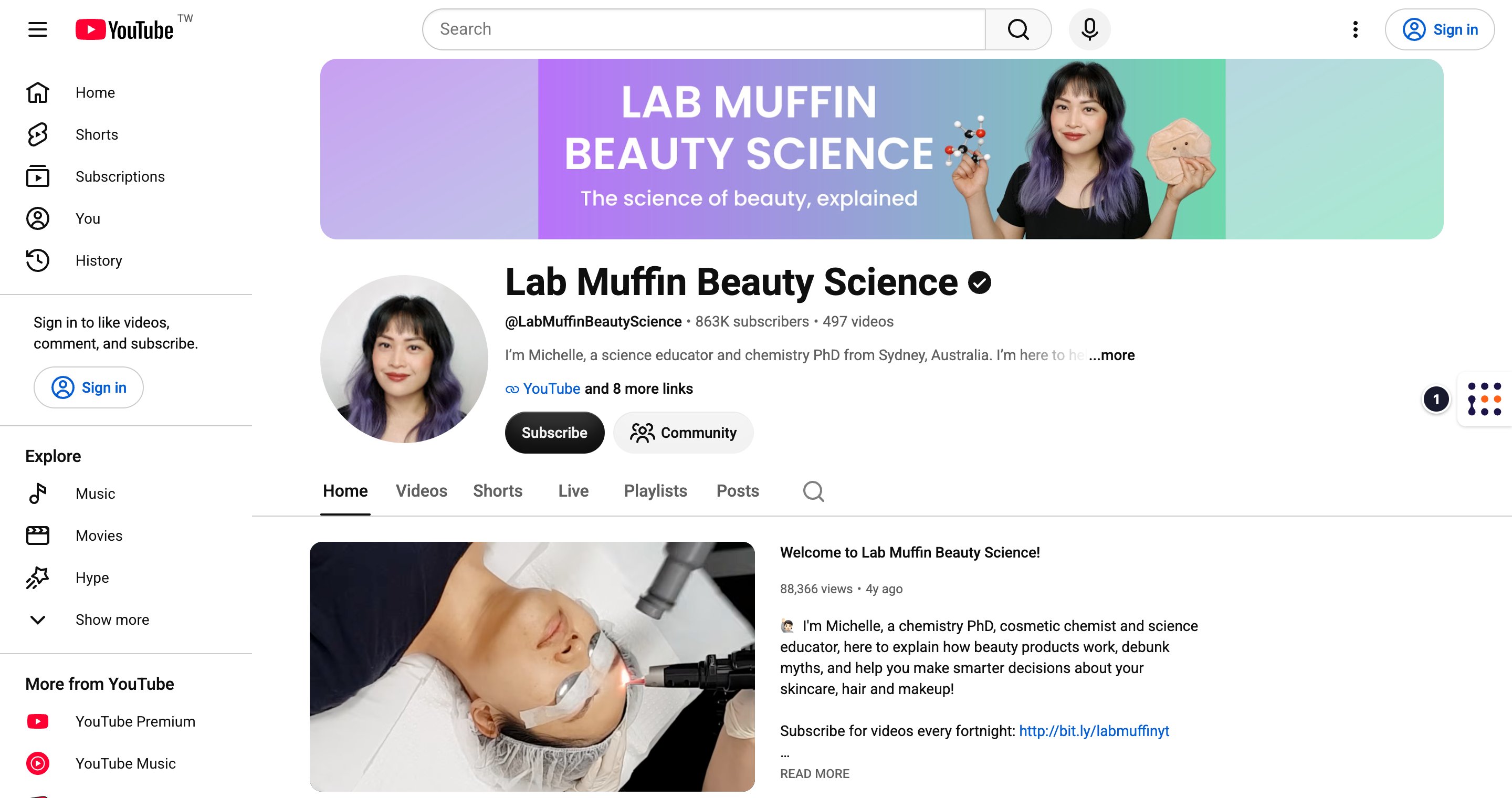
Every task in this guide starts with Creator Analytics open on a creator’s YouTube, Instagram, or TikTok page. The other pages assume you’ve done the steps below and are logged in.
Creator Analytics by CreatorDB currently only supports YouTube, Instagram, and TikTok. To install it, see Installing Creator Analytics by CreatorDB.
  1. In Chrome, go to YouTube, Instagram, or TikTok.
  2. Click the CreatorDB icon on the page.
    CreatorDB icon on a YouTube page
  3. If you aren’t logged in, log in to your CreatorDB account. You only need to do this once; the extension stays logged in.
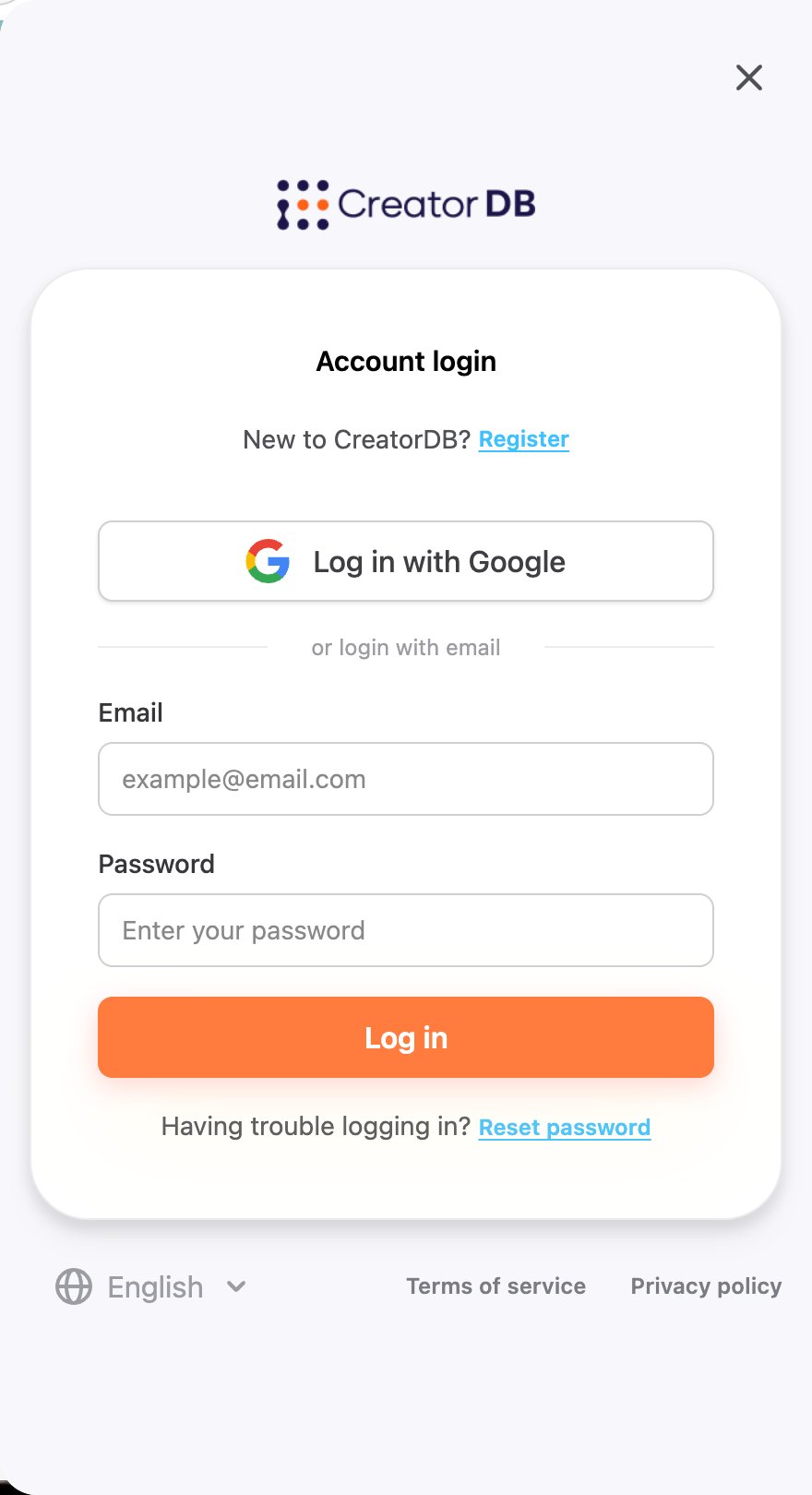
    CreatorDB extension login
  4. Go to a creator’s channel or profile.
    The panel shows that creator’s data.
It may take a few seconds for Creator Analytics by CreatorDB to load a creator’s data.
If the data doesn’t update when you switch to another creator, close the panel and open it again.
Last modified on October 22, 2026