

Before you start
To test out CreatorDB API 3.0, please contact our sales team to obtain the required credentials.- Get an API key. For details, see Authentication.
- Make sure you have curl installed on your device.
How to get a YouTube creator’s data
Your API call must contain the following:- A host: The host for CreatorDB API v3 requests is
https://apiv3.creatordb.app/. - An Authorization header: The authorization header of the API call must include an API key.
- A request: To retrieve data via the HTTP method
GET, submit your payload in JSON. You must include the YouTube channel’s ID in the request parameter.
You can install a Chrome extension to retrieve YouTube channel ID information. Visit the Chrome Web Store for details.
Using the CreatorDB API reference
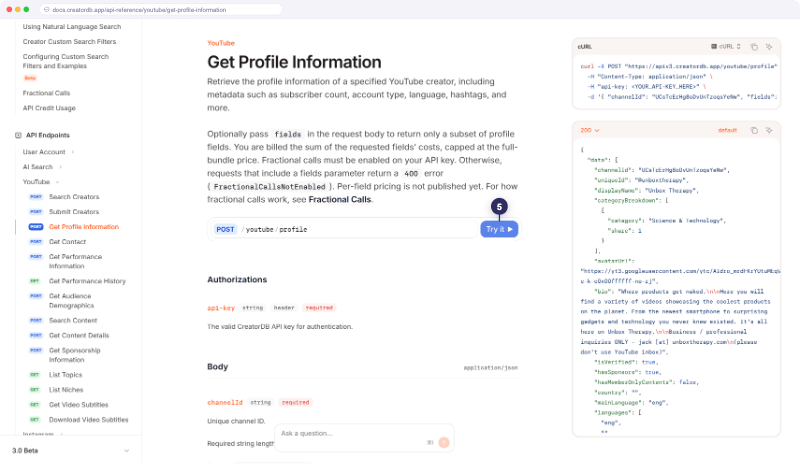
If you have never used an API reference before, follow the instructions below:- Go to the CreatorDB API documentation.
- Expand API Endpoints.
- Click YouTube.
- Select Get profile information.
- Click Try it.
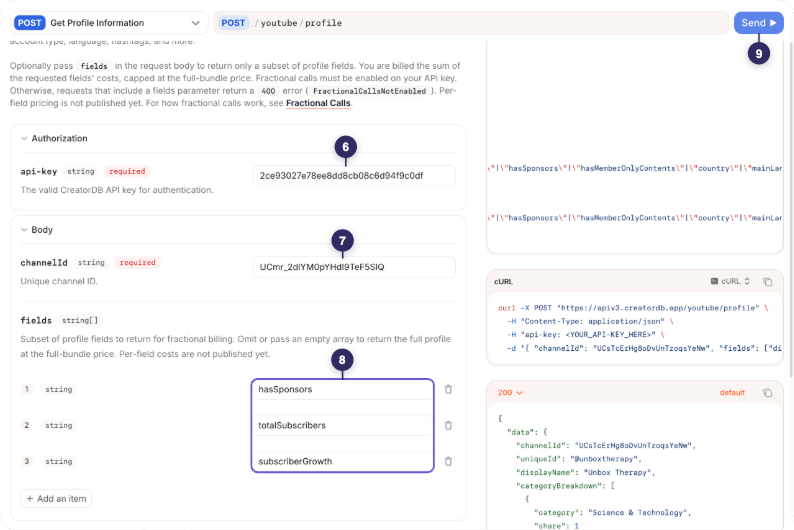
- Copy and paste your API key into the api-key field.
- Copy and paste the YouTube channel ID into the channelId field.
- Optionally, if you want to make a fractional call, enter the accepted
fields. For details, see Fractional Calls.
- Click Send.
The response is displayed in the top right corner.
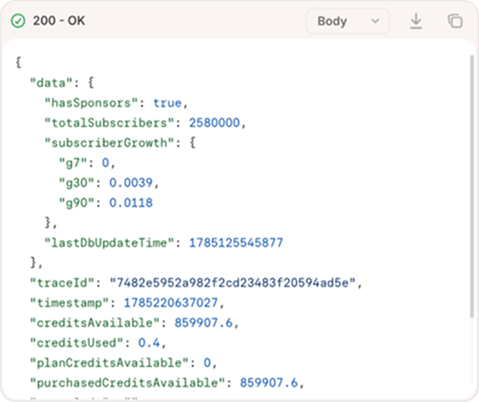
Calling the CreatorDB API
If you are a developer and prefer using the Command Line Interface (CLI) to make API calls, follow the instructions below:- Copy the curl example.
- Paste the curl call into a text editor like Visual Studio Code.
- In the
api-keyheader section, replace<YOUR_API_KEY_HERE>with your API key. - In the body section, replace the
channelIdwith a YouTube creator’s channel. - Optionally, if you want to make a fractional call, replace
fieldswith accepted parameters. For details, see Fractional Calls. - Copy the code and paste it into your terminal.
- Press Enter.
The creator’s data is returned.
To get multiple creators’ account data, CreatorDB recommends writing a script or code that can asynchronously retrieve multiple creators’ data at the same time.