> ## Documentation Index
> Fetch the complete documentation index at: https://docs.creatordb.app/llms.txt
> Use this file to discover all available pages before exploring further.
# Setting Up the CreatorDB MCP Connector
> Connect the CreatorDB MCP server to Claude and other AI clients, and reconnect it to pick up the latest tools.
## Introduction
The CreatorDB MCP connector allows an AI client such as Claude to call the CreatorDB API 3.0 server directly from a prompt.
Once connected, the assistant can search the CreatorDB index
of YouTube, Instagram, and TikTok creators and pull profile, performance, audience,
content, contact, sponsorship, and brand-side data using natural language. It does not require using a SaaS UI or manual API calls.
The connector exposes **45 tools** across six areas: YouTube, Instagram, TikTok, sponsors, search, and account usage.
You authenticate with your existing CreatorDB API 3.0 key.
Unlike [CreatorDB Agentic Skills](/mcp-server/setting-up-creatordb-agentic-skills) which installs into Claude Code, the MCP connector works in the Claude apps (web, desktop,
mobile) and other MCP-capable clients such as ChatGPT.
There are two MCP server connection methods:
* **Hosted connector** — add `https://mcp.creatordb.app/mcp` as a custom connector in your AI
client. This is the straightforward option and shown [below](#connecting-via-the-hosted-connector).
* **Local install** — run the open-source server yourself with `npx`. For details, see [Local install](#local-install) below.
## What you'll need
* A **CreatorDB API 3.0 key**. For details, see [Authentication](/api-v3/authentication).
Don't have one yet? Contact our sales team or email `hello@creatordb.app`.
* An **MCP-capable AI client**. The screenshots below use the Claude desktop app. The same concept
applies to ChatGPT and other AI clients with different menu names. For details, see
[Using other AI clients](#using-other-ai-clients).
## Connecting via the hosted connector
The following steps add the hosted connector at `https://mcp.creatordb.app/mcp` to the Claude AI agent.
a. Open Claude and go to **Settings → Connectors**.
b. Click **Add**.
A drop-down menu appears.
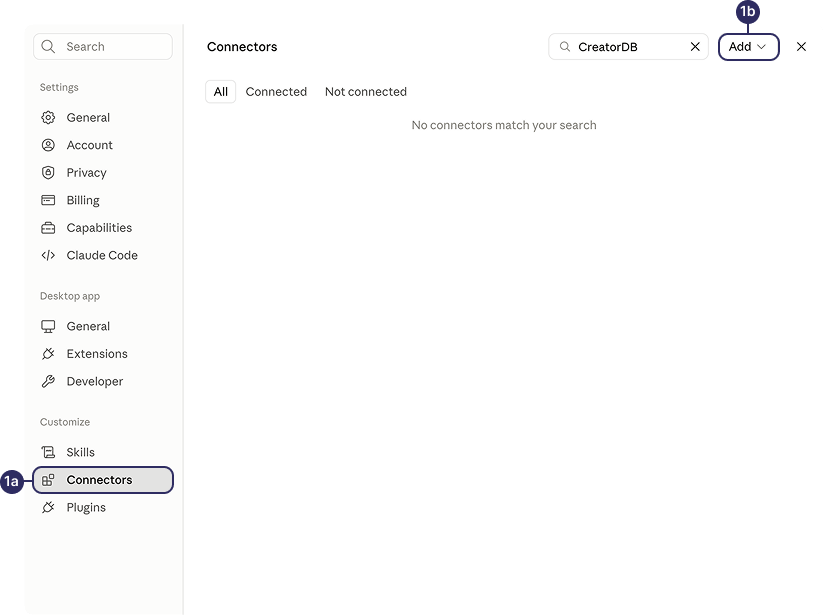 c. Select **Add custom Connector**.
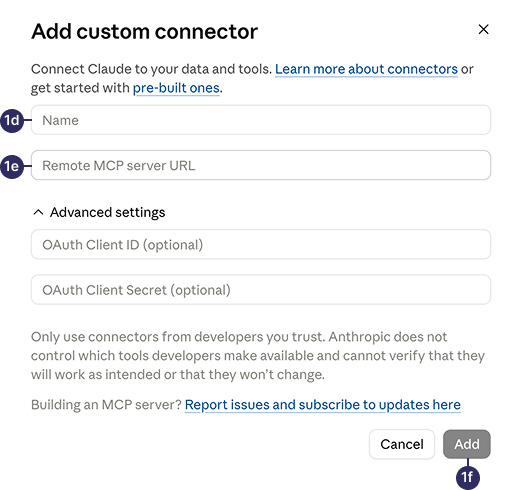
The **Add custom connector** window appears.
d. Enter the connector name, for example `CreatorDB MCP`.
e. Paste the CreatorDB MCP server url ([https://mcp.creatordb.app/mcp](https://mcp.creatordb.app/mcp)) in the **Remote MCP server URL** field.
f. Click **Add**.
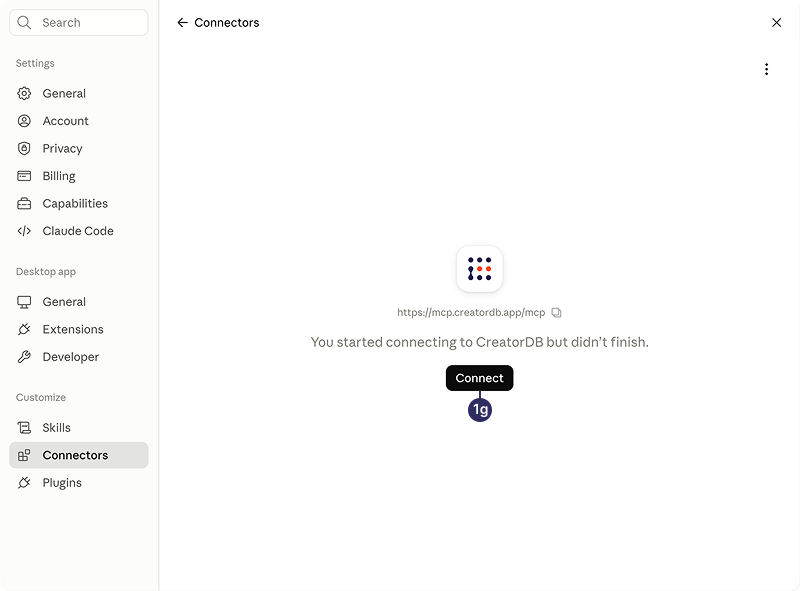
 g. Click **Connect**.
The **Claude** login page appears.
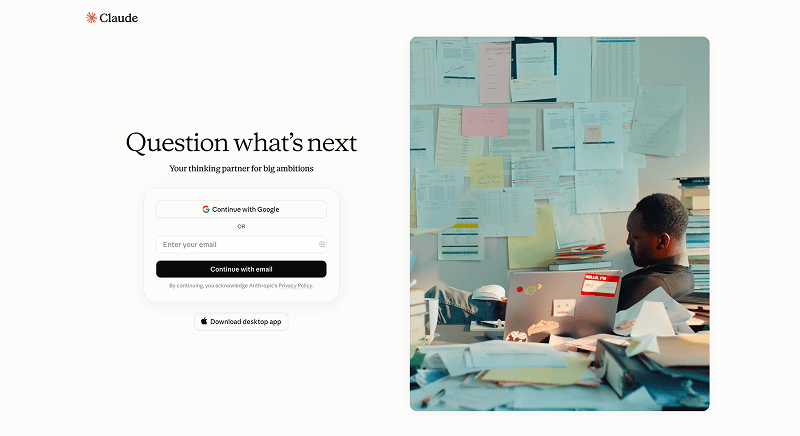
 h. **Optional:** Log in to your Claude account.
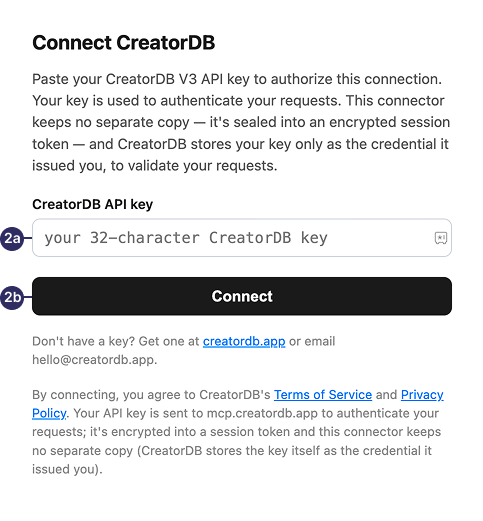
The **Connect CreatorDB** window appears.
If you connect the CreatorDB MCP server via the Claude desktop app, you may be asked to login to your Claude account. You may skip this step if you connect via the web app.
 The CreatorDB MCP server only accepts API keys that are API 3.0 version or above. Check your API key is not an older version.
a. Paste your CreatorDB API key.
The CreatorDB MCP server only accepts API keys that are API 3.0 version or above. Check your API key is not an older version.
a. Paste your CreatorDB API key.
b. Click **Connect**.
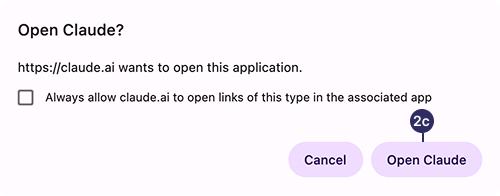
The **Open Claude?** window appears.
 c. Click **Open Claude**.
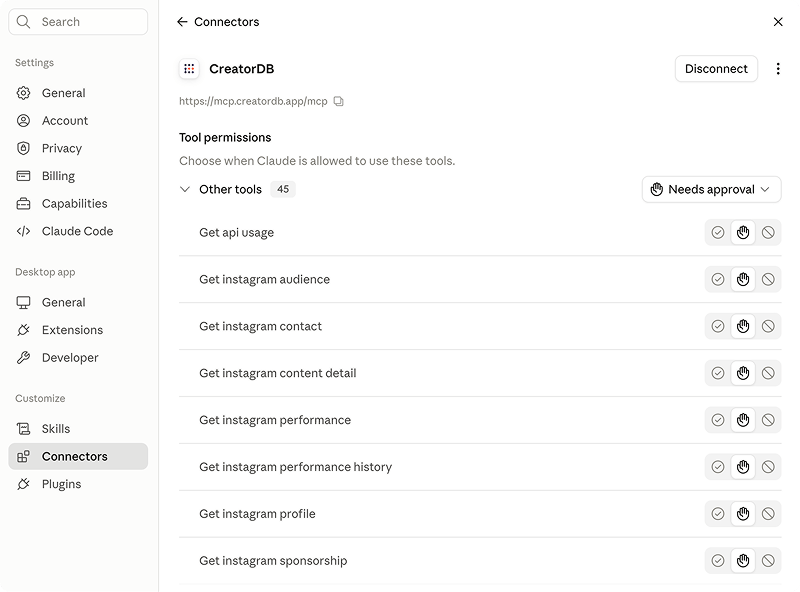
The Claude desktop app opens and displays the **Connectors** page
 ## Verifying the connection
After you connect the CreatorDB connector, confirm that Claude can see the
server's tools and that a tool call succeeds. How you list the tools depends on
which Claude interface you connected from. The final tool-call check is the same
everywhere.
On **Team** and **Enterprise** plans, only Owners can add the CreatorDB
connector. Once it's added, each member connects to and enables it
individually, so the tools appear only after you've enabled it for your own
account.
1. Confirm the CreatorDB tools are available.
## Verifying the connection
After you connect the CreatorDB connector, confirm that Claude can see the
server's tools and that a tool call succeeds. How you list the tools depends on
which Claude interface you connected from. The final tool-call check is the same
everywhere.
On **Team** and **Enterprise** plans, only Owners can add the CreatorDB
connector. Once it's added, each member connects to and enables it
individually, so the tools appear only after you've enabled it for your own
account.
1. Confirm the CreatorDB tools are available.
Follow the steps for the interface you connected from.
a. Open **Settings**.
b. Click **Connectors**.
c. Find **CreatorDB** and click **Manage** to expand it.
The connector's tools are listed below its name.
a. Run **/mcp** in your Claude Code session.
b. Select the **creatordb** server.
Claude Code lists the server's tools and its authentication status.
2. Check that the expected CreatorDB tools appear:
* **Get api usage**
* **Get instagram audience**
* **Get instagram contact**
* **Get instagram content detail**
* **Get instagram performance**
* **Get instagram performance history**
* **Get instagram profile**
* **Get instagram sponsorship**
* **Get sponsor audience**
* **Get sponsor creators**
* **Get sponsor information**
* **Get sponsor performance**
* **Get sponsor summary**
* **Get tiktok audience**
* **Get tiktok contact**
* **Get tiktok content detail**
* **Get tiktok performance**
* **Get tiktok performance history**
* **Get tiktok profile**
* **Get youtube audience**
* **Get youtube contact**
* **Get youtube content detail**
* **Get youtube performance**
* **Get youtube performance history**
* **Get youtube profile**
* **Get youtube sponsorship**
* **Get youtube subtitles download**
* **Get youtube subtitles meta**
* **List instagram niches**
* **List sponsors**
* **List tiktok niches**
* **List youtube niches**
* **List youtube topics**
* **Search creators nls**
* **Search instagram**
* **Search instagram content**
* **Search sponsors**
* **Search tiktok**
* **Search tiktok content**
* **Search youtube**
* **Search youtube content**
* **Submit instagram creators**
* **Submit sponsor**
* **Submit tiktok creators**
* **Submit youtube creators**
3. Send a test prompt that maps to a CreatorDB tool, for example:
`Use CreatorDB to look up the YouTube profile for @MrBeast.`
4. Approve the tool call when Claude requests it. Click **Allow** in the web or
desktop dialog, or accept the prompt in Claude Code.
Claude runs the CreatorDB tool and returns the result. The connection is
working.
If no tools appear or the approval prompt never opens, the cause is almost
always authentication rather than the URL. Check that your API key is sent
in the request header and that the server URL is `https://mcp.creatordb.app/mcp`.
## Updating MCP server tools
If you connected the CreatorDB MCP server **before July 28, 2026**, you need to reconnect to the server to
get the latest tools. A connector set up before then may have outdated tool definitions,
which can cause calls to fail with a **404** error.
On July 28, 2026, the **fractional calls** feature was launched on the CreatorDB API. As a result,
six creator data endpoints — `profile`, `performance`, `audience`, `contact`, `content-detail`, and
`sponsorship` changed from `GET` to `POST`. Reconnecting to the CreatorDB MCP server refreshes the tool set so that:
* Your calls route to the new endpoints correctly.
* You get the new `fields` options that allows you to request only the data you need and pay per
field, capped at the full-bundle cost. For how to make fractional calls, see [Fractional Calls](/api-v3/fractional-calls). For details about costs, see [Fields and Item Costs](/api-v3/field-and-item-costs) and [API credit usage](/api-v3/api-credit-usage.mdx).
* You get the new `Submit creators` tools for adding creators to the index.
You do **not** need a new API key. Use the same key you already have.
a. Open Claude.
b. Go to **Settings → Connectors** and find the **CreatorDB MCP**.
You can click the **Connected** tab to view all connected connectors.
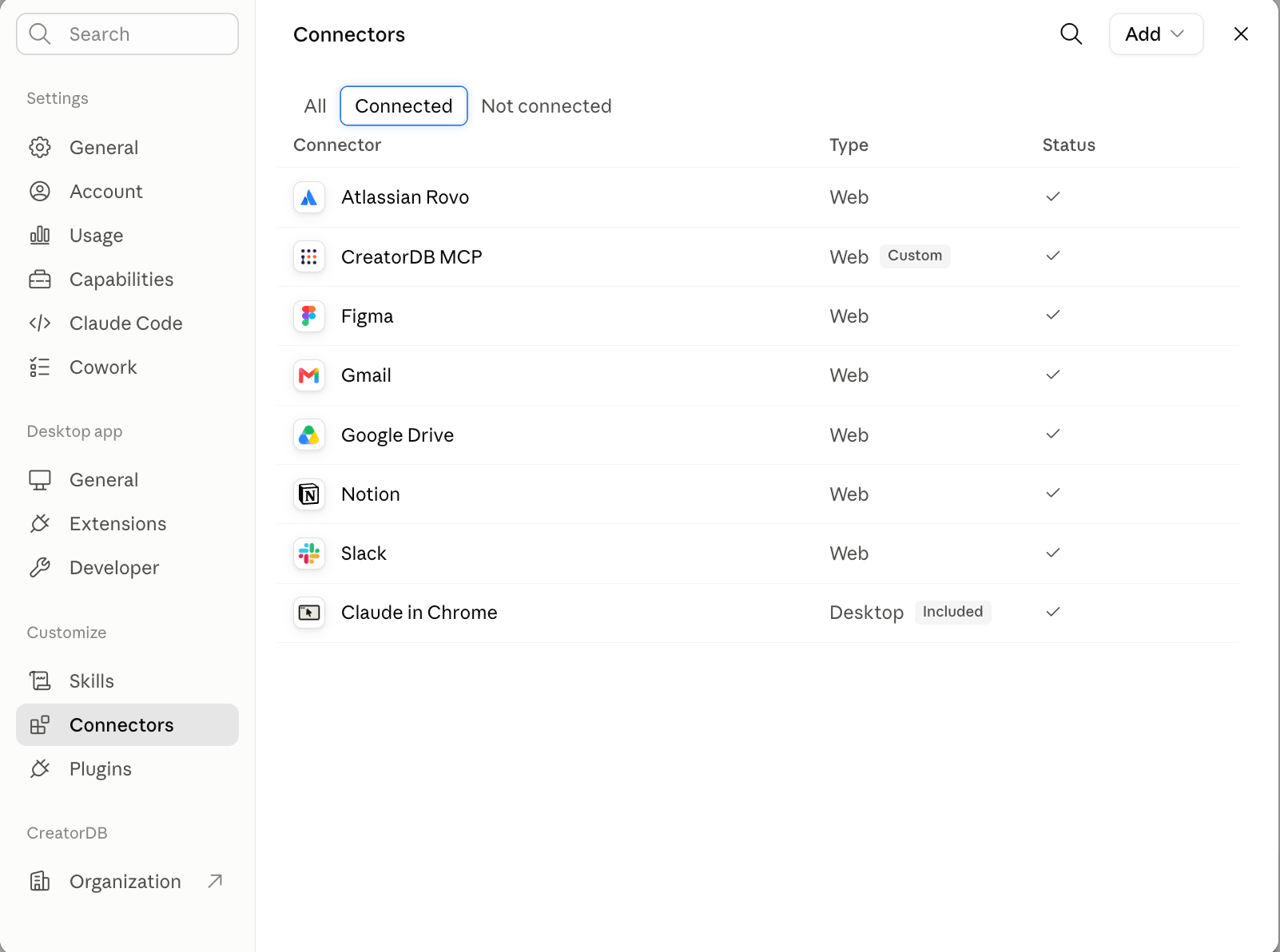 a. Click **CreatorDB MCP**.
b. Click **Disconnect**.
A confirmation message appears.
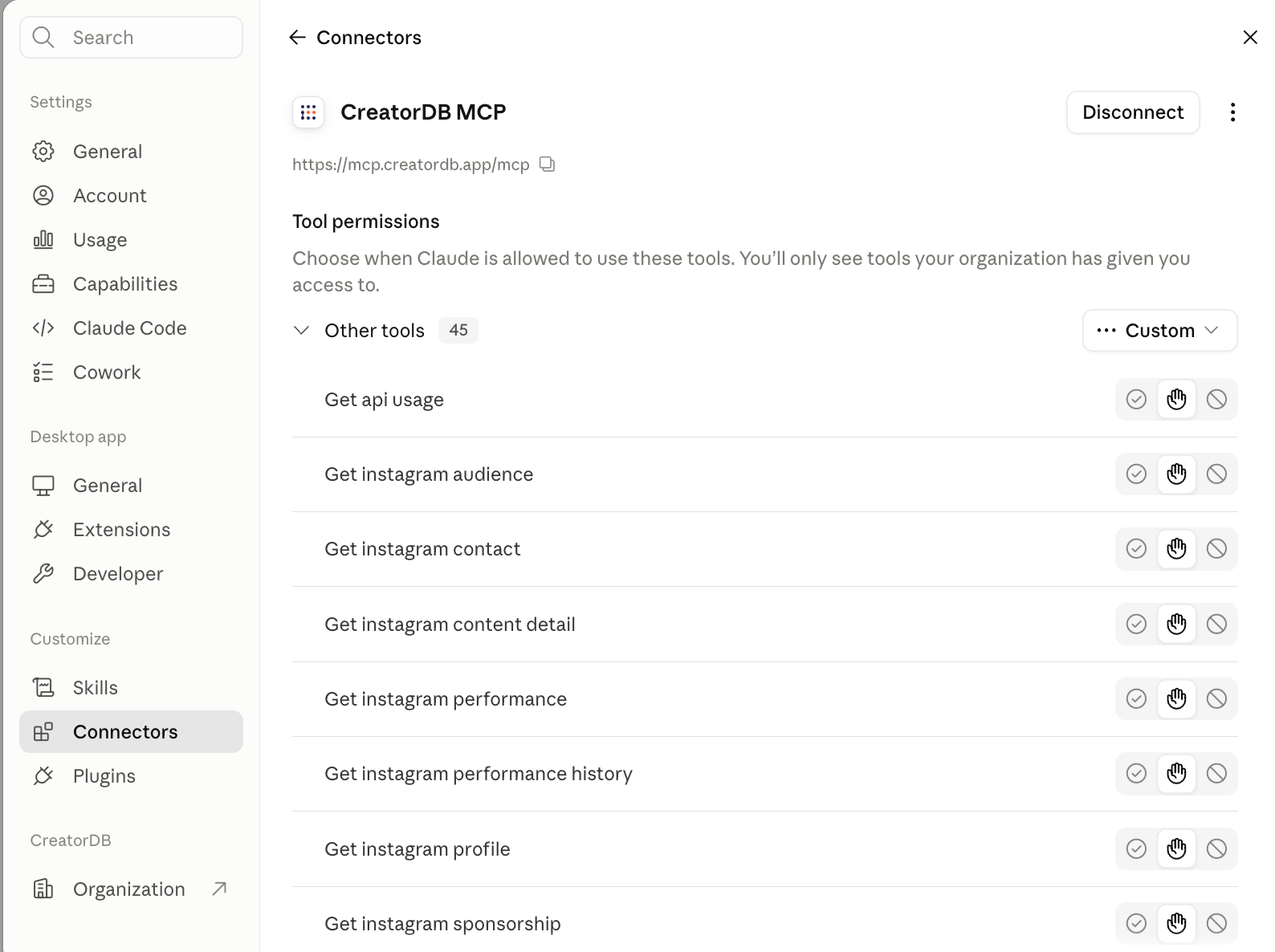 Click **Disconnect**.
The CreatorDB MCP server is disconnected from Claude.
Existing chats that already reference CreatorDB stay readable. This only stops new calls.
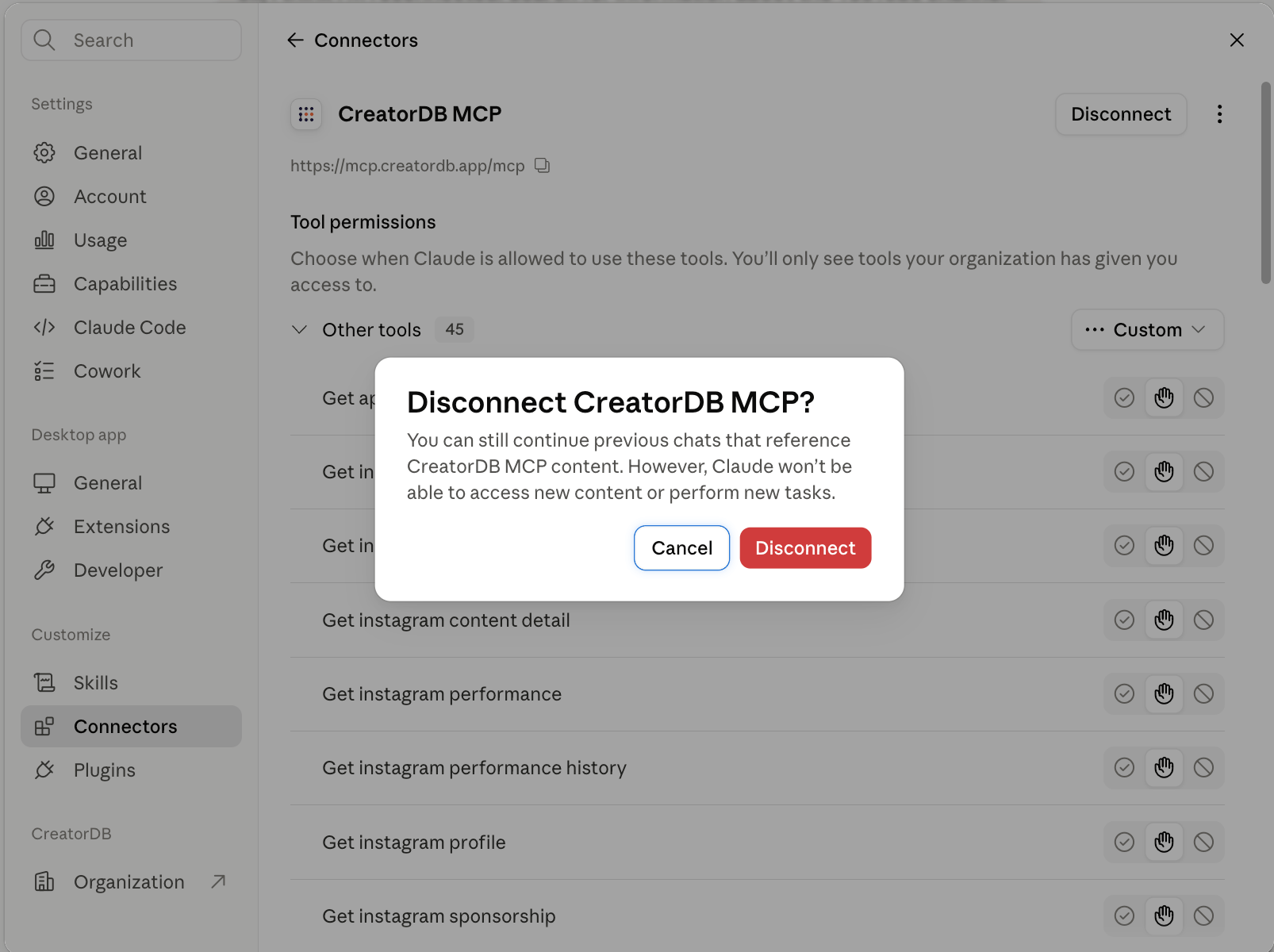 a. Click **Connect**.
b. Follow the instructions in [Connecting Via the Hosted Connector](#connecting-via-the-hosted-connector) to connect the CreatorDB MCP server to Claude again.
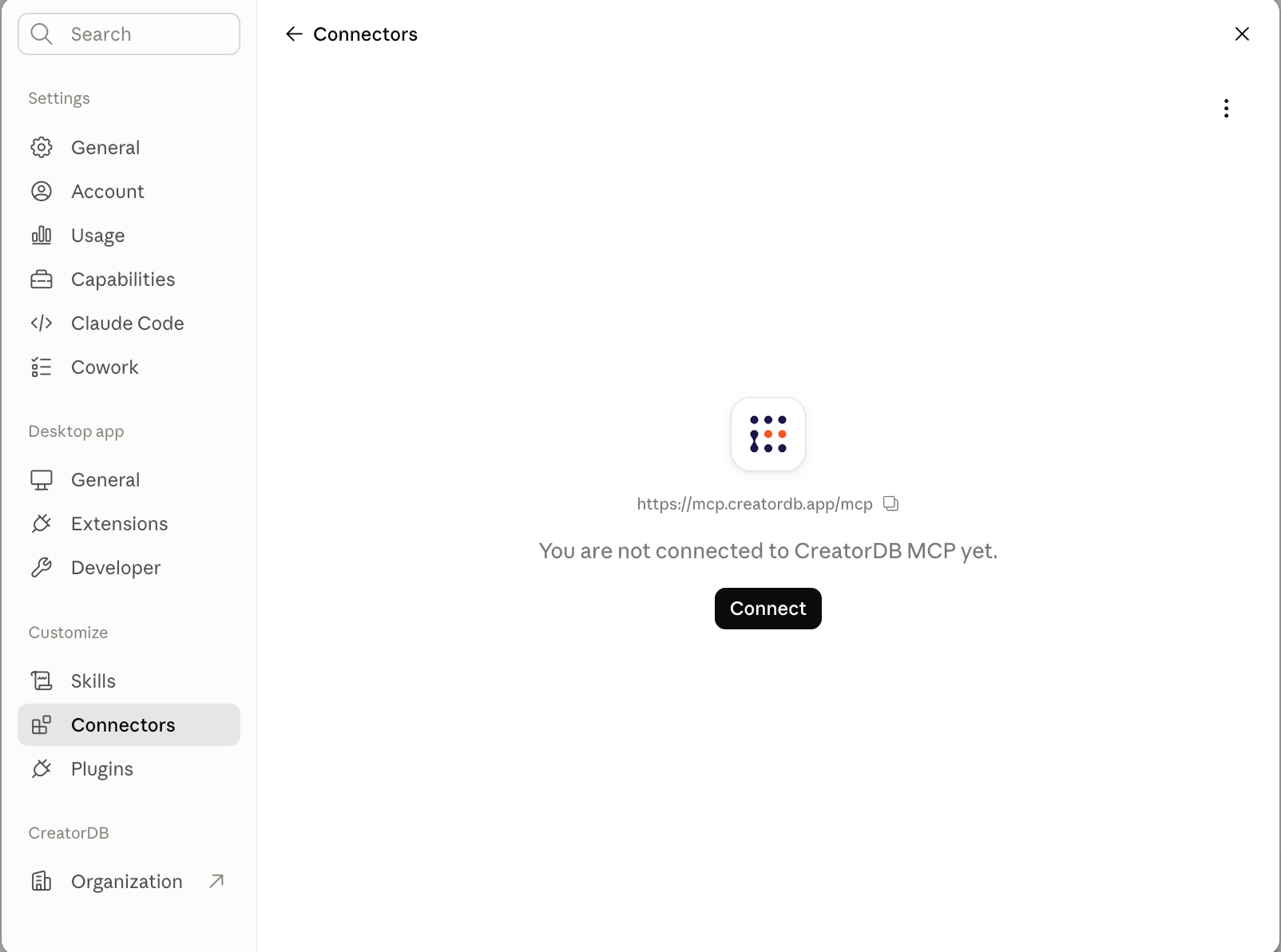 a. Go to **Settings → Connectors**.
b. Check that **CreatorDB MCP** status column shows a checkmark and a **"Connected to CreatorDB MCP"** confirmation message appears.
c. Start a **new conversation**.
The refreshed tools load when a chat begins, so an existing chat may still reference the old ones.
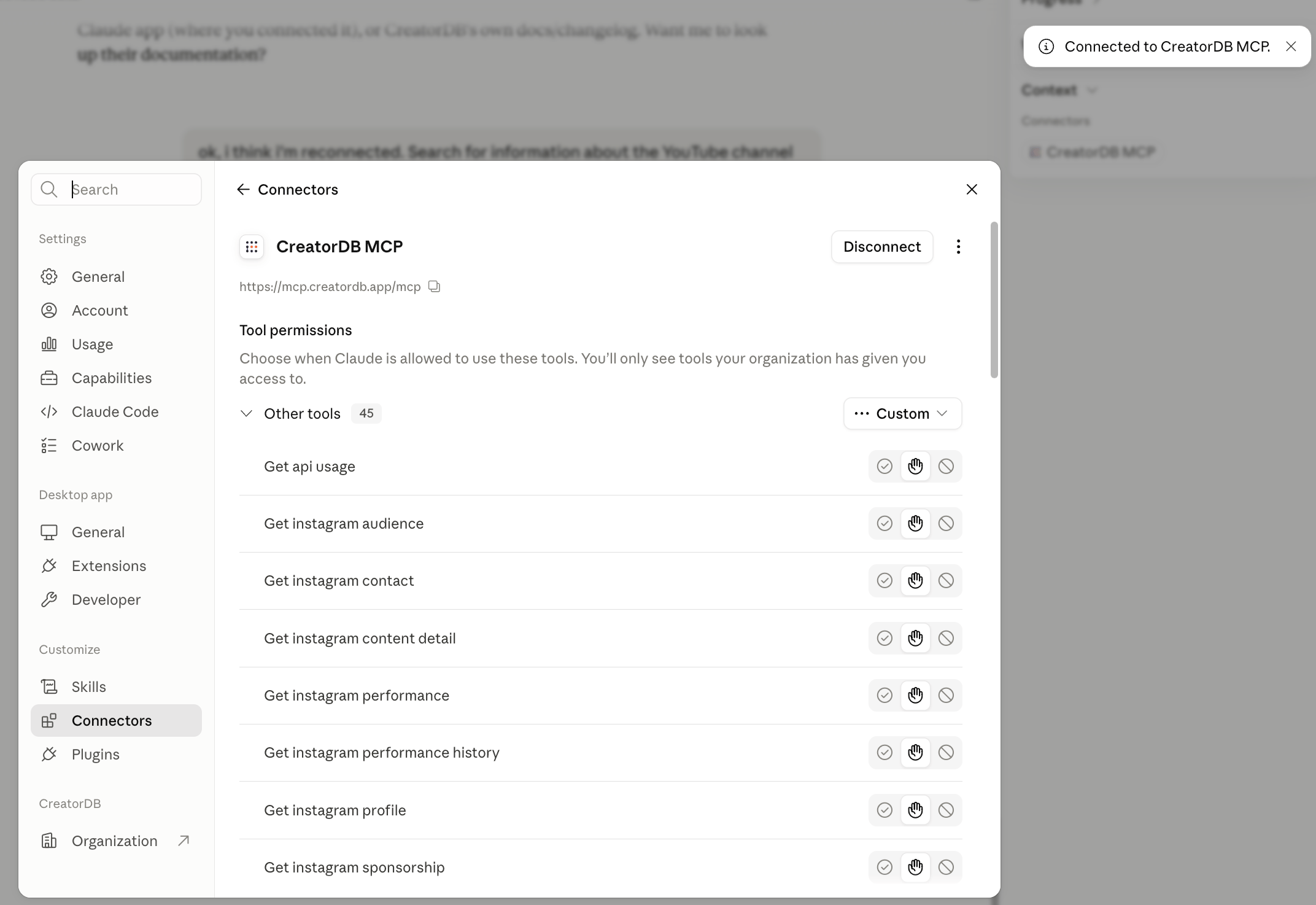 If you choose not to disconnect the CreatorDB MCP, remove and add the connector again with the URL
`https://mcp.creatordb.app/mcp` achieves the same refresh. CreatorDB recommends using the disconnect and reconnect method as it is the most reliable path.
## Local install
If you run the connector locally with the `npx` instead of the hosted URL, "reconnecting" means
updating the package rather than toggling a connector:
Make sure your MCP configuration runs the package with `@latest`, for example
`npx -y @creatordbai/mcp-server@latest`. If you pinned a specific version, update it to `1.4.1` or later.
Fully restart your client (quit and reopen Claude Desktop, restart Cursor, and so on). MCP
clients only read the package and key at startup.
Your API key is read from your existing MCP configuration — no new key is required. For full local setup instructions, see the [creatordb-mcp-server README on GitHub](https://github.com/CreatorDB/creatordb-mcp-server).
## Using other AI clients
The screenshots above show connecting the CreatorDB MCP to the Claude desktop app.
**ChatGPT** and other MCP-capable clients follow a similar process of disconnecting (or removing) the connector and then reconnecting (or re-adding) it with the same URL (`https://mcp.creatordb.app/mcp`) and the same API key.
Menu names and interfaces will differ.
If you choose not to disconnect the CreatorDB MCP, remove and add the connector again with the URL
`https://mcp.creatordb.app/mcp` achieves the same refresh. CreatorDB recommends using the disconnect and reconnect method as it is the most reliable path.
## Local install
If you run the connector locally with the `npx` instead of the hosted URL, "reconnecting" means
updating the package rather than toggling a connector:
Make sure your MCP configuration runs the package with `@latest`, for example
`npx -y @creatordbai/mcp-server@latest`. If you pinned a specific version, update it to `1.4.1` or later.
Fully restart your client (quit and reopen Claude Desktop, restart Cursor, and so on). MCP
clients only read the package and key at startup.
Your API key is read from your existing MCP configuration — no new key is required. For full local setup instructions, see the [creatordb-mcp-server README on GitHub](https://github.com/CreatorDB/creatordb-mcp-server).
## Using other AI clients
The screenshots above show connecting the CreatorDB MCP to the Claude desktop app.
**ChatGPT** and other MCP-capable clients follow a similar process of disconnecting (or removing) the connector and then reconnecting (or re-adding) it with the same URL (`https://mcp.creatordb.app/mcp`) and the same API key.
Menu names and interfaces will differ.
For details, see the following references:
* [ChatGPT](https://developers.openai.com/plugins/deploy/connect-chatgpt)
* [Gemini Enterprise](https://docs.cloud.google.com/gemini/enterprise/docs/connectors/custom-mcp-server/import-govern-mcp-server-agent-registry)
* [Gemini CLI](https://geminicli.com/docs/tools/mcp-server/)
* [Cursor](https://cursor.com/docs/mcp)
## Troubleshooting
* Confirm you started a **new conversation** after reconnecting.
* Confirm the connector URL is exactly `https://mcp.creatordb.app/mcp`.
* Check the service is up: visiting [https://mcp.creatordb.app/health](https://mcp.creatordb.app/health) should return `{"status":"ok", ...}`.
* If the issue persists, contact CreatorDB or email `hello@creatordb.app`.
Your client may have an older cached tool list. Follow the steps in
[Updating MCP server tools](#updating-mcp-server-tools), then start a new conversation.
Confirm you pasted a valid CreatorDB API 3.0 key (API 2.0 keys won't work here). For details, see [Authentication](/api-v3/authentication).