> ## Documentation Index
> Fetch the complete documentation index at: https://docs.creatordb.app/llms.txt
> Use this file to discover all available pages before exploring further.
# Managing Campaigns
> Understand how to use campaign management features in CreatorDB to organize and track your campaigns
In CreatorDB, you can manage your influencer marketing campaigns effectively using the campaign management features. This includes creating campaigns, managing team members, and tracking campaign progress.
## Overview of campaign management
**Campaign Management** in CreatorDB allows you to organize and track your influencer marketing campaigns effectively. You can create campaigns, manage team members, and monitor progress through the Kanban board. This guide provides an overview of the key features and functionalities available for campaign management.
Create a new campaign by clicking the Create Campaign button. You can set up campaign details, including the campaign name, duration, budget, and objectives. You can even specify your target audience demographic details and the platforms and content you’d like to sponsor in this influencer campaign. Once created, you can add team members and assign them roles based on their responsibilities.
Manage campaigns easily within the CreatorDB Kanban board, where you can track the progress of each campaign and its associated creators. You can move cards across different stages, add comments, and update creator statuses to keep everyone on the same page. Use the campaign briefs to provide context and instructions for your team, ensuring that everyone understands the campaign goals and requirements. For details, see [Managing campaigns in Kanban board view](#).
## Campaign list user interface
The campaign list interface in CreatorDB provides a centralized view of all your campaigns, allowing you to easily manage and track them. From this interface, you can create new campaigns, search for existing ones, and access important campaign details at a glance. The interface is designed to help you stay organized and efficient in managing your influencer marketing efforts.
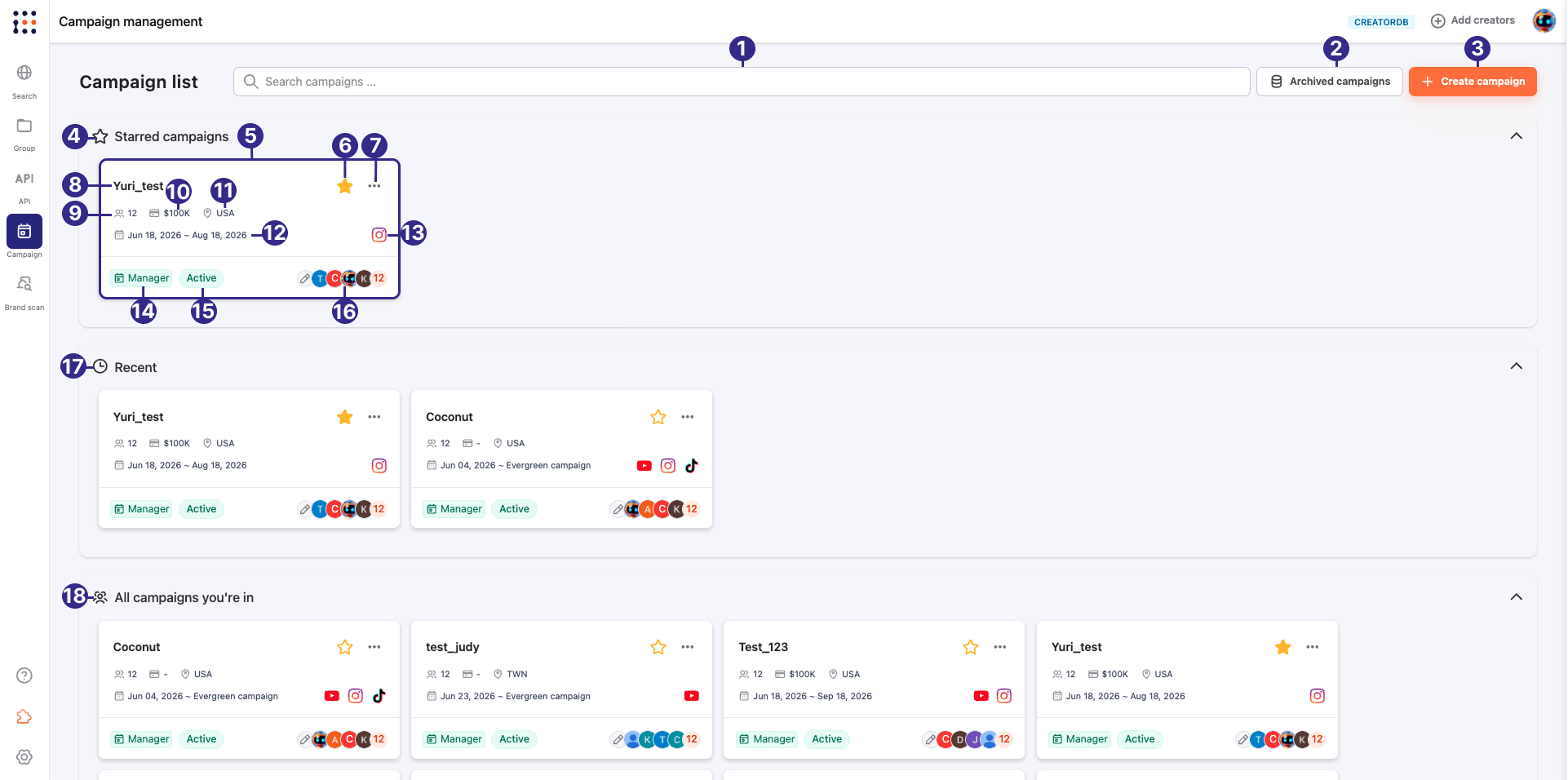 | No. | Label | Description |
| --- | --------------------------------- | ------------------------------------------------------------------------------------------------------------------------------------------------------------ |
| 1 | **Search campaigns** | A search bar for finding campaigns by their name. |
| 2 | **Archived campaigns** | Opens a view of all archived campaigns. |
| 3 | **Create campaign** | Starts the campaign creation flow for configuring a new campaign. |
| 4 | **Starred campaigns** | A collapsible section that displays starred campaigns for quick access. |
| 5 | **Campaign card** | A card that shows the summary of a campaign. Displays the campaign name and key metadata. |
| 6 | **Star icon** | Click to star or unstar a campaign. Starred campaigns appear in the **Starred campaigns** section. |
| 7 | **More actions** | The **Actions** button that shows a dropdown menu that allows you to perform additional actions based on your campaign role, such as editing or deleting it. |
| 8 | **Campaign name** | Displays the campaign name. |
| 9 | **Creator count** | Displays the number of creators in the campaign. |
| 10 | **Campaign budget** | Displays the campaign budget. |
| 11 | **Country** | Displays the country where the campaign is targeting. |
| 12 | **Duration** | Displays the duration of the campaign. Shows as a date range. When the campaign is a long term ongoing campaign, you can display it as **Evergreen**. |
| 13 | **Social media platform** | Displays the social media platform that the campaign is active on. |
| 14 | **Role badge** | Displays your campaign role (e.g. **Manager**, **Member**, **Viewer**). |
| 15 | **Status badge** | Displays the current status of the campaign (e.g. **Active**, **Complete**, **Draft**). |
| 16 | **Campaign member profile image** | Displays profile images of team members assigned to the campaign, with a count of total members. |
| 17 | **Recent** | A collapsible section listing the last three campaigns you viewed. |
| 18 | **All campaigns you're in** | A collapsible section listing all campaigns you are involved with, regardless of role. |
## Managing organizations
* You need to be an organization Owner or Admin to manage organization settings and members. If you don't have the necessary permissions, please contact your organization admin for assistance.
* You must create an organization before you can create or manage campaigns in CreatorDB. Organizations serve as the top-level structure for managing your campaigns and team members.
You can manage your organization settings and members in CreatorDB to ensure that the right people have access to the right campaigns and information. This includes managing organization roles and permissions, creating and editing organizations, and managing organization members.
### Organization roles and permissions
CreatorDB organizations use a role-based permission system to control what each team member can do at the organization level. When you add a user to your organization, you assign them one of four roles — **Owner**, **Admin**, **Member**, or **Guest** — each with a different level of access. CreatorDB recommends assigning the most restrictive role that still allows a person to do their work.
* [Organization roles](#organization-roles)
* [Organization management permissions](#organization-management-permissions)
***
### Organization roles
The table below describes each role and its intended use.
| Role | Description |
| ---------- | ----------------------------------------------------------------------------------------------------------------------------------------------------------------------------------------------------- |
| **Owner** | Full control over the organization. Owners can manage billing, configure settings, manage all users, and create campaigns. Assign this role to organization admins and account holders only. |
| **Admin** | Can manage organization settings and users, and create campaigns, but cannot manage billing. Assign this role to team leads who need operational control without billing access. |
| **Member** | Can view the organization and its campaign list, but cannot change settings, manage users, or create campaigns. Assign this role to team members who work within campaigns rather than managing them. |
| **Guest** | Limited visibility access. Guests can view the campaign list but cannot perform any other organization management actions. |
***
### Organization management permissions
The table below shows which actions each role can perform at the organization level.
| Permission | Owner | Admin | Member | Guest |
| ------------------------------------------------------- | ----- | ----- | ------ | ----- |
| **Billing and settings** | | | | |
| **Manage billing and payments (for tool subscription)** | ✅ Yes | ❌ No | ❌ No | ❌ No |
| **Manage organization/project settings** | ✅ Yes | ✅ Yes | ❌ No | ❌ No |
| **User management** | | | | |
| **Invite users** | ✅ Yes | ✅ Yes | ❌ No | ❌ No |
| **Remove users** | ✅ Yes | ✅ Yes | ❌ No | ❌ No |
| **Assign/change roles** | ✅ Yes | ✅ Yes | ❌ No | ❌ No |
| **Campaigns** | | | | |
| **Create campaigns** | ✅ Yes | ✅ Yes | ❌ No | ❌ No |
| **View organization** | ✅ Yes | ✅ Yes | ✅ Yes | ❌ No |
| **View all campaign list** | ✅ Yes | ✅ Yes | ✅ Yes | ✅ Yes |
For details on permissions within a campaign, see [Campaign roles and permissions](#campaign-roles-and-permissions).
### Creating an organization
You must be an organization admin or owner to create a new campaign organization in CreatorDB. If you don't have the necessary permissions, please contact your organization admin for assistance.
1. Log in to your CreatorDB account.
2. Click **Campaign**.
| No. | Label | Description |
| --- | --------------------------------- | ------------------------------------------------------------------------------------------------------------------------------------------------------------ |
| 1 | **Search campaigns** | A search bar for finding campaigns by their name. |
| 2 | **Archived campaigns** | Opens a view of all archived campaigns. |
| 3 | **Create campaign** | Starts the campaign creation flow for configuring a new campaign. |
| 4 | **Starred campaigns** | A collapsible section that displays starred campaigns for quick access. |
| 5 | **Campaign card** | A card that shows the summary of a campaign. Displays the campaign name and key metadata. |
| 6 | **Star icon** | Click to star or unstar a campaign. Starred campaigns appear in the **Starred campaigns** section. |
| 7 | **More actions** | The **Actions** button that shows a dropdown menu that allows you to perform additional actions based on your campaign role, such as editing or deleting it. |
| 8 | **Campaign name** | Displays the campaign name. |
| 9 | **Creator count** | Displays the number of creators in the campaign. |
| 10 | **Campaign budget** | Displays the campaign budget. |
| 11 | **Country** | Displays the country where the campaign is targeting. |
| 12 | **Duration** | Displays the duration of the campaign. Shows as a date range. When the campaign is a long term ongoing campaign, you can display it as **Evergreen**. |
| 13 | **Social media platform** | Displays the social media platform that the campaign is active on. |
| 14 | **Role badge** | Displays your campaign role (e.g. **Manager**, **Member**, **Viewer**). |
| 15 | **Status badge** | Displays the current status of the campaign (e.g. **Active**, **Complete**, **Draft**). |
| 16 | **Campaign member profile image** | Displays profile images of team members assigned to the campaign, with a count of total members. |
| 17 | **Recent** | A collapsible section listing the last three campaigns you viewed. |
| 18 | **All campaigns you're in** | A collapsible section listing all campaigns you are involved with, regardless of role. |
## Managing organizations
* You need to be an organization Owner or Admin to manage organization settings and members. If you don't have the necessary permissions, please contact your organization admin for assistance.
* You must create an organization before you can create or manage campaigns in CreatorDB. Organizations serve as the top-level structure for managing your campaigns and team members.
You can manage your organization settings and members in CreatorDB to ensure that the right people have access to the right campaigns and information. This includes managing organization roles and permissions, creating and editing organizations, and managing organization members.
### Organization roles and permissions
CreatorDB organizations use a role-based permission system to control what each team member can do at the organization level. When you add a user to your organization, you assign them one of four roles — **Owner**, **Admin**, **Member**, or **Guest** — each with a different level of access. CreatorDB recommends assigning the most restrictive role that still allows a person to do their work.
* [Organization roles](#organization-roles)
* [Organization management permissions](#organization-management-permissions)
***
### Organization roles
The table below describes each role and its intended use.
| Role | Description |
| ---------- | ----------------------------------------------------------------------------------------------------------------------------------------------------------------------------------------------------- |
| **Owner** | Full control over the organization. Owners can manage billing, configure settings, manage all users, and create campaigns. Assign this role to organization admins and account holders only. |
| **Admin** | Can manage organization settings and users, and create campaigns, but cannot manage billing. Assign this role to team leads who need operational control without billing access. |
| **Member** | Can view the organization and its campaign list, but cannot change settings, manage users, or create campaigns. Assign this role to team members who work within campaigns rather than managing them. |
| **Guest** | Limited visibility access. Guests can view the campaign list but cannot perform any other organization management actions. |
***
### Organization management permissions
The table below shows which actions each role can perform at the organization level.
| Permission | Owner | Admin | Member | Guest |
| ------------------------------------------------------- | ----- | ----- | ------ | ----- |
| **Billing and settings** | | | | |
| **Manage billing and payments (for tool subscription)** | ✅ Yes | ❌ No | ❌ No | ❌ No |
| **Manage organization/project settings** | ✅ Yes | ✅ Yes | ❌ No | ❌ No |
| **User management** | | | | |
| **Invite users** | ✅ Yes | ✅ Yes | ❌ No | ❌ No |
| **Remove users** | ✅ Yes | ✅ Yes | ❌ No | ❌ No |
| **Assign/change roles** | ✅ Yes | ✅ Yes | ❌ No | ❌ No |
| **Campaigns** | | | | |
| **Create campaigns** | ✅ Yes | ✅ Yes | ❌ No | ❌ No |
| **View organization** | ✅ Yes | ✅ Yes | ✅ Yes | ❌ No |
| **View all campaign list** | ✅ Yes | ✅ Yes | ✅ Yes | ✅ Yes |
For details on permissions within a campaign, see [Campaign roles and permissions](#campaign-roles-and-permissions).
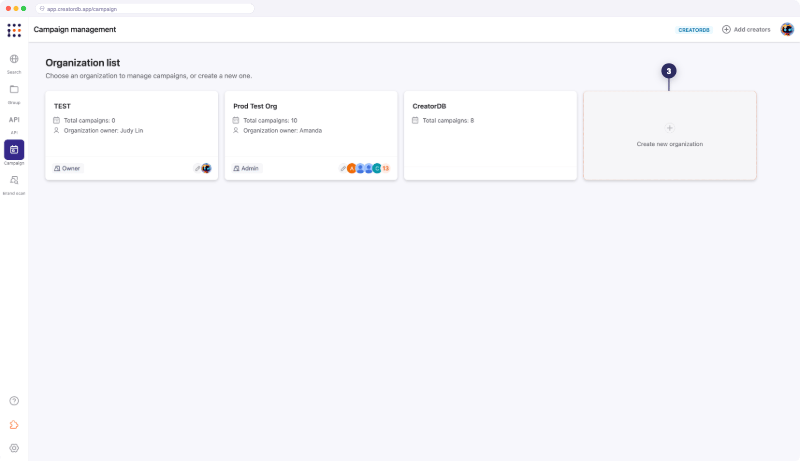
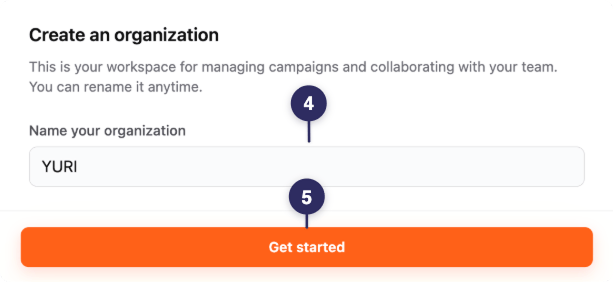
### Creating an organization
You must be an organization admin or owner to create a new campaign organization in CreatorDB. If you don't have the necessary permissions, please contact your organization admin for assistance.
1. Log in to your CreatorDB account.
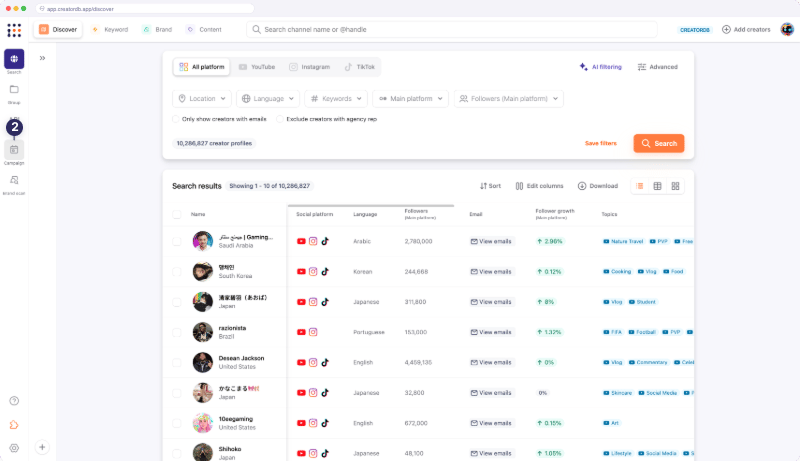
2. Click **Campaign**.
 3. Click **Create new organization**.
 4. Enter the organization name.
5. Click **Get started**.
4. Enter the organization name.
5. Click **Get started**.
The organization is created.
 ### Editing an organization
You must be an organization admin or owner to edit a campaign organization settings in CreatorDB. If you don't have the necessary permissions, please contact your organization admin for assistance.
1. Log in to your CreatorDB account.
2. Click **Campaign**.
3. Click on the organization name you want to edit on the **Organization List** page.
### Editing an organization
You must be an organization admin or owner to edit a campaign organization settings in CreatorDB. If you don't have the necessary permissions, please contact your organization admin for assistance.
1. Log in to your CreatorDB account.
2. Click **Campaign**.
3. Click on the organization name you want to edit on the **Organization List** page.
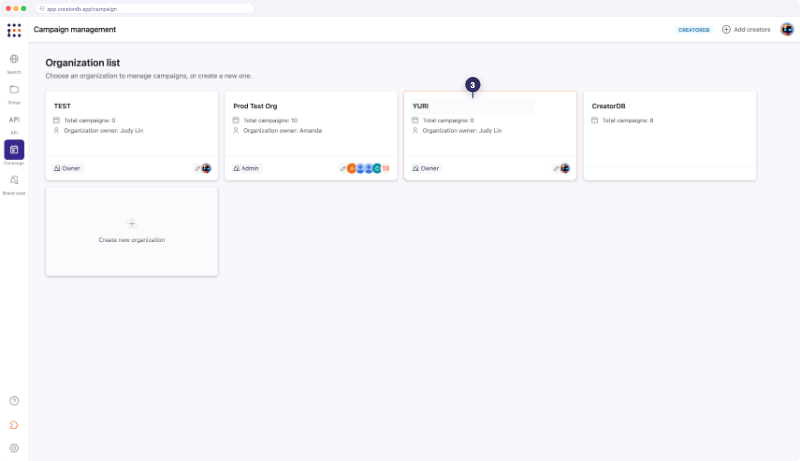 4. Enter the new organization name.
5. Click outside the text field to save the organization name.
4. Enter the new organization name.
5. Click outside the text field to save the organization name.
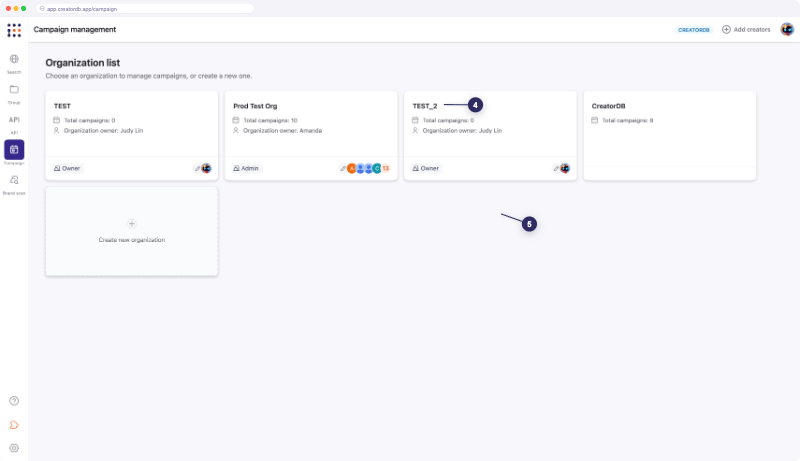
The organization name is updated.
 ### Managing organization members
You must be an organization admin or owner to add or remove members from a campaign organization in CreatorDB. If you don't have the necessary permissions, please contact your organization admin for assistance.
1. Log in to your CreatorDB account.
2. Click **Campaign**.
3. Select an organization.
4. Click **Edit who's in the organization**.
### Managing organization members
You must be an organization admin or owner to add or remove members from a campaign organization in CreatorDB. If you don't have the necessary permissions, please contact your organization admin for assistance.
1. Log in to your CreatorDB account.
2. Click **Campaign**.
3. Select an organization.
4. Click **Edit who's in the organization**.
**See who's in the organization** page appears.
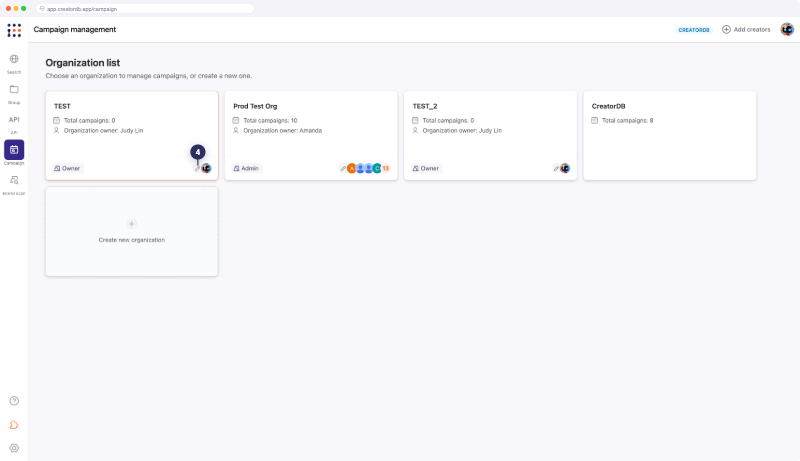 5. Enter the email addresses of the members you want to add.
6. Assign a role to each member (Admin, Member, or Guest).
7. Click **Invite**.
5. Enter the email addresses of the members you want to add.
6. Assign a role to each member (Admin, Member, or Guest).
7. Click **Invite**.
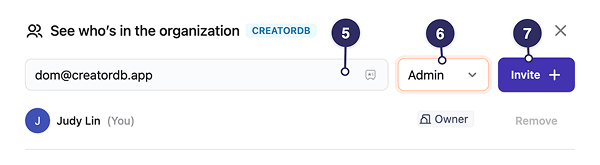 To remove an organization member, click **Remove**.
## Managing campaigns
You can manage and track campaign progress in CreatorDB. The campaign management features allows you to monitor the status of creators and their deliverables, as well as keep track of your team members campaign progress. You can also view campaign briefs and instructions to ensure that everyone is aligned on the campaign goals and requirements.
### Campaign roles and permissions
CreatorDB campaigns use a role-based permission system to control what each team member can do. When you add a member to a campaign, you assign them to one of the four roles — **Manager**, **Member**, **Viewer**, or **Guest** — each with a different level of access. CreatorDB recommends assigning the most restrictive role that still allows a person to do their work.
* [Campaign roles](#campaign-roles)
* [Campaign permissions](#campaign-permissions)
***
### Campaign roles
The table below describes each role and its intended use.
| Role | Description |
| ----------- | --------------------------------------------------------------------------------------------------------------------------------------------------------------------------------------------------- |
| **Manager** | Full control over the campaign. Managers can create, edit, and delete all campaign content, manage team membership, and configure campaign settings. Assign this role to campaign owners and leads. |
| **Member** | Can contribute to the campaign by working with cards and adding attachments, but cannot change campaign-level settings or manage other members. Assign this role to active contributors. |
| **Viewer** | Read-only access to campaigns and cards. Viewers can comment but cannot create or edit content. Assign this role to stakeholders who need visibility without edit access. |
| **Guest** | No access to campaign management actions. |
***
### Campaign permissions
The table below shows which actions each role can perform within a campaign.
Guests cannot perform any campaign management actions, but they have client sheet permissions. For details, see [Managing Client Sheets](/creatordb_app/user_guides/docs/20260622_creatordb_app_user_guide/managing_client_sheets).
| Permission | Manager | Member | Viewer |
| --------------------------------------------------------- | ------- | ------ | ------ |
| **Campaign** | | | |
| **Archive/unarchive campaigns** | ✅ Yes | ❌ No | ❌ No |
| **Delete campaigns** | ✅ Yes | ❌ No | ❌ No |
| **View campaigns** | ✅ Yes | ✅ Yes | ✅ Yes |
| **Edit campaign briefs** | ✅ Yes | ❌ No | ❌ No |
| **Edit campaign swim lanes** | ✅ Yes | ❌ No | ❌ No |
| **Members** | | | |
| **View campaign members** | ✅ Yes | ✅ Yes | ✅ Yes |
| **Add/remove campaign members** | ✅ Yes | ❌ No | ❌ No |
| **Assign team members** | ✅ Yes | ✅ Yes | ❌ No |
| **Cards** | | | |
| **Add cards** | ✅ Yes | ✅ Yes | ❌ No |
| **Duplicate card** | ✅ Yes | ✅ Yes | ❌ No |
| **Edit cards** | ✅ Yes | ✅ Yes | ❌ No |
| **View cards** | ✅ Yes | ✅ Yes | ✅ Yes |
| **Delete cards** | ✅ Yes | ✅ Yes | ❌ No |
| **Move cards** | ✅ Yes | ✅ Yes | ❌ No |
| **Comment** | ✅ Yes | ✅ Yes | ✅ Yes |
| **Update a creator status** | ✅ Yes | ✅ Yes | ❌ No |
| **Upload attachments (links, screenshots, assets, etc.)** | ✅ Yes | ✅ Yes | ❌ No |
### Campaign statuses
A campaign can have one of the following statuses:
| Status | Description |
| ----------- | ------------------------------------------------------------------------------ |
| **Draft** | The campaign details are being finalized, and the campaign is not running yet. |
| **Planned** | The campaign details have been finalized, but the campaign is not running yet. |
| **Active** | The campaign is running and accepting contributions. |
\| **Complete** | The campaign has finished. |
### Creator statuses on the Kanban board
Within a campaign in the Kanban board view, creators can have different statuses to indicate their level of engagement and progress. If you have management role permissions, you can also add custom statuses as needed. The following default statuses are used to track creators in a campaign:
| Status | Description |
| ----------------------- | ----------------------------------------------------------------------------------------------------------- |
| **Creator negotiation** | The agency is negotiating with the creator the campaign deliverables, pricing, and terms. |
| **Client negotiation** | The agency is negotiating with the client the selected creator's campaign deliverables, pricing, and terms. |
| **Approved** | The client has approved the selected creator's campaign deliverables, pricing, and terms. |
### Creating a campaign
You must be an organization admin or owner to create a campaign in CreatorDB. If you don't have the necessary permissions, please contact your organization admin for assistance.
1. Log in to CreatorDB.
2. Click **Campaign**.
3. **Optional:** Select an organization.
You must be an organization admin or owner to view and manage the organization list. If you don't have the necessary permissions, please contact your organization admin for assistance.
To remove an organization member, click **Remove**.
## Managing campaigns
You can manage and track campaign progress in CreatorDB. The campaign management features allows you to monitor the status of creators and their deliverables, as well as keep track of your team members campaign progress. You can also view campaign briefs and instructions to ensure that everyone is aligned on the campaign goals and requirements.
### Campaign roles and permissions
CreatorDB campaigns use a role-based permission system to control what each team member can do. When you add a member to a campaign, you assign them to one of the four roles — **Manager**, **Member**, **Viewer**, or **Guest** — each with a different level of access. CreatorDB recommends assigning the most restrictive role that still allows a person to do their work.
* [Campaign roles](#campaign-roles)
* [Campaign permissions](#campaign-permissions)
***
### Campaign roles
The table below describes each role and its intended use.
| Role | Description |
| ----------- | --------------------------------------------------------------------------------------------------------------------------------------------------------------------------------------------------- |
| **Manager** | Full control over the campaign. Managers can create, edit, and delete all campaign content, manage team membership, and configure campaign settings. Assign this role to campaign owners and leads. |
| **Member** | Can contribute to the campaign by working with cards and adding attachments, but cannot change campaign-level settings or manage other members. Assign this role to active contributors. |
| **Viewer** | Read-only access to campaigns and cards. Viewers can comment but cannot create or edit content. Assign this role to stakeholders who need visibility without edit access. |
| **Guest** | No access to campaign management actions. |
***
### Campaign permissions
The table below shows which actions each role can perform within a campaign.
Guests cannot perform any campaign management actions, but they have client sheet permissions. For details, see [Managing Client Sheets](/creatordb_app/user_guides/docs/20260622_creatordb_app_user_guide/managing_client_sheets).
| Permission | Manager | Member | Viewer |
| --------------------------------------------------------- | ------- | ------ | ------ |
| **Campaign** | | | |
| **Archive/unarchive campaigns** | ✅ Yes | ❌ No | ❌ No |
| **Delete campaigns** | ✅ Yes | ❌ No | ❌ No |
| **View campaigns** | ✅ Yes | ✅ Yes | ✅ Yes |
| **Edit campaign briefs** | ✅ Yes | ❌ No | ❌ No |
| **Edit campaign swim lanes** | ✅ Yes | ❌ No | ❌ No |
| **Members** | | | |
| **View campaign members** | ✅ Yes | ✅ Yes | ✅ Yes |
| **Add/remove campaign members** | ✅ Yes | ❌ No | ❌ No |
| **Assign team members** | ✅ Yes | ✅ Yes | ❌ No |
| **Cards** | | | |
| **Add cards** | ✅ Yes | ✅ Yes | ❌ No |
| **Duplicate card** | ✅ Yes | ✅ Yes | ❌ No |
| **Edit cards** | ✅ Yes | ✅ Yes | ❌ No |
| **View cards** | ✅ Yes | ✅ Yes | ✅ Yes |
| **Delete cards** | ✅ Yes | ✅ Yes | ❌ No |
| **Move cards** | ✅ Yes | ✅ Yes | ❌ No |
| **Comment** | ✅ Yes | ✅ Yes | ✅ Yes |
| **Update a creator status** | ✅ Yes | ✅ Yes | ❌ No |
| **Upload attachments (links, screenshots, assets, etc.)** | ✅ Yes | ✅ Yes | ❌ No |
### Campaign statuses
A campaign can have one of the following statuses:
| Status | Description |
| ----------- | ------------------------------------------------------------------------------ |
| **Draft** | The campaign details are being finalized, and the campaign is not running yet. |
| **Planned** | The campaign details have been finalized, but the campaign is not running yet. |
| **Active** | The campaign is running and accepting contributions. |
\| **Complete** | The campaign has finished. |
### Creator statuses on the Kanban board
Within a campaign in the Kanban board view, creators can have different statuses to indicate their level of engagement and progress. If you have management role permissions, you can also add custom statuses as needed. The following default statuses are used to track creators in a campaign:
| Status | Description |
| ----------------------- | ----------------------------------------------------------------------------------------------------------- |
| **Creator negotiation** | The agency is negotiating with the creator the campaign deliverables, pricing, and terms. |
| **Client negotiation** | The agency is negotiating with the client the selected creator's campaign deliverables, pricing, and terms. |
| **Approved** | The client has approved the selected creator's campaign deliverables, pricing, and terms. |
### Creating a campaign
You must be an organization admin or owner to create a campaign in CreatorDB. If you don't have the necessary permissions, please contact your organization admin for assistance.
1. Log in to CreatorDB.
2. Click **Campaign**.
3. **Optional:** Select an organization.
You must be an organization admin or owner to view and manage the organization list. If you don't have the necessary permissions, please contact your organization admin for assistance.
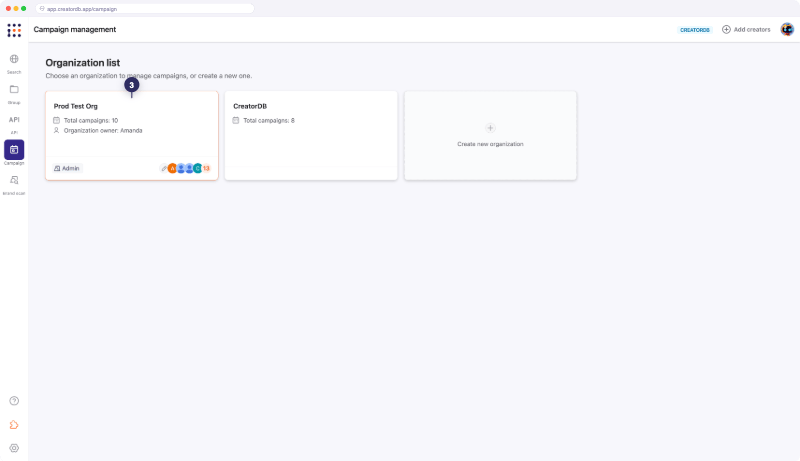 4. Click **Create Campaign**.
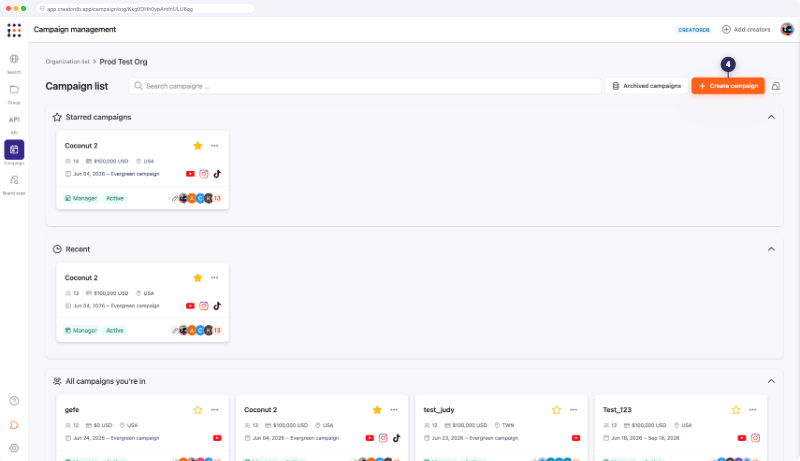 5. **Enter the campaign information.**
a. Enter a campaign name.
b. Select a campaign start date.
c. Select a campaign end date.
Select **Evergreen** if the campaign is a long term ongoing campaign without a specific end date.
d. Enter the campaign budget.
e. Select a campaign goal.
f. **Optional:** Enter a campaign overview description.
g. Click **Next**.
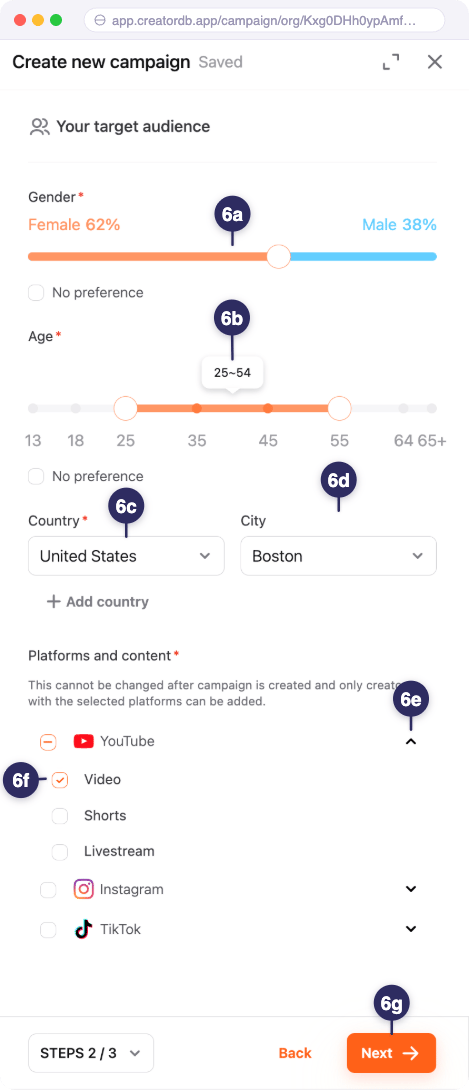
 6. **Select the campaign's target audience.**
* For gender ratio and age range, select **No preference** if you don't want to specify.
* To select more than one country, click **Add country**.
a. Select the gender ratio.
6. **Select the campaign's target audience.**
* For gender ratio and age range, select **No preference** if you don't want to specify.
* To select more than one country, click **Add country**.
a. Select the gender ratio.
b. Select the age range.
c. Select the country.
d. **Optional:** Select the city.
e. Select the platform and content type.
Once a campaign is created, you cannot modify the targeted platforms and content.
f. Click **Next**.
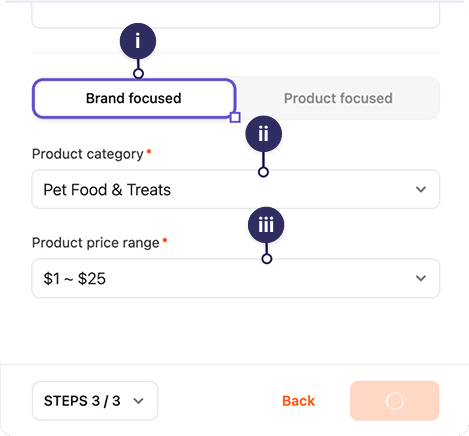
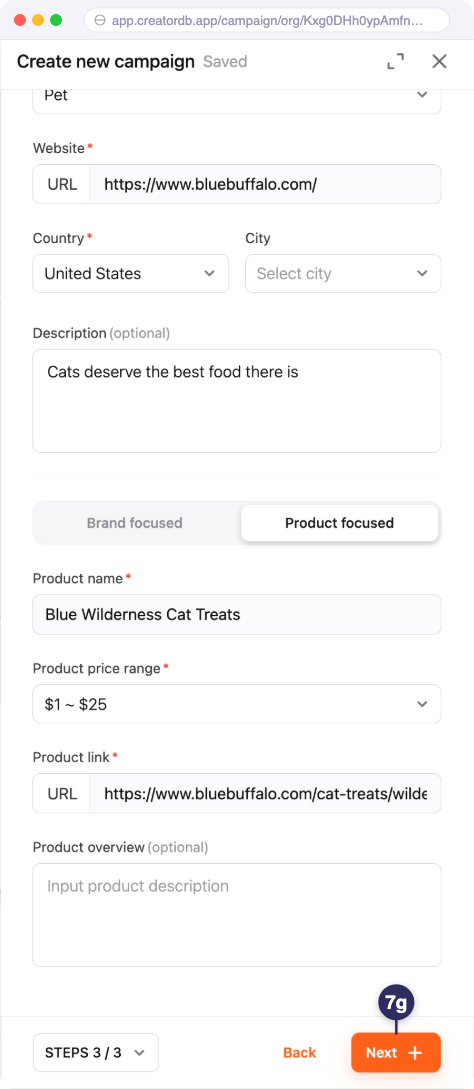
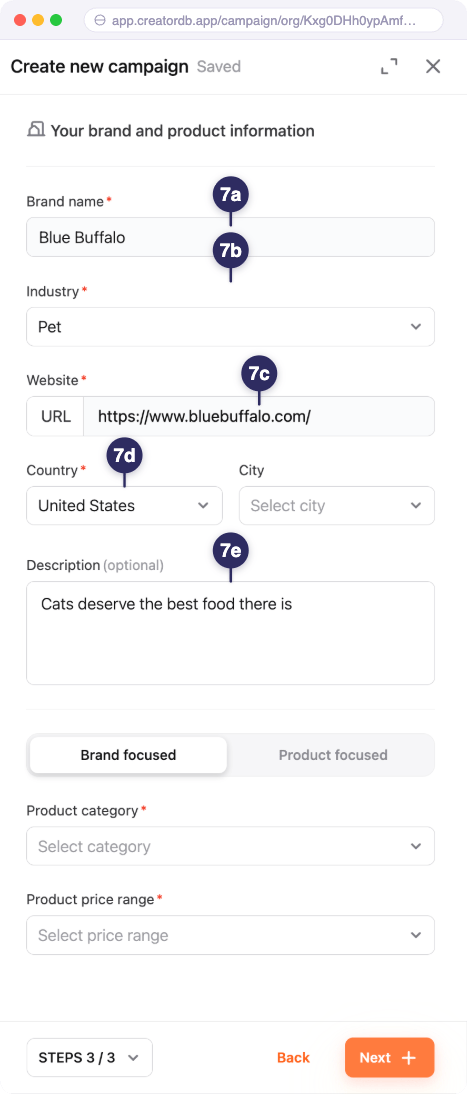 f. Choose one of the following focus types:
i. Click **Brand focus**.
ii. Select the product category.
iii. Select the product price range.
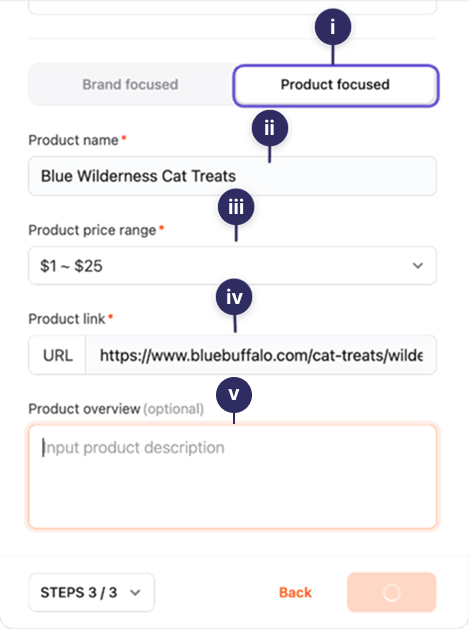
 i. Click **Product focus**.
ii. Select the product name.
iii. Select the product price range.
iv. Enter the product link.
v. **Optional:** Enter the product overview description.
 * Choose brand focus if the campaign is for a specific brand.
* Choose product focus if the campaign is for a specific product.
g. Click **Next**.
* Choose brand focus if the campaign is for a specific brand.
* Choose product focus if the campaign is for a specific product.
g. Click **Next**.
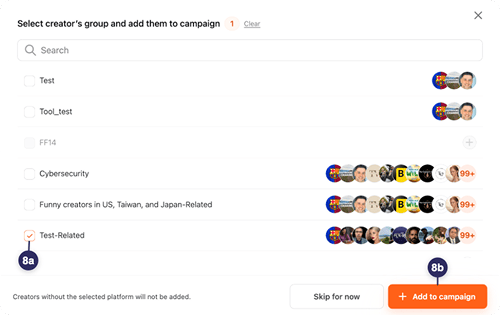
The add creator group window appears.
 8. **Add a creator group to the campaign.**
* You need to create a group before you can add it to a campaign. For details, see [Creating a group](https://docs.creatordb.app/creatordb_app/user_guides/docs/20260210_creatordb_app_user_guide/managing_groups#creating-a-group).
* You can also search and add a group by name if you have many groups in your organization.
a. Select a creator group.
8. **Add a creator group to the campaign.**
* You need to create a group before you can add it to a campaign. For details, see [Creating a group](https://docs.creatordb.app/creatordb_app/user_guides/docs/20260210_creatordb_app_user_guide/managing_groups#creating-a-group).
* You can also search and add a group by name if you have many groups in your organization.
a. Select a creator group.
b. Click **Add to campaign**.
The campaign is created.
 ### Editing a campaign
You must be a campaign manager to edit a campaign brief in CreatorDB. If you don't have the necessary permissions, please contact your organization admin for assistance.
You must be an organization admin or owner to create a campaign in CreatorDB. If you don't have the necessary permissions, please contact your organization admin for assistance.
1. Log in to CreatorDB.
2. Click **Campaign**.
3. **Optional:** Select an organization.
You must be an organization admin or owner to view and manage the organization list. If you don't have the necessary permissions, please contact your organization admin for assistance.
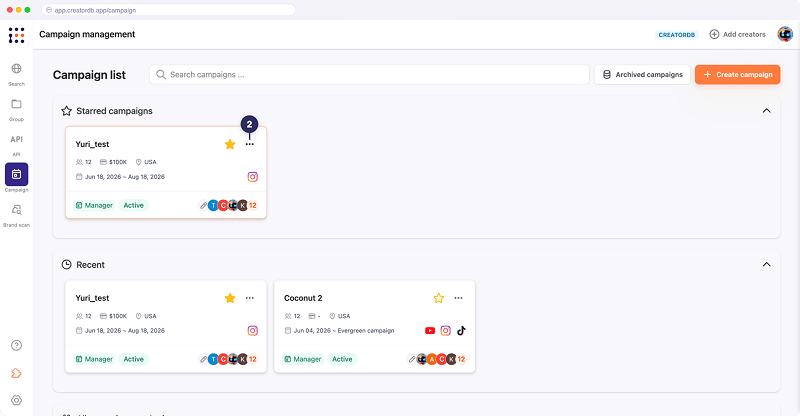
4. Select a campaign.
5. Click the **Actions** button.
### Editing a campaign
You must be a campaign manager to edit a campaign brief in CreatorDB. If you don't have the necessary permissions, please contact your organization admin for assistance.
You must be an organization admin or owner to create a campaign in CreatorDB. If you don't have the necessary permissions, please contact your organization admin for assistance.
1. Log in to CreatorDB.
2. Click **Campaign**.
3. **Optional:** Select an organization.
You must be an organization admin or owner to view and manage the organization list. If you don't have the necessary permissions, please contact your organization admin for assistance.
4. Select a campaign.
5. Click the **Actions** button.
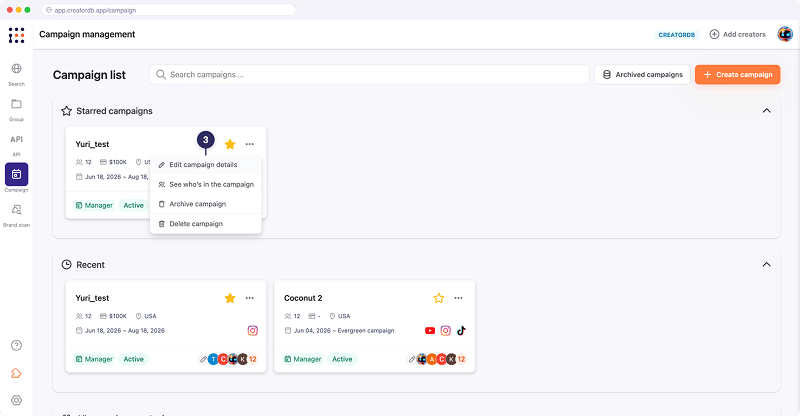
A drop-down menu appears.
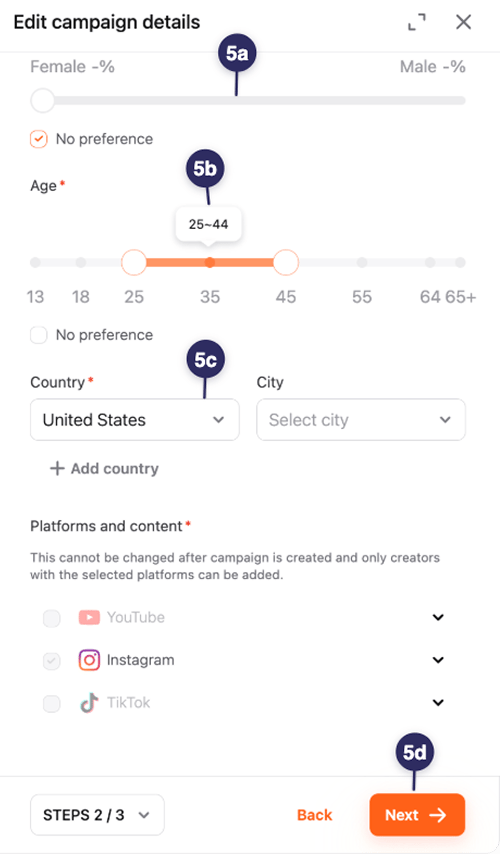
 6. Select Edit campaign details. The **Edit campaign** page appears.
 7. Edit the campaign fields. For details, see [Creating a campaign](#creating-a-campaign).
Click **Next** to save changes or skip to the next section of the campaign brief.
7. Edit the campaign fields. For details, see [Creating a campaign](#creating-a-campaign).
Click **Next** to save changes or skip to the next section of the campaign brief.
 ### Adding campaign members
* You must have one of the following role permissions to add or remove campaign members in CreatorDB:
* Organization Owner
* Organization Admin
* Campaign Manager
* To assign member roles, you must have one of the following role permissions:
* Organization Owner
* Organization Admin
* Campaign Manager
* Campaign Member
If you don't have the necessary permissions, please contact your organization admin for assistance. For details, see [Organization roles and permissions](#organization-roles-and-permissions) or see [Campaign roles and permissions](#campaign-roles-and-permissions).
You can add or remove company staff or external clients to a campaign. Use the assign role features to manage the campaign content that each participant can access.
1. Log in to your CreatorDB account.
2. Click **Campaign**.
3. **Optional:** Select an organization.
You must be an organization admin or owner to view and manage the organization list. If you don't have the necessary permissions, please contact your organization admin for assistance.
4. Select a campaign.
5. Click the **Actions** button.
### Adding campaign members
* You must have one of the following role permissions to add or remove campaign members in CreatorDB:
* Organization Owner
* Organization Admin
* Campaign Manager
* To assign member roles, you must have one of the following role permissions:
* Organization Owner
* Organization Admin
* Campaign Manager
* Campaign Member
If you don't have the necessary permissions, please contact your organization admin for assistance. For details, see [Organization roles and permissions](#organization-roles-and-permissions) or see [Campaign roles and permissions](#campaign-roles-and-permissions).
You can add or remove company staff or external clients to a campaign. Use the assign role features to manage the campaign content that each participant can access.
1. Log in to your CreatorDB account.
2. Click **Campaign**.
3. **Optional:** Select an organization.
You must be an organization admin or owner to view and manage the organization list. If you don't have the necessary permissions, please contact your organization admin for assistance.
4. Select a campaign.
5. Click the **Actions** button.
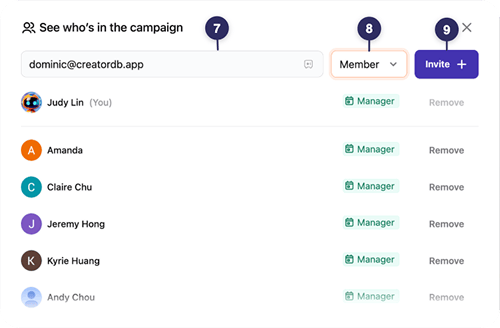
A drop-down menu appears.
6. Select **See who's in the campaign**.
The **See who's in the campaign** page appears.
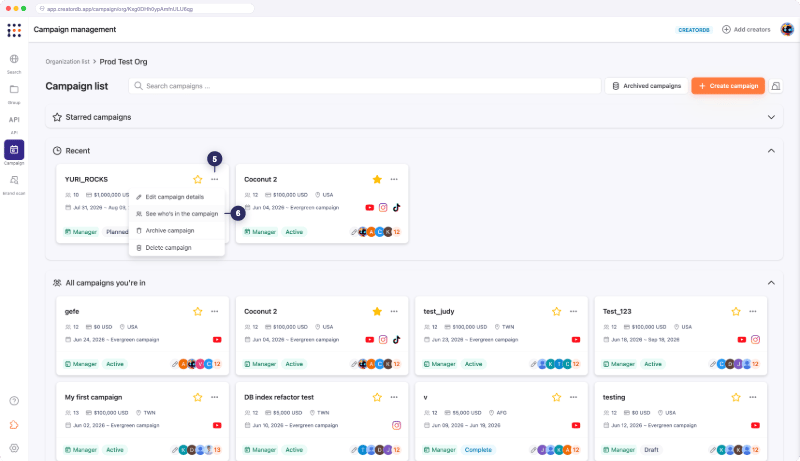 7. Enter the email addresses of the members you want to add.
8. Assign a role to each member (Manager, Member, or Viewer).
9. Click **Invite**.
7. Enter the email addresses of the members you want to add.
8. Assign a role to each member (Manager, Member, or Viewer).
9. Click **Invite**.
To remove members from the campaign, select a member and click **Remove**.
 ### Archiving a campaign
You must be a campaign manager to archive a campaign. If you don't have the necessary permissions, please contact your organization admin for assistance.
1. Log in to your CreatorDB account.
2. Click **Campaign**.
3. **Optional:** Select an organization.
You must be an organization admin or owner to view and manage the organization list. If you don't have the necessary permissions, please contact your organization admin for assistance.
4. Select a campaign.
5. Click the **Actions** button.
### Archiving a campaign
You must be a campaign manager to archive a campaign. If you don't have the necessary permissions, please contact your organization admin for assistance.
1. Log in to your CreatorDB account.
2. Click **Campaign**.
3. **Optional:** Select an organization.
You must be an organization admin or owner to view and manage the organization list. If you don't have the necessary permissions, please contact your organization admin for assistance.
4. Select a campaign.
5. Click the **Actions** button.
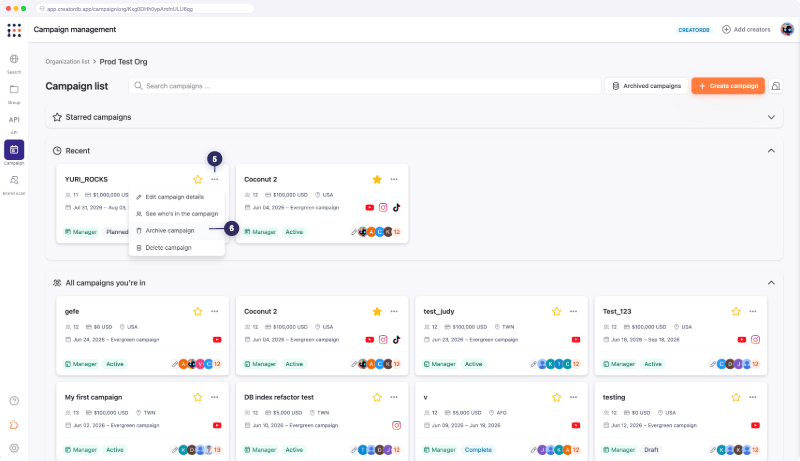
A drop-down menu appears.
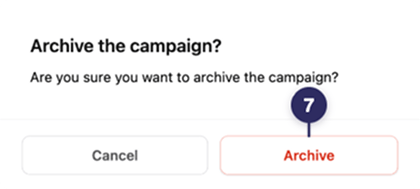
6. Select **Archive campaign**.
A confirmation window appears.
 7. Click **Archive**.
The campaign is archived.
 ### Viewing archived campaigns
You must be a campaign manager to view archived campaigns. If you don't have the necessary permissions, please contact your organization admin for assistance.
1. Log in to your CreatorDB account.
2. Click **Campaign**.
3. **Optional:** Select an organization.
You must be an organization admin or owner to view and manage the organization list. If you don't have the necessary permissions, please contact your organization admin for assistance.
4. Select a campaign.
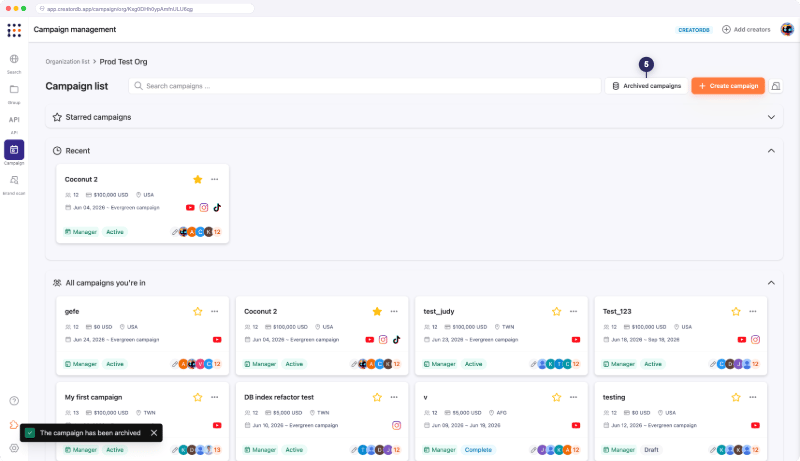
5. Click **Archived campaigns**. The **Archived campaigns** page appears.
### Viewing archived campaigns
You must be a campaign manager to view archived campaigns. If you don't have the necessary permissions, please contact your organization admin for assistance.
1. Log in to your CreatorDB account.
2. Click **Campaign**.
3. **Optional:** Select an organization.
You must be an organization admin or owner to view and manage the organization list. If you don't have the necessary permissions, please contact your organization admin for assistance.
4. Select a campaign.
5. Click **Archived campaigns**. The **Archived campaigns** page appears.
 ### Unarchiving a campaign
You must be a campaign manager to unarchive campaigns. If you don't have the necessary permissions, please contact your organization admin for assistance.
1. Log in to your CreatorDB account.
2. Click **Campaign**.
3. **Optional:** Select an organization.
### Unarchiving a campaign
You must be a campaign manager to unarchive campaigns. If you don't have the necessary permissions, please contact your organization admin for assistance.
1. Log in to your CreatorDB account.
2. Click **Campaign**.
3. **Optional:** Select an organization.
You must be an organization admin or owner to view and manage the organization list. If you don't have the necessary permissions, please contact your organization admin for assistance.
4. Select a campaign.
5. Click **Archived campaigns**.
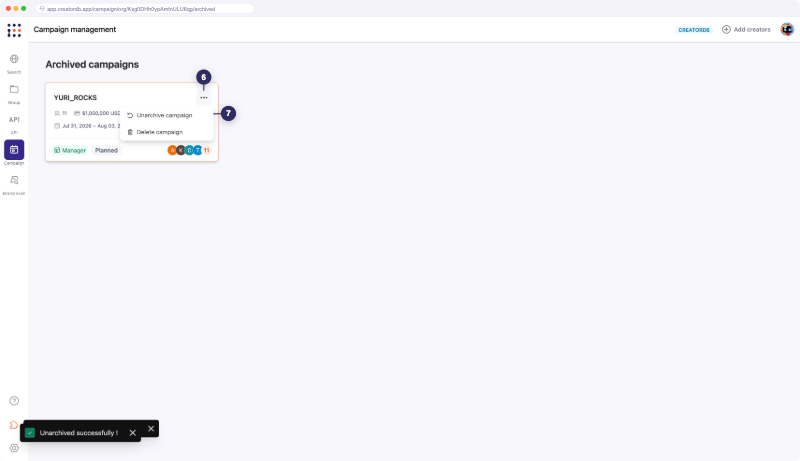
6. Click the **Actions** button.
A drop-down menu appears.
7. Select **Unarchive campaign**.
The campaign is unarchived and moved back to the campaign list.
 ### Deleting a campaign
You must be a campaign manager to delete a campaign. If you don't have the necessary permissions, please contact your organization admin for assistance.
1. Log in to your CreatorDB account.
2. Click **Campaign**.
3. **Optional:** Select an organization.
You must be an organization admin or owner to view and manage the organization list. If you don't have the necessary permissions, please contact your organization admin for assistance.
4. Select a campaign.
5. Click the **Actions** button.
### Deleting a campaign
You must be a campaign manager to delete a campaign. If you don't have the necessary permissions, please contact your organization admin for assistance.
1. Log in to your CreatorDB account.
2. Click **Campaign**.
3. **Optional:** Select an organization.
You must be an organization admin or owner to view and manage the organization list. If you don't have the necessary permissions, please contact your organization admin for assistance.
4. Select a campaign.
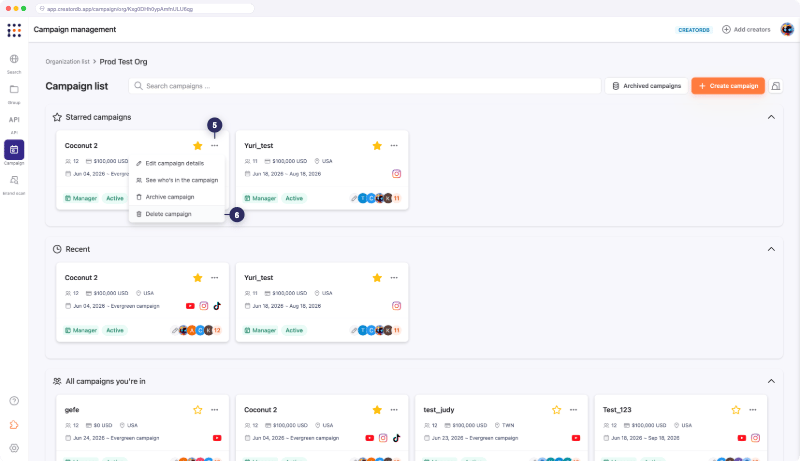
5. Click the **Actions** button.
A drop-down menu appears.
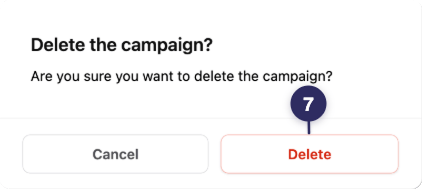
6. Select **Delete campaign**.
A confirmation message appears.
 7. Click **Delete**.