> ## Documentation Index
> Fetch the complete documentation index at: https://docs.creatordb.app/llms.txt
> Use this file to discover all available pages before exploring further.

# Managing Groups

> How to manage groups in the CreatorDB database.

You can manage groups of creators to see how similar creators perform, view the brands that sponsor them, or download their data.

## Creating a group

<Note>
  Based on your CreatorDB plan, you can create 2 to 100 groups. For details, see [CreatorDB’s pricing plans](https://app.creatordb.app/pricing-plan).
</Note>

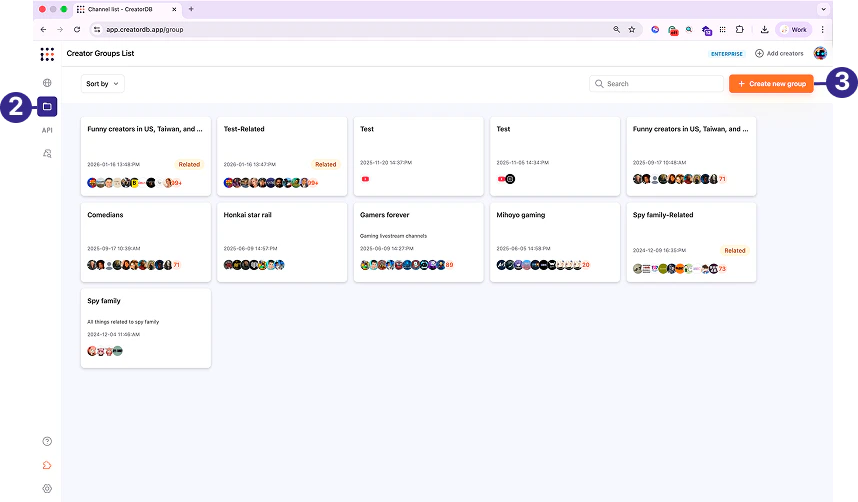
1. Log in to CreatorDB.
2. Click **Group**.
3. Click **+ Create new group**.
<Frame>
  <img src="https://mintcdn.com/creatordb-589c46f5/M0s7g-bE8-r_Bv1t/creatordb_app/user_guides/images/20260210_creatordb_user_guide/Group_328.png?fit=max&auto=format&n=M0s7g-bE8-r_Bv1t&q=85&s=c3237c9a9869c753c731dc1d12a3f3ae" alt="Create new group" width="858" height="502" data-path="creatordb_app/user_guides/images/20260210_creatordb_user_guide/Group_328.png" />
</Frame>

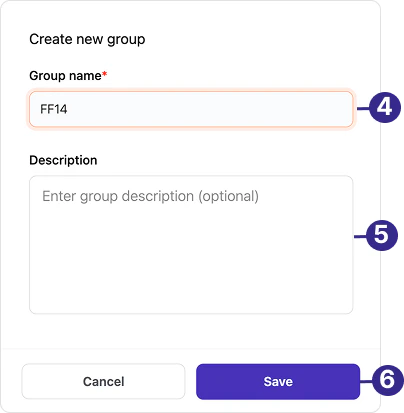
4. Enter a **Group name**.
5. **Optional:** Enter a group description.
6. Click **Save**.
<Frame>
  <img src="https://mintcdn.com/creatordb-589c46f5/1qbXt1aF4MuKbg8e/creatordb_app/user_guides/images/20260210_creatordb_user_guide/Group_424.png?fit=max&auto=format&n=1qbXt1aF4MuKbg8e&q=85&s=083f7d965792b8fa4c6081ba0eb3493e" alt="Saving a new group" width="404" height="413" data-path="creatordb_app/user_guides/images/20260210_creatordb_user_guide/Group_424.png" />
</Frame>

### Adding a creator to a group through a creator profile

<Note>
  You can add up to 5,000 creators per group based on your pricing plan. For details, see [CreatorDB’s pricing plan](https://app.creatordb.app/pricing-plan).
</Note>

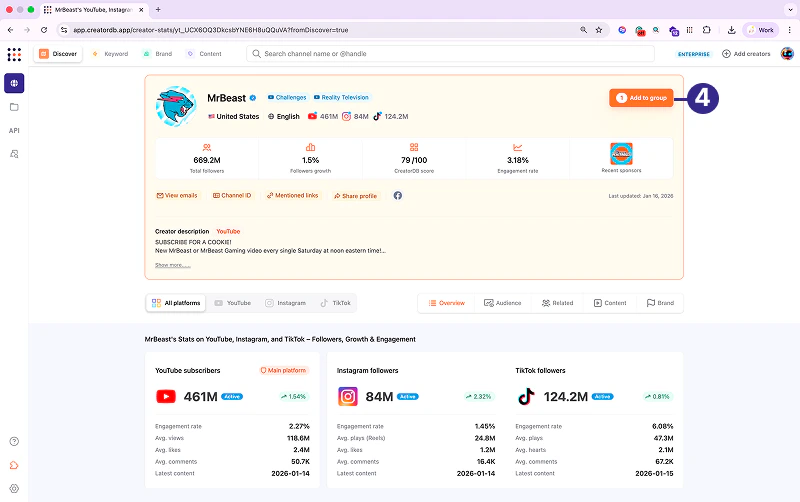
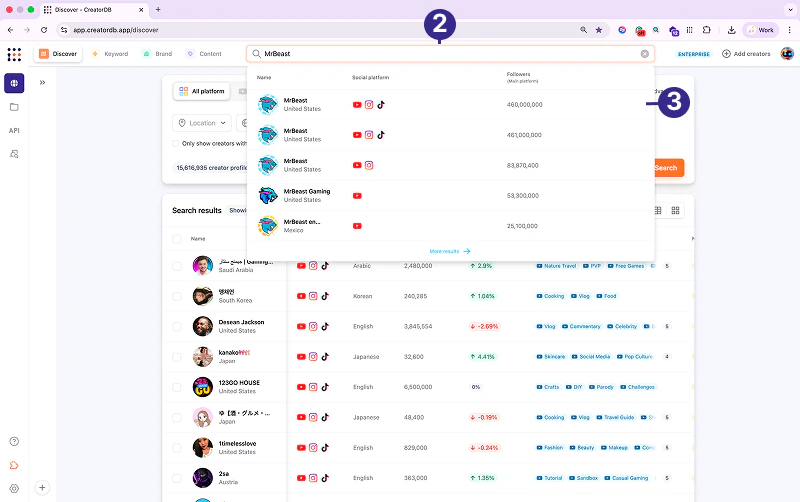
1. Log in to CreatorDB.
2. Enter the creator ID or name in the search bar.
3. Click on the creator.
<Frame>
  <img src="https://mintcdn.com/creatordb-589c46f5/M0s7g-bE8-r_Bv1t/creatordb_app/user_guides/images/20260210_creatordb_user_guide/Group_330.png?fit=max&auto=format&n=M0s7g-bE8-r_Bv1t&q=85&s=136cc306e6f6ee147553f9a9add630ad" alt="Adding a creator to the group from profile page" width="800" height="502" data-path="creatordb_app/user_guides/images/20260210_creatordb_user_guide/Group_330.png" />
</Frame>

4. Click **Add to group**.

<Frame>
  <img src="https://mintcdn.com/creatordb-589c46f5/M0s7g-bE8-r_Bv1t/creatordb_app/user_guides/images/20260210_creatordb_user_guide/Group_331.png?fit=max&auto=format&n=M0s7g-bE8-r_Bv1t&q=85&s=53dcd232cb485758e588b5c01f762304" alt="Adding a creator to a group" width="800" height="502" data-path="creatordb_app/user_guides/images/20260210_creatordb_user_guide/Group_331.png" />
</Frame>

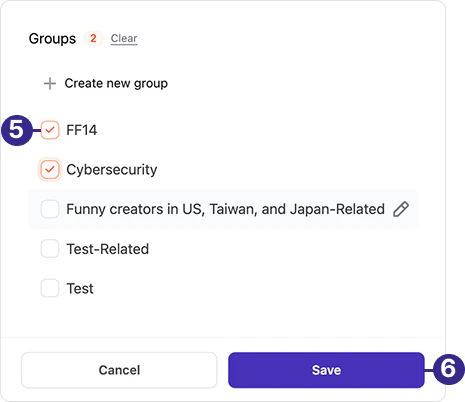
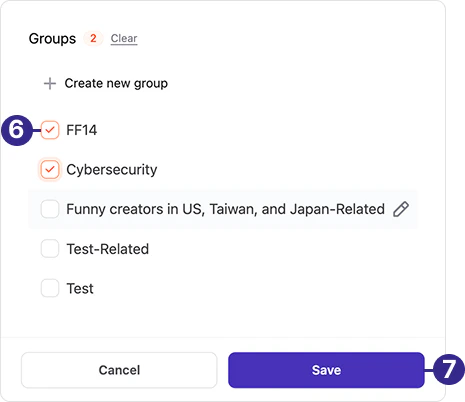
5. Select a group.
6. Click **Save**.

<Frame>
  <img src="https://mintcdn.com/creatordb-589c46f5/1qbXt1aF4MuKbg8e/creatordb_app/user_guides/images/20260210_creatordb_user_guide/Group_425.png?fit=max&auto=format&n=1qbXt1aF4MuKbg8e&q=85&s=7e813ed09d455d1a9c8fa606f531c9b9" alt="Saving a creator to a group" width="465" height="402" data-path="creatordb_app/user_guides/images/20260210_creatordb_user_guide/Group_425.png" />
</Frame>

### Adding creators to a group through the search results table

<Note>
  You can add up to 5,000 creators per group based on your pricing plan. For details, see [CreatorDB’s pricing plan](https://app.creatordb.app/pricing-plan).
</Note>

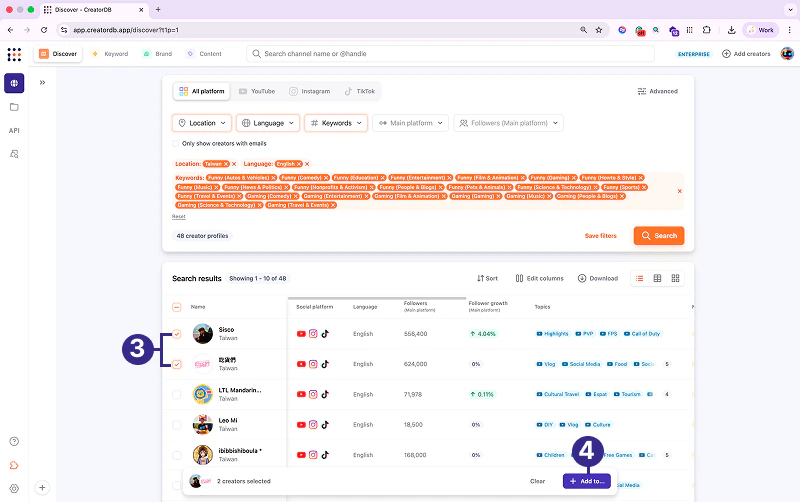
1. Log in to CreatorDB.
2. Search for creators. <br />
   For details, see [Searching for creators](https://docs.creatordb.app/creatordb_app/user_guides/docs/20260210_creatordb_app_user_guide/searching_the_creatordb_database#searching-for-creators).
3. Select creators.
4. Click **Add to…** <br />
   A window appears.

<Frame>
  <img src="https://mintcdn.com/creatordb-589c46f5/M0s7g-bE8-r_Bv1t/creatordb_app/user_guides/images/20260210_creatordb_user_guide/Group_333.png?fit=max&auto=format&n=M0s7g-bE8-r_Bv1t&q=85&s=d389eb9b055e6c209db97981981a1768" alt="Adding creators to a group from search results" width="800" height="502" data-path="creatordb_app/user_guides/images/20260210_creatordb_user_guide/Group_333.png" />
</Frame>

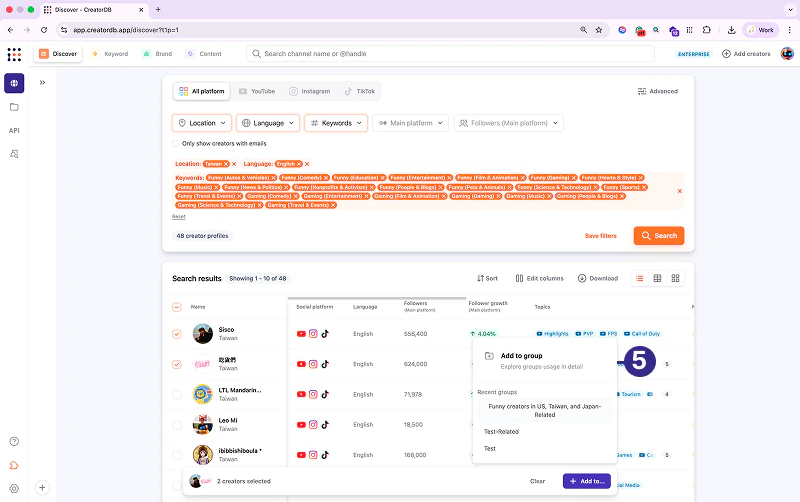
5. Click **Add to group**.

<Frame>
  <img src="https://mintcdn.com/creatordb-589c46f5/M0s7g-bE8-r_Bv1t/creatordb_app/user_guides/images/20260210_creatordb_user_guide/Group_335.png?fit=max&auto=format&n=M0s7g-bE8-r_Bv1t&q=85&s=a7fff8fcc31812415df59fe18883cc1f" alt="Adding creators to a group" width="800" height="502" data-path="creatordb_app/user_guides/images/20260210_creatordb_user_guide/Group_335.png" />
</Frame>

6. Select a group.
7. Click **Save**.

<Frame>
  <img src="https://mintcdn.com/creatordb-589c46f5/1qbXt1aF4MuKbg8e/creatordb_app/user_guides/images/20260210_creatordb_user_guide/Group_427.png?fit=max&auto=format&n=1qbXt1aF4MuKbg8e&q=85&s=bec4a0d406a056092d55047187e3f83f" alt="Saving creators to a group" width="465" height="402" data-path="creatordb_app/user_guides/images/20260210_creatordb_user_guide/Group_427.png" />
</Frame>

### Importing creators to groups by entering creator IDs

<Note>
  You can add up to 5,000 creators per group based on your pricing plan. For details, see [CreatorDB’s pricing plan](https://app.creatordb.app/pricing-plan).
</Note>

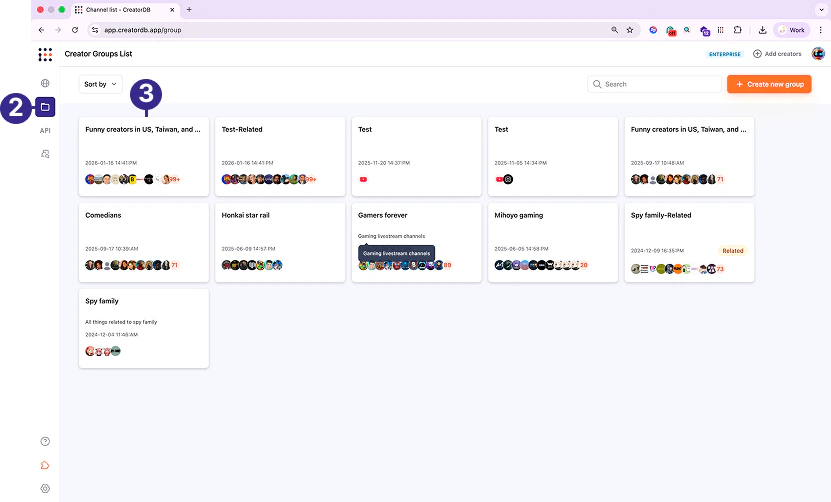
1. Log in to CreatorDB.
2. Click **Group**.
3. Select a group.
<Frame>
  <img src="https://mintcdn.com/creatordb-589c46f5/M0s7g-bE8-r_Bv1t/creatordb_app/user_guides/images/20260210_creatordb_user_guide/Group_341.png?fit=max&auto=format&n=M0s7g-bE8-r_Bv1t&q=85&s=088007c6626985dc2b6373a8ad84e958" alt="Selecting a group" width="831" height="502" data-path="creatordb_app/user_guides/images/20260210_creatordb_user_guide/Group_341.png" />
</Frame>

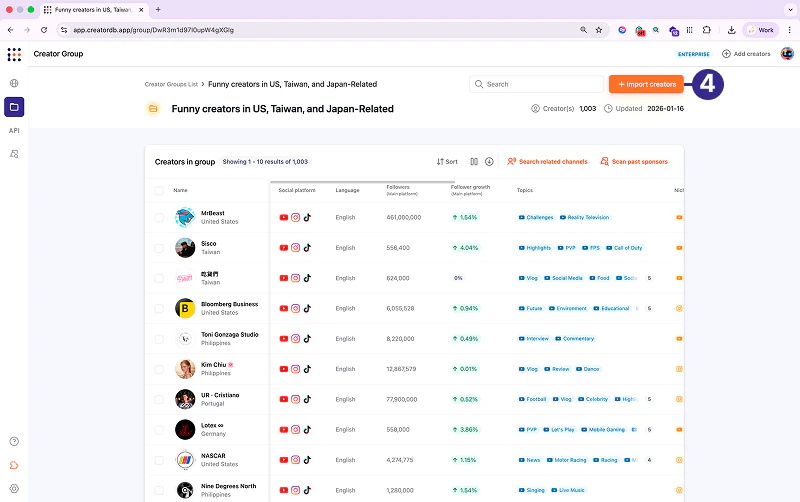
4. Click **+ Import creators**. <br />
   A window appears.

<Frame>
  <img src="https://mintcdn.com/creatordb-589c46f5/M0s7g-bE8-r_Bv1t/creatordb_app/user_guides/images/20260210_creatordb_user_guide/Group_342.png?fit=max&auto=format&n=M0s7g-bE8-r_Bv1t&q=85&s=40118da9ed3d942930db8a3602542435" alt="Import creators window" width="800" height="502" data-path="creatordb_app/user_guides/images/20260210_creatordb_user_guide/Group_342.png" />
</Frame>

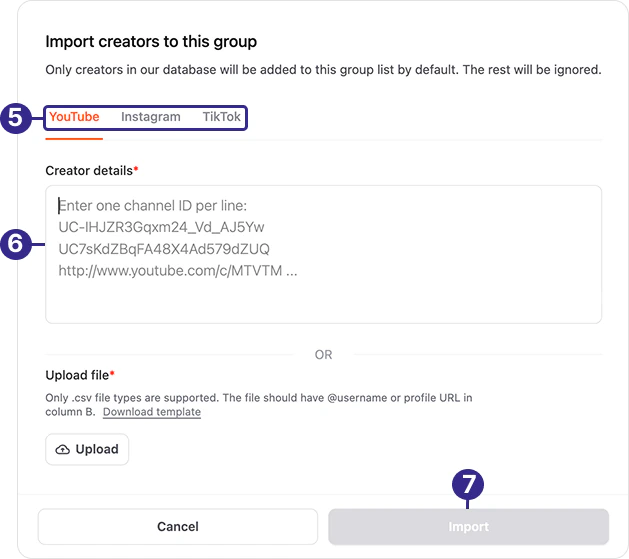
5. Select a social media platform.
6. Enter the information as shown on the screen.
7. Click **Submit**.
<Frame>
  <img src="https://mintcdn.com/creatordb-589c46f5/1qbXt1aF4MuKbg8e/creatordb_app/user_guides/images/20260210_creatordb_user_guide/Group_428.png?fit=max&auto=format&n=1qbXt1aF4MuKbg8e&q=85&s=a7d3e4220b5fa978a6bdccd7ba9565b2" alt="Imported creators" width="629" height="559" data-path="creatordb_app/user_guides/images/20260210_creatordb_user_guide/Group_428.png" />
</Frame>

### Importing creators to groups by uploading a file

<Warning>
  The uploaded file must follow the format shown in the template.
</Warning>

<Note>
  You can add up to 5,000 creators per group based on your pricing plan. For details, see [CreatorDB’s pricing plan](https://app.creatordb.app/pricing-plan).
</Note>

1. Log in to CreatorDB.
2. Click **Group**.
3. Select a group.

<Frame>
  <img src="https://mintcdn.com/creatordb-589c46f5/M0s7g-bE8-r_Bv1t/creatordb_app/user_guides/images/20260210_creatordb_user_guide/Group_341.png?fit=max&auto=format&n=M0s7g-bE8-r_Bv1t&q=85&s=088007c6626985dc2b6373a8ad84e958" alt="Selecting a group" width="831" height="502" data-path="creatordb_app/user_guides/images/20260210_creatordb_user_guide/Group_341.png" />
</Frame>

4. Click **+ Import creators**. <br />
   A window appears.

<Frame>
  <img src="https://mintcdn.com/creatordb-589c46f5/M0s7g-bE8-r_Bv1t/creatordb_app/user_guides/images/20260210_creatordb_user_guide/Group_342.png?fit=max&auto=format&n=M0s7g-bE8-r_Bv1t&q=85&s=40118da9ed3d942930db8a3602542435" alt="Import creators window" width="800" height="502" data-path="creatordb_app/user_guides/images/20260210_creatordb_user_guide/Group_342.png" />
</Frame>

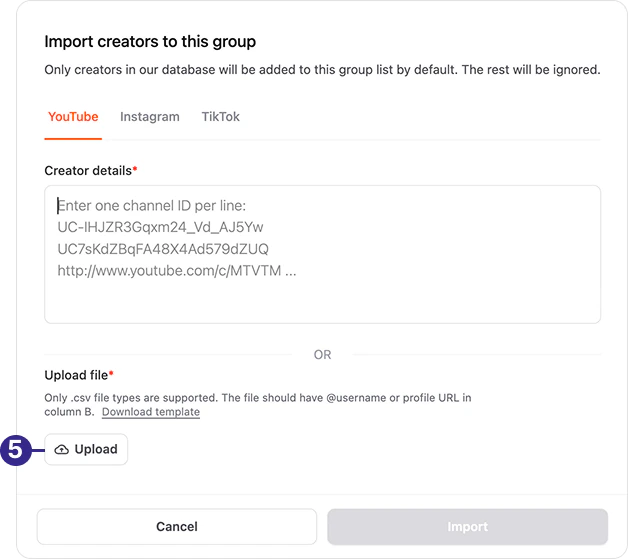
5. Click **Upload**. <br />
   A window appears.

<Frame>
  <img src="https://mintcdn.com/creatordb-589c46f5/1qbXt1aF4MuKbg8e/creatordb_app/user_guides/images/20260210_creatordb_user_guide/Group_430.png?fit=max&auto=format&n=1qbXt1aF4MuKbg8e&q=85&s=4dc1f6af34afb930e0f6a9d1ff916473" alt="Upload window" width="628" height="559" data-path="creatordb_app/user_guides/images/20260210_creatordb_user_guide/Group_430.png" />
</Frame>

6. Select a file.
7. Click **Open**. <br />
   The file is uploaded.

<Frame>
  <img src="https://mintcdn.com/creatordb-589c46f5/M0s7g-bE8-r_Bv1t/creatordb_app/user_guides/images/20260210_creatordb_user_guide/Group_345_(1).png?fit=max&auto=format&n=M0s7g-bE8-r_Bv1t&q=85&s=dac9447d79168fb643f00054ac020292" alt="Uploaded file" width="832" height="326" data-path="creatordb_app/user_guides/images/20260210_creatordb_user_guide/Group_345_(1).png" />
</Frame>

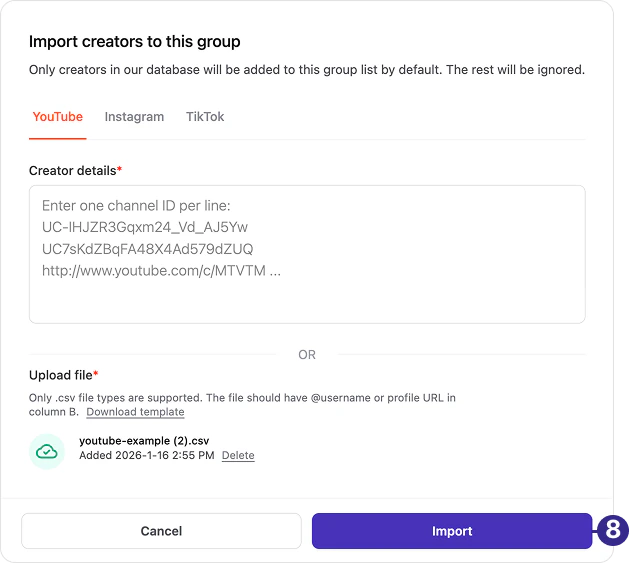
8. Click **Submit**.

<Frame>
  <img src="https://mintcdn.com/creatordb-589c46f5/1qbXt1aF4MuKbg8e/creatordb_app/user_guides/images/20260210_creatordb_user_guide/Group_431.png?fit=max&auto=format&n=1qbXt1aF4MuKbg8e&q=85&s=989873346bf86b7f6c9d48a82ad6821b" alt="Submitted creators" width="629" height="563" data-path="creatordb_app/user_guides/images/20260210_creatordb_user_guide/Group_431.png" />
</Frame>

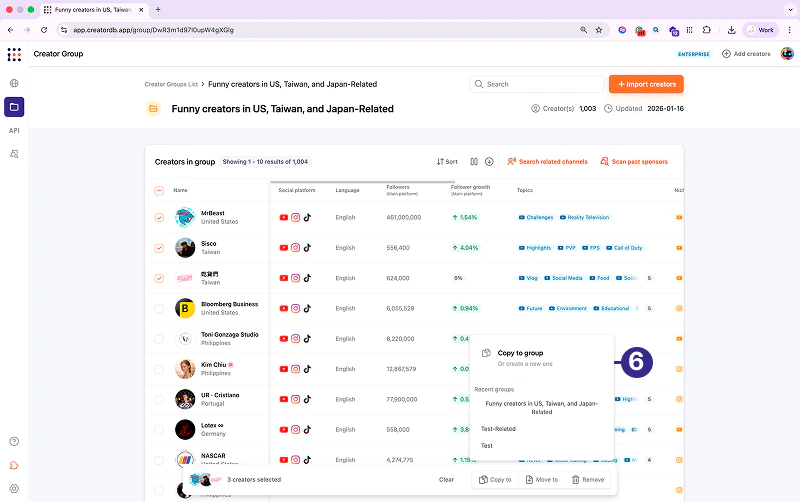
## Copying creators in a group

Copying creators in a group will make duplicate copies of the selected creators. The copied creators will appear in both the original and new groups.

1. Log in to CreatorDB.
2. Click **Group**.
3. Select a group.

<Frame>
  <img src="https://mintcdn.com/creatordb-589c46f5/M0s7g-bE8-r_Bv1t/creatordb_app/user_guides/images/20260210_creatordb_user_guide/Group_341.png?fit=max&auto=format&n=M0s7g-bE8-r_Bv1t&q=85&s=088007c6626985dc2b6373a8ad84e958" alt="Selecting a group" width="831" height="502" data-path="creatordb_app/user_guides/images/20260210_creatordb_user_guide/Group_341.png" />
</Frame>

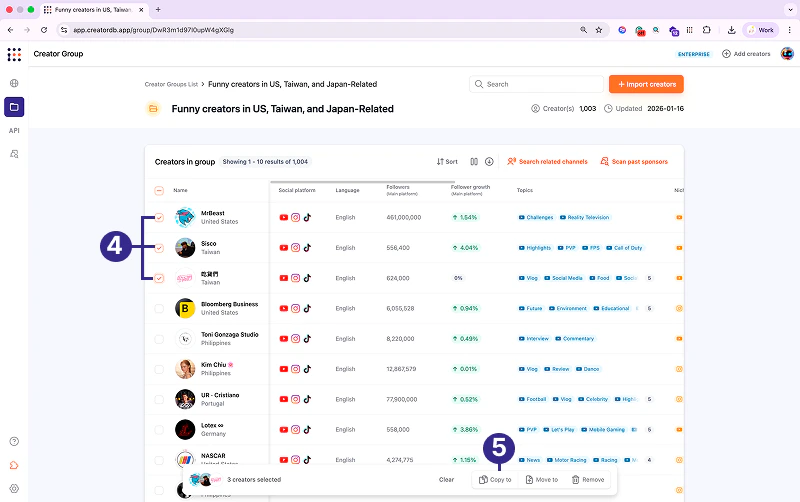
4. Select creators.

5. Click **Copy to**.
   <Frame>
     <img src="https://mintcdn.com/creatordb-589c46f5/M0s7g-bE8-r_Bv1t/creatordb_app/user_guides/images/20260210_creatordb_user_guide/Group_348.png?fit=max&auto=format&n=M0s7g-bE8-r_Bv1t&q=85&s=43cd5a8f8ff92a094ab91b29703d64e2" alt="Copy to group window" width="800" height="502" data-path="creatordb_app/user_guides/images/20260210_creatordb_user_guide/Group_348.png" />
   </Frame>

6. Click **Copy to group**.

   <Frame>
     <img src="https://mintcdn.com/creatordb-589c46f5/M0s7g-bE8-r_Bv1t/creatordb_app/user_guides/images/20260210_creatordb_user_guide/Group_349.png?fit=max&auto=format&n=M0s7g-bE8-r_Bv1t&q=85&s=2a82595d0a8694e46145ad0c82673c23" alt="Copied creators" width="800" height="502" data-path="creatordb_app/user_guides/images/20260210_creatordb_user_guide/Group_349.png" />
   </Frame>

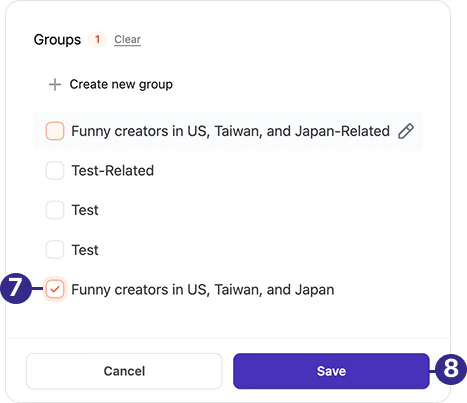
7. Select a group.

8. Click **Save**.

   <Frame>
     <img src="https://mintcdn.com/creatordb-589c46f5/1qbXt1aF4MuKbg8e/creatordb_app/user_guides/images/20260210_creatordb_user_guide/Group_432.png?fit=max&auto=format&n=1qbXt1aF4MuKbg8e&q=85&s=56f07d466212cb2d449ad279bd69107a" alt="Saved copied creators" width="467" height="403" data-path="creatordb_app/user_guides/images/20260210_creatordb_user_guide/Group_432.png" />
   </Frame>

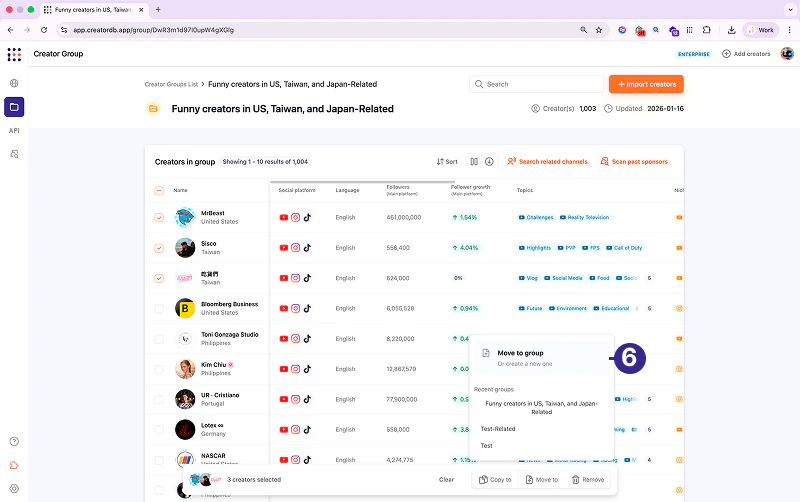
## Moving creators to another group

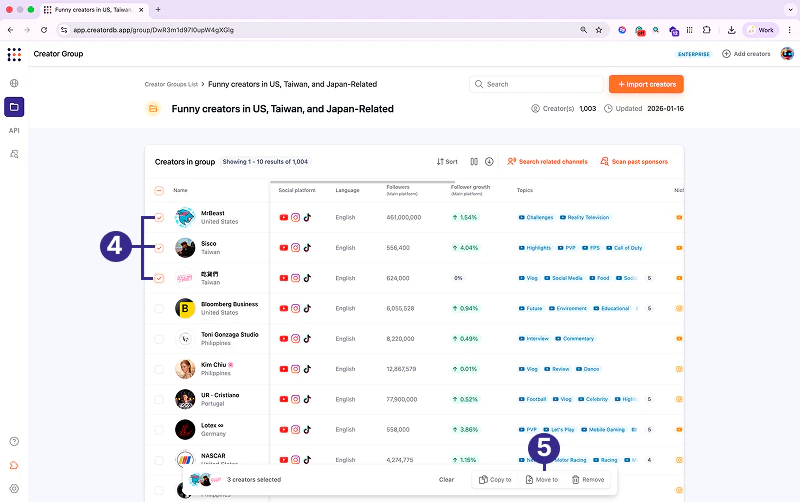
Moving creators in a group will move the selected creators from the original group to the newly selected group.

1. Log in to CreatorDB.

2. Click **Group**.

3. Select a group.

   <Frame>
     <img src="https://mintcdn.com/creatordb-589c46f5/M0s7g-bE8-r_Bv1t/creatordb_app/user_guides/images/20260210_creatordb_user_guide/Group_341.png?fit=max&auto=format&n=M0s7g-bE8-r_Bv1t&q=85&s=088007c6626985dc2b6373a8ad84e958" alt="Selecting a group" width="831" height="502" data-path="creatordb_app/user_guides/images/20260210_creatordb_user_guide/Group_341.png" />
   </Frame>

4. Select creators.

5. Click **Move to**.
   <Frame>
     <img src="https://mintcdn.com/creatordb-589c46f5/M0s7g-bE8-r_Bv1t/creatordb_app/user_guides/images/20260210_creatordb_user_guide/Group_352.png?fit=max&auto=format&n=M0s7g-bE8-r_Bv1t&q=85&s=0b4a4af51c2a6559f88cf11a968f4f73" alt="Move to group window" width="800" height="502" data-path="creatordb_app/user_guides/images/20260210_creatordb_user_guide/Group_352.png" />
   </Frame>

6. Click **Move to group**.

   <Frame>
     <img src="https://mintcdn.com/creatordb-589c46f5/M0s7g-bE8-r_Bv1t/creatordb_app/user_guides/images/20260210_creatordb_user_guide/Group_353.png?fit=max&auto=format&n=M0s7g-bE8-r_Bv1t&q=85&s=a98633f78b7e96707908424c513db673" alt="Moved creators" width="800" height="502" data-path="creatordb_app/user_guides/images/20260210_creatordb_user_guide/Group_353.png" />
   </Frame>

7. Select a group.

8. Click **Save**.

   <Frame>
     <img src="https://mintcdn.com/creatordb-589c46f5/1qbXt1aF4MuKbg8e/creatordb_app/user_guides/images/20260210_creatordb_user_guide/Group_432.png?fit=max&auto=format&n=1qbXt1aF4MuKbg8e&q=85&s=56f07d466212cb2d449ad279bd69107a" alt="Saved moved creators" width="467" height="403" data-path="creatordb_app/user_guides/images/20260210_creatordb_user_guide/Group_432.png" />
   </Frame>

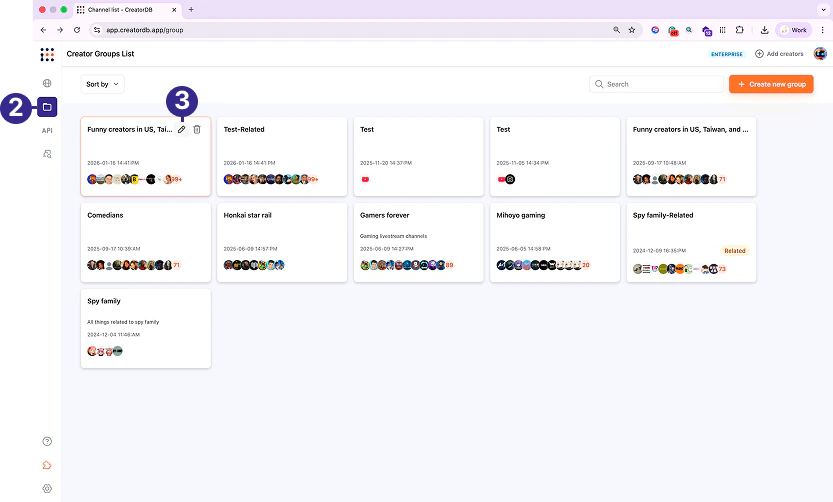
## Editing a group

1. Log in to CreatorDB.

2. Click **Group**.

3. Select a group and click the edit icon. <br />
   A window appears.

   <Frame>
     <img src="https://mintcdn.com/creatordb-589c46f5/M0s7g-bE8-r_Bv1t/creatordb_app/user_guides/images/20260210_creatordb_user_guide/Group_356.png?fit=max&auto=format&n=M0s7g-bE8-r_Bv1t&q=85&s=59a66fa400560a05c3f6dd00c496891c" alt="Edit group window" width="833" height="502" data-path="creatordb_app/user_guides/images/20260210_creatordb_user_guide/Group_356.png" />
   </Frame>

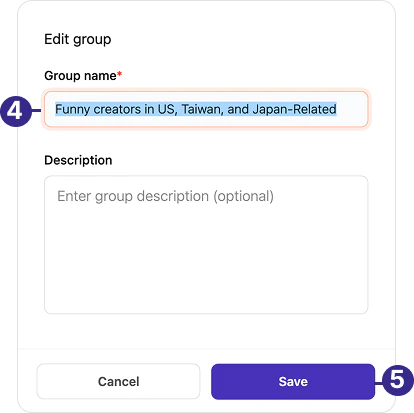
4. Edit the group name or description.

5. Click **Save**.
   <Frame>
     <img src="https://mintcdn.com/creatordb-589c46f5/1qbXt1aF4MuKbg8e/creatordb_app/user_guides/images/20260210_creatordb_user_guide/Group_433.png?fit=max&auto=format&n=1qbXt1aF4MuKbg8e&q=85&s=0cbe6a2a3e00585ee421752aa24fa291" alt="Saved edited group" width="414" height="413" data-path="creatordb_app/user_guides/images/20260210_creatordb_user_guide/Group_433.png" />
   </Frame>

## Deleting a group

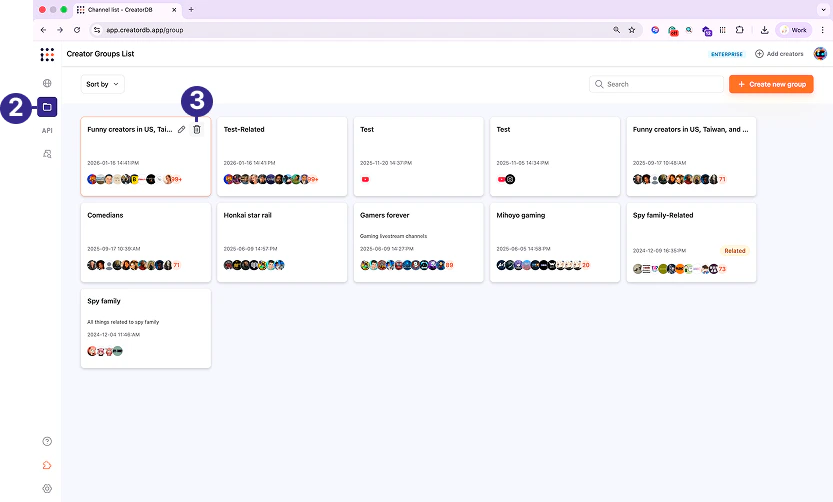
1. Log in to CreatorDB.

2. Click **Group**.

3. Select a group and click the delete icon. <br />
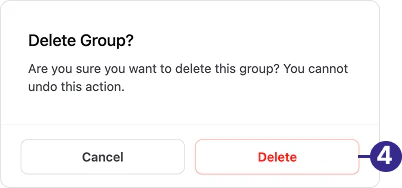
   A confirmation window appears.

   <Frame>
     <img src="https://mintcdn.com/creatordb-589c46f5/W-4rWHs9LdhrgkZ1/creatordb_app/user_guides/images/20260210_creatordb_user_guide/Frame_1.png?fit=max&auto=format&n=W-4rWHs9LdhrgkZ1&q=85&s=53c47659a17084d7bb806b74e643b839" alt="Delete confirmation window" width="833" height="502" data-path="creatordb_app/user_guides/images/20260210_creatordb_user_guide/Frame_1.png" />
   </Frame>

4. Click **Delete**.

   <Frame>
     <img src="https://mintcdn.com/creatordb-589c46f5/1qbXt1aF4MuKbg8e/creatordb_app/user_guides/images/20260210_creatordb_user_guide/Group_434.png?fit=max&auto=format&n=1qbXt1aF4MuKbg8e&q=85&s=193b0d362a7939e6f3bf0e733fb276c0" alt="Deleted group" width="402" height="188" data-path="creatordb_app/user_guides/images/20260210_creatordb_user_guide/Group_434.png" />
   </Frame>

## Downloading creators in a group

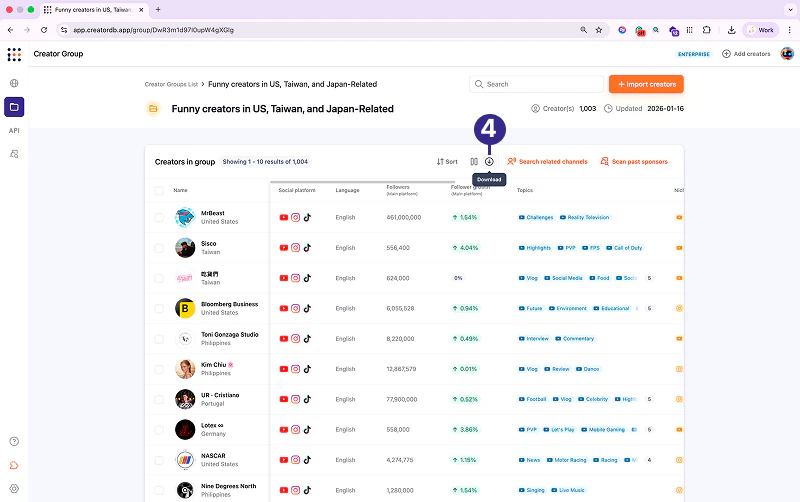
<Note>
  The downloaded creator’s profile data will be in .csv format.
</Note>

1. Log in to CreatorDB.

2. Click **Group**.

3. Select a group.

   <Frame>
     <img src="https://mintcdn.com/creatordb-589c46f5/M0s7g-bE8-r_Bv1t/creatordb_app/user_guides/images/20260210_creatordb_user_guide/Group_341.png?fit=max&auto=format&n=M0s7g-bE8-r_Bv1t&q=85&s=088007c6626985dc2b6373a8ad84e958" alt="Selected group" width="831" height="502" data-path="creatordb_app/user_guides/images/20260210_creatordb_user_guide/Group_341.png" />
   </Frame>

4. Click **Download**. <br />
   The data of all creators in the group will be downloaded.
   <Frame>
     <img src="https://mintcdn.com/creatordb-589c46f5/M0s7g-bE8-r_Bv1t/creatordb_app/user_guides/images/20260210_creatordb_user_guide/Group_360.png?fit=max&auto=format&n=M0s7g-bE8-r_Bv1t&q=85&s=dd23e68a1c302fcc93682eb8830c1cc4" alt="Downloaded creators data" width="800" height="502" data-path="creatordb_app/user_guides/images/20260210_creatordb_user_guide/Group_360.png" />
   </Frame>