> ## Documentation Index
> Fetch the complete documentation index at: https://docs.creatordb.app/llms.txt
> Use this file to discover all available pages before exploring further.
# Quickstart
> Start getting creator data within a few minutes
The following instructions will walk you through making an API call to the CreatorDB server to get a YouTube creator's data.
## Before you start
To test out CreatorDB API 3.0, please contact our sales team to obtain the required credentials.
1. Get an API key. For details, see [Authentication](https://docs.creatordb.app/api-v3/authentication).
2. Make sure you have [curl](https://curl.se/) installed on your device.
## How to get a YouTube creator's data
Your API call must contain the following:
* **A host**: The host for CreatorDB API v3 requests is `https://apiv3.creatordb.app/`.
* **An Authorization header**: The authorization header of the API call must include an [API key](https://docs.creatordb.app/api-v3/authentication).
* **A request**: To retrieve data via the HTTP method `GET`, submit your payload in JSON. You must include the YouTube channel's ID in the request parameter.
You can install a Chrome extension to retrieve YouTube channel ID information. Visit the [Chrome Web Store](https://chromewebstore.google.com/category/extensions) for details.
CreatorDB recommends retrieving creator data using our [API reference](https://docs.creatordb.app) or an API platform like [Postman](https://www.postman.com/) for a better user experience and for a cleaner data layout.
If you prefer using AI agents and prompts to get CreatorDB API data, please see the following guides:
* [Setting Up the CreatorDB MCP Connector](/mcp-server/setting-up-the-creatordb-mcp-connector)
* [Setting Up the CreatorDB Agentic Skills](/mcp-server/setting-up-creatordb-agentic-skills)
### Using the CreatorDB API reference
If you have never used an API reference before, follow the instructions below:
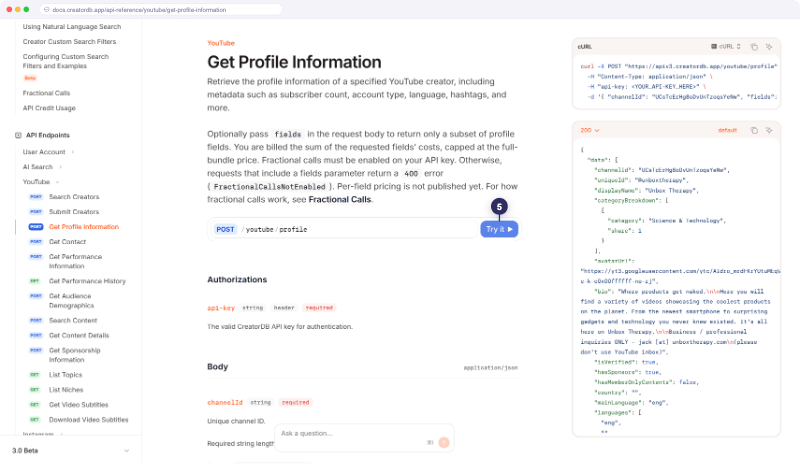
1. Go to the [CreatorDB API documentation](https://docs.creatordb.app).
2. Expand **API Endpoints**.
3. Click **YouTube**.
4. Select **Get profile information**.
5. Click **Try it**.
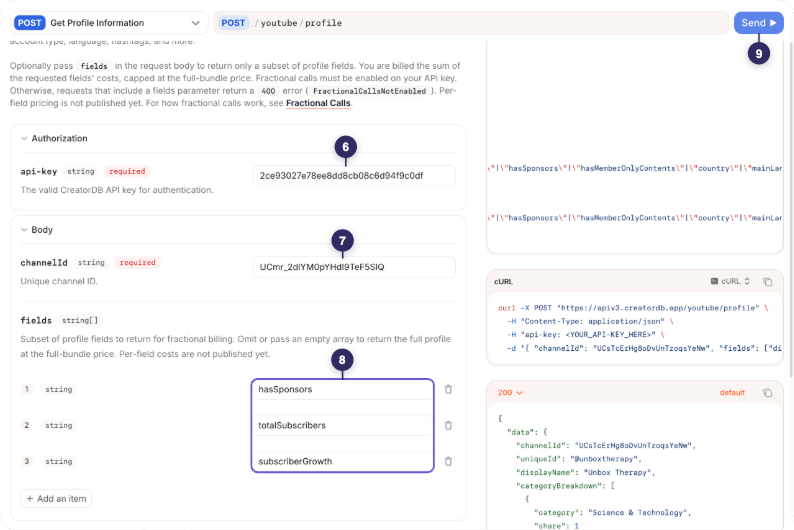
 6. Copy and paste your API key into the **api-key** field.
7. Copy and paste the YouTube channel ID into the **channelId** field.
8. Optionally, if you want to make a fractional call, enter the accepted `fields`. For details, see [Fractional Calls](https://docs.creatordb.app/api-v3/fractional-calls).
To add more fields, click **Add an item**.
9. Click **Send**.
6. Copy and paste your API key into the **api-key** field.
7. Copy and paste the YouTube channel ID into the **channelId** field.
8. Optionally, if you want to make a fractional call, enter the accepted `fields`. For details, see [Fractional Calls](https://docs.creatordb.app/api-v3/fractional-calls).
To add more fields, click **Add an item**.
9. Click **Send**.
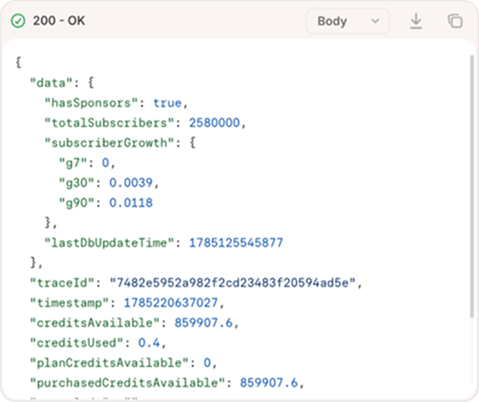
The response is displayed in the top right corner.
 ### Calling the CreatorDB API
If you are a developer and prefer using the Command Line Interface (CLI) to make API calls, follow the instructions below:
```curl theme={null}
curl -X POST "https://apiv3.creatordb.app/youtube/profile" \
-H "Content-Type: application/json" \
-H "api-key: " \
-d '{ "channelId": "UCsTcErHg8oDvUnTzoqsYeNw", "fields": ["displayName", "country"] }'
```
1. Copy the curl example.
2. Paste the curl call into a text editor like Visual Studio Code.
3. In the `api-key` header section, replace `<>` with your API key.
4. In the body section, replace the `channelId` with a YouTube creator's channel.
5. Optionally, if you want to make a fractional call, replace `fields` with accepted parameters. For details, see [Fractional Calls](https://docs.creatordb.app/api-v3/fractional-calls).
6. Copy the code and paste it into your terminal.
7. Press **Enter**.
### Calling the CreatorDB API
If you are a developer and prefer using the Command Line Interface (CLI) to make API calls, follow the instructions below:
```curl theme={null}
curl -X POST "https://apiv3.creatordb.app/youtube/profile" \
-H "Content-Type: application/json" \
-H "api-key: " \
-d '{ "channelId": "UCsTcErHg8oDvUnTzoqsYeNw", "fields": ["displayName", "country"] }'
```
1. Copy the curl example.
2. Paste the curl call into a text editor like Visual Studio Code.
3. In the `api-key` header section, replace `<>` with your API key.
4. In the body section, replace the `channelId` with a YouTube creator's channel.
5. Optionally, if you want to make a fractional call, replace `fields` with accepted parameters. For details, see [Fractional Calls](https://docs.creatordb.app/api-v3/fractional-calls).
6. Copy the code and paste it into your terminal.
7. Press **Enter**.
The creator's data is returned.
To get multiple creators' account data, CreatorDB recommends writing a script or code that can asynchronously retrieve multiple creators' data at the same time.